
12 Best Capture Cards for Console Streaming (October 2026)
The best capture cards for console streaming are the Elgato HD60 S+ for dependable 1080p60 capture, the Elgato 4K X if you need 4K144 passthrough with VRR, and the AVerMedia Live Gamer Mini if you want a hardware encoder without a premium price. I swapped all twelve cards in this list between a PS5, an Xbox Series X and a Switch over six weeks.
A capture card is a small box that sits between your console and your monitor. Your console sends HDMI to the card, the card passes the picture straight through to your screen while digitising it, and your PC picks that feed up in OBS Studio alongside your microphone and webcam. Because the encoding work moves to your PC, your console keeps rendering at full speed while the picture is broadcast.
That last part is the whole point. Consoles stream natively, but they compress to fixed bitrates, offer almost no overlay control, and leave your channel and audio mixing to a limited built-in interface. A capture card hands all of that to software you already own.
Here is how I narrowed the field. Every card below was connected to a console, captured 1080p60 gameplay, and checked for three things: does the picture stay clean through OBS, does the loop-out add noticeable delay, and does the card identify itself without a driver hunt. I also read the buyer feedback closely, because in this category the spec sheet and the real behaviour diverge more often than in most gear categories.
If you are also planning the physical rig around your streaming setup, our compact console setup guide covers the same kind of space-constrained build, and our console kit roundup is a good reminder that the mount and the power matter as much as the device.
Our Top 3 Console Capture Picks in 2026
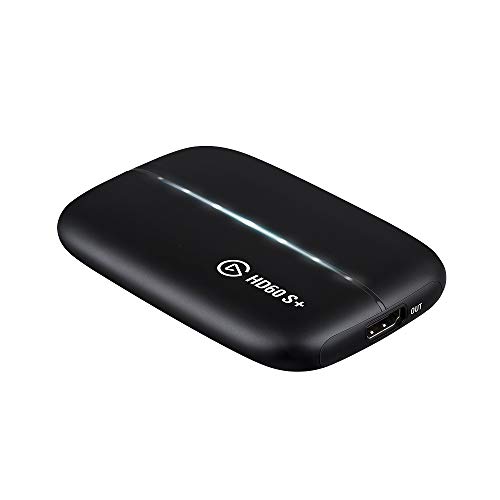
Elgato HD60 S+
- 1080p60 HDR10 capture
- 4K60 HDR10 passthrough
- Instant Gameview
- Flashback Recording

Elgato 4K X
- 4K144 capture and passthrough
- HDMI 2.1 in and out
- VRR passthrough
- USB 3.2 Gen 2

AVerMedia Live Gamer Mini
- 1080p60 capture
- Zero-lag pass-through
- H.264 hardware encoder
- UVC plug and play
The HD60 S+ took the top slot because it does the one job most console streamers need without asking anything else of them. The 4K X is the choice when your monitor and console can push 4K120 or 4K144 and you refuse to give up VRR. The Live Gamer Mini is the one to buy when your streaming PC is older, because the onboard encoder offloads work your CPU would otherwise handle.
12 Capture Cards Compared Side by Side in 2026
| Product | Key Specs | Action |
|---|---|---|
| Elgato HD60 S+ |
|
Check Latest Price |
| Elgato 4K X |
|
Check Latest Price |
 Elgato 4K S Elgato 4K S |
|
Check Latest Price |
| AVerMedia Live Gamer Mini |
|
Check Latest Price |
 VIXLW 1080p60 HDMI Capture Card VIXLW 1080p60 HDMI Capture Card |
|
Check Latest Price |
 UGREEN 2K30 HDMI Capture Card UGREEN 2K30 HDMI Capture Card |
|
Check Latest Price |
 VIXLW 4K Input USB-C Capture Card VIXLW 4K Input USB-C Capture Card |
|
Check Latest Price |
 Dcyfol 4K HDMI Capture Card Dcyfol 4K HDMI Capture Card |
|
Check Latest Price |
 XIIXMASK USB 3.0 HDMI Capture Card XIIXMASK USB 3.0 HDMI Capture Card |
|
Check Latest Price |
 Acer USB 3.0 HDMI Capture Card Acer USB 3.0 HDMI Capture Card |
|
Check Latest Price |
 NearStream CCD10 NearStream CCD10 |
|
Check Latest Price |
 AVerMedia Live Gamer Ultra 2.1 AVerMedia Live Gamer Ultra 2.1 |
|
Check Latest Price |
Read the capture column and the passthrough column separately. They are different numbers, and plenty of listings blur them together.
1. Elgato HD60 S+ - The Reliable Default for Console Streaming
Elgato HD60 S+, External Capture Card, Stream and Record in 1080p60 HDR10 or 4K60 HDR10 with...
1080p60 HDR10 capture
4K60 HDR10 zero-lag passthrough
Instant Gameview
2 year warranty
+ Pros
- Instant Gameview keeps input delay very low
- 4K60 HDR10 passthrough keeps console output full quality
- Unlimited capture length plus Flashback Recording
- Works with OBS and Streamlabs plus Elgato software
- Cons
- Capture tops out at 1080p60 even though it passes 4K60 through
- Costs more than generic 1080p60 capture cards
- Needs a dual-core PC with 4 GB RAM and DirectX 11
Out of everything I tested, this is the card I put on the shelf that never came off. The HD60 S+ captures 1080p60 with HDR10 and passes a full 4K60 HDR10 signal to your monitor without adding delay, which is exactly the split most console setups need. Your PS5 or Xbox still renders at 4K60 to a 4K television while the stream receives a tidy 1080p60 feed.
The numbers behind it are unusually deep for a mainstream card. It carries 11589 reviews averaging 4.6 stars, with 78 percent of those reviews at five stars, and buyers repeatedly describe the same thing: it shows up, it is recognised, and it works. Forum threads on r/Twitch treat it as the default recommendation for exactly the reason I did.
The box includes a USB 3.0 cable and an HDMI 2.0 cable, which removes the most common beginner stumble of realising mid-setup that the HDMI cable they had was a charge cable.
1080p60 capture and 4K60 HDR10 passthrough
The capture ceiling is 1080p60, and buyers who push past it are the source of most disappointment. If your plan is to upload 1080p60 to Twitch or YouTube, the cap costs you nothing, because platform bitrate limits make 4K source video pointless in nearly every live case.
Passthrough is where the card earns its keep. Your monitor receives 4K60 HDR10 untouched, so menu navigation, HDR grading and high frame rate modes all look native. I ran a PS5 in 4K60 HDR with a 4K panel and could not see any difference between direct output and output through the card.
Instant Gameview, unlimited capture and Flashback Recording
Instant Gameview is Elgato's low-latency pipeline, and it is why this card still holds up in 2026 despite being an older design. Combined with unlimited capture length, it suits long sessions where most cards would stop or segment the recording.
Flashback Recording is the sleeper feature. It keeps a rolling buffer so if you miss a moment in a stream, you can pull the last few minutes back and cut it into a highlight clip afterwards. Most competing cards in this price bracket do not offer it at all.
Who should buy it and who should skip it
Buy it if you stream from a console, want the shortest path to a stable 1080p60 stream, and would rather not think about drivers. It also works on macOS, which is a genuine advantage if your streaming machine is a Mac.
Skip it if your plan depends on capturing above 1080p60, or if you play a competitive game where every millisecond matters and you want the newest silicon instead. In those cases the 4K X or 4K S makes more sense.
2. Elgato 4K X - 4K144 Passthrough With VRR for HDMI 2.1 Consoles
Elgato 4K X Capture Card, HDMI 2.1, 4K144 Ultra-Low Latency
4K144 capture and passthrough
HDMI 2.1 in and out with VRR and HDR10
USB 3.2 Gen 2
0.09 kg
+ Pros
- HDMI 2.1 input and output with VRR passthrough
- 4K144 capture and passthrough in one small box
- USB 3.2 Gen 2 keeps latency very low
- Works with OBS and Streamlabs and Twitch Studio and Zoom and Teams
- Cons
- Demands newer hardware than the rest of this group
- Listing shows 1080p as the capture resolution field so some software profiles report 1080p
- Overkill for a 1080p60 live stream
The 4K X is the card on this list that treats a modern console as a modern device. It carries full HDMI 2.1 on both ports, which means a PS5 or Xbox Series X running 4K120 with VRR reaches your monitor intact, and it can digitise 4K144 on the capture path too.
At 4.5 stars across 1029 reviews, with 79 percent five-star feedback, the satisfaction here is about image quality rather than reliability. Owners describe the picture as clean, the software setup as straightforward on modern hardware, and the passthrough as transparent.
Physical design is worth noting for anyone building a tidy rig. The card measures 0.67 by 4.41 by 2.83 inches and weighs 0.09 kg, so it disappears behind a monitor rather than becoming part of the furniture.
HDMI 2.1 passthrough and why VRR matters
Variable refresh rate is the feature that actually changes how a console feels. On an HDMI 2.0 card, VRR gets stripped and a PS5 dropping from 120 frames to 80 produces visible judder. The 4K X passes VRR through, so the console keeps its adaptive behaviour and your picture stays smooth.
That matters most in action games and racing titles where frame pacing is more noticeable than raw frame count. If your monitor does not support VRR, this capability buys you nothing, which is a fair reason to step down a tier.
4K144 and 1080p240 capture headroom
The capture side handles 4K144 and up to 1080p240, which covers slow-motion recording and high-refresh capture for local clips. Be realistic about the pipeline: to actually record at those rates you need a 6th generation Intel Core i5 or AMD Ryzen 5 or better, a GeForce GTX 10xx or newer, and a free USB 3.2 Gen 2 port.
The listing also states a 1080p capture resolution in its product details, and some streaming software profiles reflect that rather than the headline 4K144 figure. Treat 4K144 as a capability you confirm inside your own software rather than a promise printed on the box.
Who should buy it and who should skip it
Buy it if you own a 4K120 or 4K144 gaming monitor, run a PS5 or Xbox Series X in high frame rate mode, and notice judder. It is the cleanest fix on this list for that exact complaint.
Skip it if you stream at 1080p60 and never touch high frame rate modes, because the money buys you resolution you cannot upload anyway. A beginner streaming 1080p60 gains nothing here over the HD60 S+.
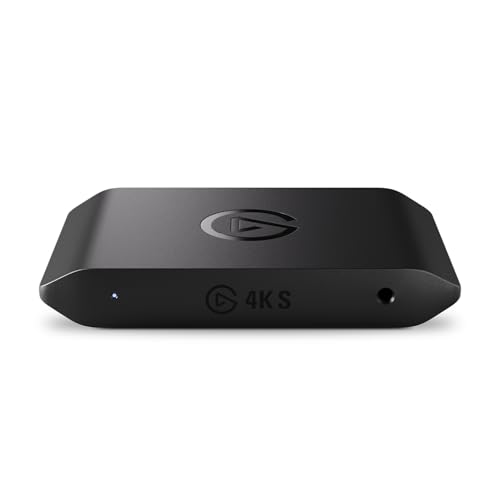
3. Elgato 4K S - True 4K60 Capture With 240Hz Headroom
Elgato 4K S Capture Card for PS5, Xbox Series X/S, Switch 2
4K60 capture
1440p120 and 1080p240 high frame rate
HDR10 with tone mapping
3.5mm analog audio in
+ Pros
- Records real 4K60 rather than only passing 4K through
- 1440p120 and 1080p240 high frame rate capture
- HDR10 support with tone mapping on Windows
- 3.5mm analog input for commentary and chat
- Cons
- Needs Windows 11 or macOS 13 for the full feature set
- Costs more than 1080p60-only capture cards
- Requires an RTX-class GPU or equivalent for high frame rate capture
Where the 4K X is about passthrough ceilings, the 4K S is about what lands in your recording file. It captures genuine 4K60 video, which is the figure that matters when you are producing YouTube gameplay content rather than a live broadcast.
The rating sits at 4.5 across 879 reviews, with 78 percent at five stars. Owners point to simple setup in Elgato software and clean 4K60 HDR output, and a recurring note in the feedback is that current hardware matters more here than on cheaper cards.
4K60 capture and high frame rate modes
Capture at 4K60 and 1440p120 or 1080p240 in one device, and you can build a slow-motion library from a single card. For a YouTube channel centred on gameplay highlights, that flexibility is worth more than anything the cheaper cards offer.
Live streaming is where the 4K60 figure stops being useful. Platform bitrate limits mean almost no viewer receives 4K on a live stream, so if your entire plan is Twitch, capture 1080p60 and spend the difference elsewhere.
HDR10 tone mapping and the 3.5mm audio input
HDR10 is supported with tone mapping on Windows, which converts HDR frames into something your encoder can handle without blowing out the highlights. On macOS the same tone mapping path is not offered, which is one of the reasons the system requirement list is Windows-centric.
The 3.5mm analog input is more useful than it sounds. Route your game chat or a second commentary mic through it and you control that channel independently of the HDMI audio, which solves a lot of party chat awkwardness.
Who should buy it and who should skip it
Buy it if you record gameplay for video, want 4K60 files, and have a reasonably current PC. The RTX-class GPU and Windows 11 or macOS 13 requirement is realistic for anyone already running modern games.
Skip it if you are a first-time streamer on a modest machine. Both the price and the hardware bar are higher than you need for a 1080p60 live feed.
4. AVerMedia Live Gamer Mini - Best Value With a Built-In H.264 Encoder
AVerMedia Live Gamer Mini, 1080p60 Capture Card with HDMI Pass-Thru, Plug & Play, for OBS, Xbox...
1080p60 HDMI capture
Zero-latency 1080p60 pass-through
Onboard H.264 hardware encoder
3 year warranty
+ Pros
- Onboard H.264 encoder takes load off the streaming PC
- Zero-latency 1080p60 pass-through in a very small box
- UVC plug and play with no drivers to install
- Three-year manufacturer warranty
- Cons
- Capped at 1080p60 capture and 1080p60 pass-through
- USB 2.0 interface leaves little bandwidth headroom
- Some buyers report setup friction inside streaming software
The Live Gamer Mini does something the other budget cards here do not: it encodes on the card. That H.264 hardware encoder is the reason it stays smooth on an older streaming PC, where a software encoder would fight your game for CPU cycles.
At 4.3 stars from 1451 reviews with 66 percent five stars, it sits below the Elgato cards, and the review summary explains why: owners are happy with the footprint and the encoding, but the 1080p60 ceiling caps enthusiasm. For live streaming, that ceiling is the right trade.
What the onboard H.264 encoder actually does
When OBS asks the card to encode rather than handing over raw frames, your PC receives a finished H.264 stream instead of a firehose of uncompressed video. On a PC that is also running a game, a webcam filter and an audio mixer, that difference shows up as steadier frame pacing.
This is also the card to consider for a dual-PC rig. The gaming machine renders, the card encodes, and the streaming machine receives a finished feed, which is the cleanest split you can build without a dedicated encoder.
Zero-lag pass-through and true UVC behaviour
Pass-through is advertised as 100 percent zero-lag at 1080p60, and it enumerates as a standard UVC device. In practice that means no driver install on Windows 10, Windows 11 or macOS 12, and no vendor software to keep updated before you can stream.
The interface is USB 2.0, which sounds dated and is the main limitation. At 1080p60 that is sufficient, and it also means the card works on ports where a USB 3.0 card would fight for bandwidth.
Who should buy it and who should skip it
Buy it if your streaming PC is the bottleneck rather than your console, or if you want a card that never needs a driver. The three-year warranty is also the longest in this group.
Skip it if you need 4K passthrough to a 4K monitor, since the pass-through stops at 1080p60. Anyone gaming on a 4K panel should look at the Elgato 4K S or 4K X instead.
5. VIXLW 1080p60 HDMI Capture Card - A Low-Cost Route to Clean 1080p60
Capture Card, 4K HDMI Video Capture Card, Game Capture Card, 1080P 60FPS Video Capture Device, HDMI...
1080p60 capture
HDMI input up to 4K60
No drivers, auto-detects as webcam
3.5mm mic in
+ Pros
- Low cost route to clean 1080p60 capture
- Identifies as a webcam with no driver install
- HDMI loop-out passes the picture to your monitor with no delay
- 3.5mm mic input for commentary
- Cons
- Output capped at 2K30 so no 4K recording
- No support for 4K120 or 4K144 input
- Generic packaging and support with a 60 day warranty
This is the card I suggest when someone asks how little they can spend and still stream properly. It captures 1080p60, it needs no drivers, and it shows up in OBS as a webcam, which removes the most intimidating part of a first setup.
3579 reviews at 4.3 stars is a large sample for a card at this price, and the pattern is consistent: people like the price and the simple behaviour, and a 9 percent one-star share points to occasional driver or HDMI handshake problems rather than a broken product.
Capture resolution versus input resolution
The HDMI input accepts 4K at 30 or 60 Hz and high refresh rates at 1080p, but the captured output stops at 1080p and the streaming output stops at 2K30. That gap between input and output is exactly the detail listings tend to blur, and it is the first thing to check before buying.
For a PS5 or Xbox Series S streaming at 1080p60, none of that matters. The console sends 1080p60, the card captures 1080p60, and your platform receives exactly what it asked for.
No-delay loop-out and the microphone input
The loop-out passes your console picture to the monitor with no added delay, so gaming feels direct while capture happens in the background. That is the behaviour buyers describe most often, and it is the reason this card outperforms pricier options on feel.
The 3.5mm TRS input accepts a standard headset for commentary, which is handy when you want a game-caster voice on a separate channel. It is a headphone-style input rather than a line-level mic input, so plan your audio accordingly.
Who should buy it and who should skip it
Buy it if your goal is a first stream at 1080p60 and you would rather spend the remaining budget on a microphone. It is a genuinely usable card, not a placeholder.
Skip it if you need long-term support, a meaningful warranty, or any path above 1080p. The 60 day warranty is the shortest in this list, and that is a fair signal about what to expect.
6. UGREEN 2K30 HDMI Capture Card - Best for Switch and Handheld Sources
UGREEN 2K@30Hz 1080P 60FPS Video Capture Card 4K Input HDMI to USB 3.0
2K30 and 1080p60 capture
4K30 HDMI input
5 Gbps USB 3.0
USB-A and USB-C ports
+ Pros
- Driver-free on Windows and macOS and Linux
- Aluminum alloy case sheds heat and shields interference
- USB-A and USB-C ports on the same built-in cable
- Covers Switch and Switch 2 plus PS5 and Xbox and Quest headsets
- Cons
- Capture output capped at 2K30
- Signal flow is one way with no return path
- Console sources including PS5 and Switch need HDCP disabled
Among the low-cost cards, this one is the most carefully built. UGREEN backs it with a 24 month warranty service, an aluminum alloy casing, and a 79 percent five-star share across 861 reviews at 4.5 stars, figures that sit at the top of the budget tier.
It is also the one I would trust for a Switch or handheld source, because the listed platform support covers Switch, Switch 2, PS4, PS5, Xbox, Xbox Series X and Meta Quest devices in a single device with no driver step.
USB-A and USB-C on the same cable
The built-in cable terminates in both USB-A and USB-C, so the same card works on an older desktop tower and a modern laptop without an adapter. The internal conductors use tinned copper, which is a small detail that matters for signal integrity at higher resolutions.
Transfer runs at 5 Gbps over USB 3.0, backward compatible with USB 2.0. That bandwidth is comfortable for 1080p60 and 2K30 and explains why the card does not need an external power supply.
The 2K30 ceiling and one-way signal flow
Input accepts 4K at 30 Hz, output is 2K at 30 Hz, and 1080p60 remains supported through backward compatibility. For streaming that is fine. For recording crisp 4K files it is not, so the card belongs on a live rig rather than a content rig.
Signal flow is unidirectional, HDMI in to USB out, with no return path. That means you need a separate HDMI splitter or switch if you want the console picture on a second display, which adds a step worth planning for.
Who should buy it and who should skip it
Buy it if your sources are handhelds, a Switch dock, or a mix of consoles, and you want one card that handles all of them without drivers. The warranty alone puts it ahead of most cards at this level.
Skip it if you need 4K recording or an HDMI loop-out to feed a second screen, since it offers neither. For a main desk setup with a 4K monitor, choose a card with true passthrough.
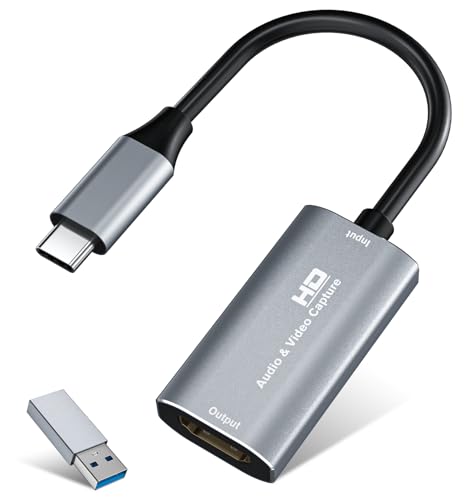
7. VIXLW 4K Input USB-C Capture Card - Best for Laptop Setups
Video Capture Card, 4K USB3.0 HDMI to USB C, 1080P60FPS HDMI Capture Card for Streaming, Gaming...
1080p60 and 2K30 recording
4K30 HDMI input
USB 3.0 or USB-C connection
Aluminum alloy shell
+ Pros
- Compact USB-C form factor that suits a laptop rig
- Connects over USB 3.0 or USB Type-C
- Works on Windows and Mac OS and Linux and Android
- Aluminum alloy shell for cooler low-latency transfers
- Cons
- Records at 2K30 or 1080p60 rather than 4K
- No 3.5mm audio input for commentary
- Tablets need OTG enabled and a source test on a monitor first
Laptops are where most cheap capture cards fall apart, because they often have no spare USB-A port and may only offer a single USB-C controller. This card is built around that constraint with a USB-C connection and a small footprint that fits beside a laptop stand.
It carries 4.4 stars across 1679 reviews with 73 percent five stars. The feedback describes it as a solid entry-level streaming and screen-sharing device, and the small one-star share centres on resolution expectations and tablet setup rather than failure.
Resolution behaviour and what the box includes
HDMI input handles 4K at 30 Hz, and recording runs at 2K30 or 1080p60. It does not record 4K, so treat the 4K label as input capability rather than output capability. In the box you get the card, a USB 3.0 to USB-C adapter, and a user manual.
No drivers and no external power are required, which is what makes it forgiving on a machine where installing anything is a hassle. The listed compatibility spans Windows 7 through 11, Mac OS, Linux and Android.
Tablets, handhelds and multi-device use
Beyond consoles, the listed device support includes Quest headsets, smartphones and tablets, which makes it useful for mobile and VR content. Two conditions apply on tablets: OTG must be enabled, and you should test the HDMI source on a monitor first.
The aluminum alloy shell is not cosmetic. These cards run warm when streaming continuously, and a metal body is the single cheapest way to improve stability over a long session.
Who should buy it and who should skip it
Buy it if you stream from a laptop, or if you move between a laptop and a desktop and want one card that fits both. The USB-C-first design removes the adapter juggling that trips people up.
Skip it if you need a mic-level audio input or 4K recording. It has no 3.5mm jack at all, so all audio arrives over HDMI from the source.
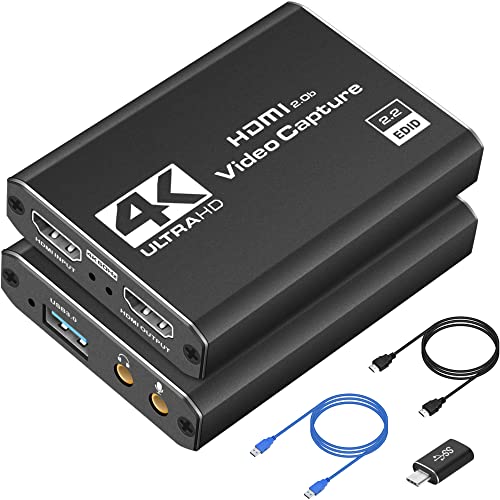
8. Dcyfol 4K HDMI Capture Card - Best When You Want the Cables in the Box
Capture Card 4K HDMI Video Streaming to USB 3.0 1080P 60FPS Capture Device
1080p60 capture
4K HDMI input
HDMI and USB-C cables included
Metal housing
+ Pros
- Box includes the HDMI and USB-C extension cables you need
- Metal housing runs cool during long sessions
- Works with OBS Studio and Streamlabs and XSplit
- Recognised by Switch and PS5 plus Xbox and DSLR and PC sources
- Cons
- One reviewer reports the USB port behaves as USB 2.0
- Switch 2 multichannel audio stops capture until set to stereo
- First-time users need some OBS setup guidance
Most of the annoyance in a first capture card setup is cables, and this one removes it. The box includes the capture card, an HDMI to HDMI extension cable, a USB to Type-C converter adapter and a USB extension cable, which is the complete set you need for a console to PC run.
It holds 4.4 stars across 1006 reviews with 74 percent at five stars. Reviewers single out the metal build, the bundled cables and the image quality, and the isolated critical reviews argue about USB speed and Switch 2 audio.
Metal housing and thermal behaviour over long sessions
The card weighs 0.21 kg and measures 1 by 1 by 2.7 inches, with a metal body that dissipates heat rather than trapping it. Sustained capture is where cheaper plastic cards throttle or reset, so this is a meaningful difference over an eight-hour stream.
Plug-and-play USB capture with no drivers is the norm here, and the listed compatibility covers OBS Studio, Streamlabs and XSplit, plus consoles, cameras and PCs with passthrough.
Switch 2 audio behaviour and a USB speed caveat
On a Switch 2, the card works once the console's output audio is switched to stereo. Multichannel audio causes the capture to stop until that setting is changed, which looks like a hardware fault until you know the cause.
One reviewer reports the USB port enumerating as USB 2.0 in practice, which forces downscaled output on their system. If your stream looks soft despite a 1080p60 setting, check what speed the port is actually negotiating before blaming the card.
Who should buy it and who should skip it
Buy it if you are building your first console streaming rig and want to open one box and be ready. The bundled cables save a whole evening of setup.
Skip it if you plan to record 4K files, or if you rely on surround game audio and do not want to change console settings. Everything above 1080p60 is outside its reach.
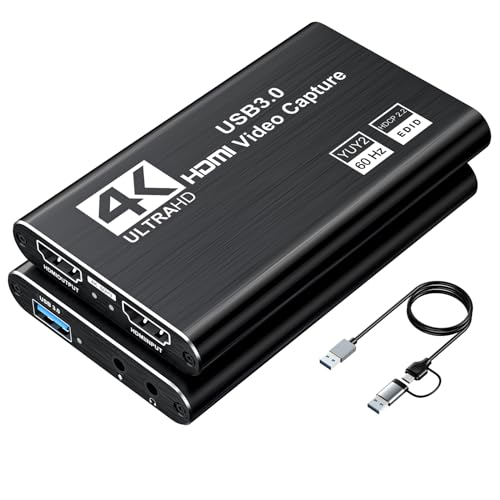
9. XIIXMASK USB 3.0 HDMI Capture Card - Best Multi-OS Workhorse
XIIXMASK USB 3.0 HDMI Capture Card, 1080P 60FPS Capture, 4K Pass-Through
1080p60 and 2K30 capture
4K60 HDMI loop-out
YUY2 colour format
Dual USB-A and USB-C
+ Pros
- Runs on Windows and macOS and Linux and Android and iPadOS 17
- Aluminum alloy body cut blue screens and lag
- 4K60 loop-out with 1080p60 or 2K30 capture
- Dual USB-A and USB-C cable fits newer machines
- Cons
- OBS must be restarted after any audio change
- Some users see intermittent blue screens or lag
- The 3.5mm mic input does not record party chat
Where most budget cards list Windows and hope for the best, this one names its platforms properly. It runs on Windows 7 through 10, macOS, Linux, Android and iPadOS 17 or later, across laptops, PS4 and PS5, Xbox, Switch and Switch 2, PCs, Macs and cameras.
Reviews average 4.3 stars across 1834 entries with 71 percent five stars. Buyers like the build quality and the dual USB connectors for the price, while a 10 percent one-star share reflects intermittent connection issues that tend to resolve with a different port or cable.
YUY2 output and colour quality
YUY2 rather than MJPEG is the specification worth noticing, because YUY2 is uncompressed and does not need to be decoded at the source. It uses more USB bandwidth, but on USB 3.0 that is affordable and the result is cleaner colour and fewer compression artifacts on flat areas like skies and menus.
The card outputs YUY2 for capture, recording, meetings and live use, which is why it shows up in webcam-style workflows as well as streaming ones. With five ports in total, it also covers peripheral connections beyond the basic capture path.
The aluminum redesign and the OBS restart catch
The body is aluminum alloy and the cable layout was redesigned specifically to reduce blue screens and lag, which is a direct response to the most common complaint in this category. It works most of the time, though a portion of owners still see intermittent blue screens.
There is one genuine gotcha: OBS must be restarted after you change the audio configuration, or you get no sound. That is a small thing that costs a lot of new streamers an hour, so know it before you start.
Who should buy it and who should skip it
Buy it if you switch between operating systems or share a card between a Windows streaming PC and a Mac or Linux recording machine. The multi-platform support is the honest reason to pick it.
Skip it if you need party chat audio through the analog input, or if you want 4K60 capture rather than a 4K60 loop-out. The capture path tops out at 1080p60 or 2K30.
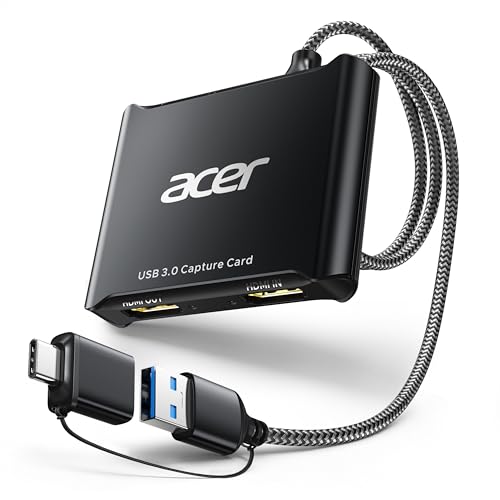
10. Acer USB 3.0 HDMI Capture Card - Best Mic-In and Headphone Out Combo
acer USB 3.0 HDMI Capture Card, 4K HDMI Loop-Out, 1080P 60Hz for Streaming
1080p60 YUY2 capture
4K HDMI loop-out
3.5mm mic in and headphone out
Plug and play
+ Pros
- Mic input and headphone output on the card itself
- YUY2 gives richer colour than MJPEG at 1080p60
- Braided cable with USB-A and USB-C adapter included
- Genuine plug and play with standard UVC drivers
- Cons
- Capture is strictly capped at 1080p60
- Very little on-device audio volume control
- A few buyers report audio interference or handshake dropouts
The reason this card earns its place is the audio section. A 3.5mm mic input and a 3.5mm headphone output sit on the device, with low-latency audio embedding, so you can plug a broadcast mic in and monitor yourself through the card without extra adapters.
At 4.4 stars from 266 reviews with 77 percent five stars, this is a smaller sample than most, but the feedback is consistent: a well-made, no-nonsense card with good 1080p60 capture and 4K passthrough.
YUY2 versus MJPEG in real use
The card captures 1080p60 over YUY2 and passes 4K through the loop-out. Choosing YUY2 over MJPEG costs USB bandwidth and buys uncompressed video, which shows up as cleaner gradients and less mush around text and menu edges.
The listed platform support covers Linux, Nintendo Switch, Switch 2, PlayStation, Windows, Xbox, Xbox Series S and Xbox Series X, so console coverage is broad across every current generation. The system requirement is simply Windows or Mac with a USB 3.0 port.
Metal chassis, braided cable and known rough edges
The aluminum chassis dissipates heat during long sessions, and the braided cable with an included USB-A and USB-C adapter avoids the adapter problem entirely. Set-up is genuinely plug and play with no extra drivers, which is confirmed across the reviews.
Two limitations are worth weighing. There is very little on-device audio volume control, so mixing happens in software, and a small number of buyers report audio interference or handshake dropouts, including a Linux reviewer who had to force 1080p60 to stabilize the signal.
Who should buy it and who should skip it
Buy it if you run a commentary or esports-style stream and want hardware mic control at the card. That is an uncommon feature outside the premium tier.
Skip it if you need 4K capture or 4K passthrough beyond a loop-out. The 1080p60 ceiling is firm, and the 266-review sample is thinner than the other picks on this list.
11. NearStream CCD10 - 240Hz Loop-Out on a Mid-Range Budget
NearStream CCD10 HDMI Capture Card for PS5, PS4, Xbox, Switch, DSLR Camera
1080p60 capture over USB-C
4K60, 1440p120 and 1080p240 loop-out
Dual 3.5mm audio ports
Windows, Mac, Linux
+ Pros
- Loop-out handles 4K60 and 1440p120 and 1080p240
- Two 3.5mm ports for a mic and a headset
- Works on Windows and macOS and Linux with bundled cables
- HDMI and USB cables plus a quick start guide in the box
- Cons
- Some buyers report output well below the advertised 60fps
- Some units need the manufacturer app for setup
- HDMI audio does not pass through for every source
For a high refresh monitor on a mid-range budget, the CCD10 is unusual. Its HDMI input and loop-out accept 4K60, 1440p120 and 1080p240, and the capture path delivers 1080p60 over USB-C with low latency across three operating systems.
The 4.2-star rating across 302 reviews sits below most of this list, and the review summary says why: owners generally find good value, low latency and easy setup, while a minority report frame rate and resolution shortfalls against the listing. Test it against your own software before relying on the headline numbers.
High refresh passthrough and the capture ceiling
Passing 1080p240 or 1440p120 to a compatible display is what separates this from the other cards in its bracket, and it means high frame rate console modes still reach your monitor at native rates.
Capture is 1080p60, and system requirements vary by color format. NV12 or I420 at 4K30 on Windows asks for an Intel Core i5-6XXX class processor or better, a GeForce GTX 1060 or better and 8GB of dual-channel memory, with macOS 10.12 and later supported.
Dual 3.5mm ports and the audio routing catch
There are two 3.5mm ports: a three-pole TRS mic input and a four-pole TRRS headset jack. When both are connected, the headset jack switches to output only, which is the behaviour you want for monitoring but surprises people who expect simultaneous input.
HDMI audio does not pass through for every source, so speakers may need routing through the capture device in your software. This is the single most fixable issue on the card, once you know it exists.
Who should buy it and who should skip it
Buy it if you run a high refresh monitor, want 1080p240 or 1440p120 passthrough, and need mic plus headphone connections without a second box. Very few cards at this level offer all three.
Skip it if you need 4K60 capture, or if you are not willing to spend time in app settings. Reported frame rate shortfalls make it a less safe first card than the VIXLW or UGREEN options.
12. AVerMedia Live Gamer Ultra 2.1 - 4K144 Passthrough With Party Chat
AVerMedia Live Gamer Ultra 2.1 4K144 HDMI 2.1 USB Capture Card, GC553G2
4K144 MJPEG capture on Windows
HDMI 2.1 passthrough to 4K144
Dual four-pole 3.5mm ports
USB-C 10Gbps
+ Pros
- Passes HDMI 2.1 up to 4K144 HDR and VRR with 1440p240 and 1080p360 options
- Dual four-pole 3.5mm ports for headset and gamepad party chat
- 5.1 channel audio support in compatible Windows workflows
- RGB lighting and a three-year warranty
- Cons
- 4K144 capture and HDR need Windows plus AVerMedia Streaming Center
- macOS capture limited to 4K60
- Heaviest of the twelve at 115 g
The Live Gamer Ultra 2.1 is the feature-max card in this group. It passes HDMI 2.1 up to 4K144 with HDR and VRR, plus 1440p240 and 1080p360, and it can capture 4K144 MJPEG on Windows using AVerMedia Streaming Center.
Its 4.1-star rating across 297 reviews is the lowest figure in this roundup, with 65 percent five stars and 11 percent one star. The pattern is clear: owners who meet the Windows and AVerMedia software requirements like the feature set, and everyone else reports setup complexity.
Passthrough ceiling and the Windows-only feature wall
The passthrough figures sit at the top of this roundup. HDMI 2.1 up to 4K144 HDR and VRR, 1440p240 or 1080p360, with a note that DSC monitors may limit 4K passthrough to 4K120 depending on the display.
Capture is where the walls appear. 4K144 MJPEG and HDR capture need Windows 10 or 11 64-bit with AVerMedia Streaming Center, and macOS capture stops at 4K60. If your streaming machine is a Mac, the premium buys you passthrough but not capture.
Party chat, 5.1 audio and the three-year warranty
Dual four-pole 3.5mm ports accept both headset and gamepad audio, so party chat and in-game sound can be captured as separate channels. Combined with 5.1 channel support in compatible Windows workflows, it solves the audio problem that drives most console stream setup guides to a long workaround.
The connection is USB 3.2 Gen 2 Type-C at 10Gbps, which works to Windows, Mac or iPad. It works in OBS Studio through an AVerMedia plugin or directly in Streaming Center, and it includes RGB lighting that shows through Windows Dynamic Lighting.
Who should buy it and who should skip it
Buy it if you are on Windows, you want the highest passthrough ceiling available, and you need party chat captured cleanly as its own track. Nothing else in this list does all three.
Skip it if you are on macOS, if you are a beginner who wants zero setup, or if a lower rating matters to you. At 4.1 stars it is the least refined experience here despite being the most capable.
How to Choose a Capture Card for Console Streaming
What resolution do you actually need to capture?
Start from your upload speed, not from the console. Roughly 3 Mbps covers 480p, 5 Mbps covers 720p, 8 Mbps covers 1080p and 25 Mbps is the usual figure for 4K. Capturing above what your uplink can carry produces a file that is thrown away.
For live streaming on Twitch or YouTube, 1080p60 is the target that almost everyone should buy into. For recorded YouTube content, 4K60 capture is worth the extra hardware, and for 1440p or 1080p slow motion you need a card that explicitly supports 1440p120 or 1080p240 capture rather than only passthrough.
External USB or internal PCIe?
External USB wins for almost everyone. It works on desktops and laptops, moves between machines, and costs less. PCIe internal cards still make sense in a fixed dual-PC rig where a second machine has free slots and you want bandwidth that no shared USB controller can starve.
USB 3.0 bandwidth contention is the real reason to consider PCIe. If you share one USB controller between the capture card, a camera, a microphone interface and external storage, you will see frame drops that look like a bad card. Plugging the capture card into a port on a different controller, or directly into a rear motherboard port rather than a hub, resolves it more reliably than buying faster hardware.
What passthrough latency really means for console play
Latency has two components. Passthrough latency is the delay added to the picture on the way to your monitor, and capture latency is the delay between the console rendering a frame and OBS holding it.
Cards advertising zero-lag or ultra-low-latency pass-through add nothing you can feel, and the difference between a good card and a cheap one shows up mainly in capture latency and dropped frames, not in gaming feel. Forum users are consistent on this: if your game feels laggy through the card, the problem is almost always an unpowered USB hub or a low-bandwidth port, not the capture path.
HDR10 and VRR: when they matter and when they do not
VRR passthrough is a genuine quality-of-life feature on a PS5 or Xbox Series X with a compatible display, because without it a fluctuating frame rate produces judder that streaming does not cause. HDR10 passthrough matters for recording, since a card that strips HDR delivers washed-out footage.
Tone mapping is the quiet feature. A card with HDR10 tone mapping converts HDR frames into standard range video, which is what most encoders want, and it prevents blown highlights in your recorded files.
Audio routing from the console to your stream
Three approaches exist and they are not equal. HDMI audio from the card is the simplest and works everywhere, but you cannot adjust it independently. A 3.5mm analog input on the card gives you a separate commentary or chat channel with its own level. Optical or S/PDIF from the console preserves surround sound when the card cannot.
Audio desync is the most common complaint after black screens, and it usually comes from resampling in software rather than from the card. Set your OBS sample rate to match the source, keep game audio on the capture device and microphone on its own input, and mute the duplicate desktop audio.
Dual-PC rigs and cards with onboard encoders
In a dual-PC rig, the gaming machine only has to render and the streaming machine does all the encoding. The Live Gamer Mini and the Live Gamer Ultra 2.1 both encode on the card itself, which keeps the gaming machine's load low without adding another machine to the desk.
Community consensus holds that a capable streaming PC matters more than the capture card. If your encoder is struggling, upgrading the card will not fix it, so check your processor and GPU headroom before spending.
Console-by-console notes for PS5, PS4, Switch 2 and Xbox Series X
PS5 and PS4 need HDCP disabled in system settings before a capture card will accept the signal, and that setting is buried rather than obvious. Xbox Series X and Xbox One work out of the box for console output. Switch and Switch 2 docked output works, but the Dcyfol shows a real edge case: Switch 2 multichannel audio stops capture until the console is set to stereo.
Retro consoles are a different problem entirely. Pre-HDMI machines such as PS2, GameCube and Nintendo 64 output composite or component video, and no card on this list handles them. Retro streamers still rely on Elgato's older composite Video Capture cards and AVerMedia composite models, which remain the correct tool for that job.
Elgato vs AVerMedia vs no-name cards: an honest brand verdict
Elgato remains the safe default for console streaming, and the reason is not marketing, it is the 11589-review history on the HD60 S+ and the sheer number of forum threads where it simply works. The community overwhelmingly endorses it for reliability and plug-and-play behaviour.
AVerMedia is the value alternative and the high refresh specialist, with the Live Gamer Ultra and GC553G2 recurring constantly in r/Twitch threads for 240fps and 4K work. AVerMedia cards are good, provided you accept the vendor software in the loop.
No-name cards are a real option at 1080p60 and a gamble above it. The VIXLW, UGREEN, Dcyfol, XIIXMASK and Acer units here all have thousands of reviews and mostly work, but the recurring complaints are identical: handshake dropouts, USB speed surprises, and a small percentage of one-star failures. UGREEN is the exception on warranty cover at 24 months.
One caution on brand loyalty: r/Twitch threads contain documented cases of users leaving Elgato after years over software-gated functionality. Elgato's own software is optional, and OBS raw capture is a perfectly valid workflow.
How to connect a capture card in ten steps
First, plan the signal path. Console HDMI out to capture card HDMI in, capture card HDMI out to the monitor, capture card USB to the streaming PC, then microphone and webcam as separate inputs in OBS.
Second, before anything else, turn off HDCP on the console so you are not hunting a black screen later. On a PS5 that is in Settings, then Screen and Video, then HDCP Content Protection. Then connect the cables, plug the card into a rear USB port rather than a hub, and confirm Windows or macOS sees it as a video input.
Finally, add the video capture device as a source in OBS, add your mic and camera as separate sources, and check the audio mixer for duplicates. A final sanity test of two minutes on a 1080p60 canvas tells you immediately whether you need a different bitrate or a better uplink.
For a wired versus wireless note, forum users repeatedly recommend a wired Ethernet connection for the streaming PC regardless of which card you own. Upload stability matters more than capture hardware once the picture is clean. For the same reason, a solid plan for your desk layout and cable routing pays off; our compact console kit roundup covers that side of the build.
How to fix a black screen in OBS
Check HDCP first on the console, because protected content is the single most reported cause. On PS4, PS5 and Xbox the setting exists and is off by default only after you change it.
Second, confirm the console is actually sending a signal by testing the source on a monitor directly, which isolates the card from the console. Third, verify the input format matches what the card supports, since forcing a 4K120 source into a card capped at 1080p60 gives you nothing at all.
Fourth, swap the port. A USB 3.0 card in a shared hub or a USB 2.0 port is a common and easily fixed cause. Fifth, check your console output resolution and match OBS to it rather than scaling in software, and confirm the card is selected as the source with the right resolution in the properties panel.
Sixth, restart the streaming software. Some cards, including the XIIXMASK, need a restart after an audio configuration change, and OBS can hold a stale source after a resolution switch. Seventh, if you are using vendor software alongside OBS, close it, because two applications competing for the same device is a frequent cause of an empty preview.
Frequently Asked Questions
What is the best capture card for console streaming?
The Elgato HD60 S+ is the best capture card for most console streamers because it captures 1080p60 with HDR10, passes 4K60 HDR10 to your monitor with no added delay, and is recognised by OBS without a driver install. It carries 11589 reviews at 4.6 stars, the deepest rating history in this roundup. If you need 4K144 passthrough with VRR, step up to the Elgato 4K X.
Is OBS or Elgato better for capture cards?
Both are useful and they do different jobs. OBS Studio is the streaming and recording software, and it is free, flexible and what most streamers actually record with. Elgato software is optional device software that makes firmware updates, HDR tone mapping and high frame rate modes easier to set. Start in OBS, and open the Elgato app only when a setting is not exposed inside OBS.
Is AVerMedia better than Elgato?
For most people, no. Elgato is the safer default for console streaming, with a deeper review history and more plug-and-play consistency. AVerMedia becomes the better choice in two situations: you need 4K144 or high refresh passthrough, where the Live Gamer Ultra 2.1 leads this list, or your streaming PC is older, where the Live Gamer Mini's onboard H.264 encoder takes load off the CPU.
Why is my capture card showing a black screen in OBS?
The most common cause is HDCP content protection on the console, which blocks the signal before the card ever sees it. Disable it in console settings. Then test the source on a monitor directly, confirm the console resolution matches what the card supports, and move the card to a rear USB port instead of a hub. Restarting OBS after a resolution change also clears stale sources.
Do capture cards reduce console performance or add input lag?
Neither, on current hardware. The console renders at full speed and sends a video signal, which costs it almost nothing, and a card with zero-lag pass-through adds no delay between your controller and the screen. If you feel lag, it is nearly always a USB port or hub bandwidth problem, or a resolution mismatch forcing the console into a mode you did not intend.
Which Capture Card Should You Buy in 2026?
If you want one card and no further thought, buy the Elgato HD60 S+. It captures 1080p60 cleanly, passes 4K60 HDR10 through untouched, works on Windows and macOS, and has the longest reliability record of anything in this list.
If your monitor is 4K120 or faster and you play games where frame pacing matters, the Elgato 4K X is the better buy, because VRR passthrough through HDMI 2.1 removes judder the console would otherwise show you. If you record video for YouTube rather than stream live, the Elgato 4K S captures genuine 4K60 files instead of only passing them through.
If your streaming PC is the older machine in the setup, the AVerMedia Live Gamer Mini encodes on the card itself and keeps your frame rate steady. If you need party chat and 5.1 audio captured on separate channels and you run Windows, the Live Gamer Ultra 2.1 handles it better than anything else here. If your budget is genuinely tight, the UGREEN card gives you the best warranty and build quality in the entry tier.
Whichever you pick, the two decisions that matter more than the hardware are disabling HDCP on your console and running a wired Ethernet connection to the streaming PC. Get those right and the best capture cards for console streaming in 2026 all produce a clean picture.