
10 Best Document Scanners for Paperwork (October 2026)
Every household and small office eventually develops the same problem: a box of paper that will not stay filed. Receipts from three years of fuel purchases, warranty cards, a shoebox of invoices, a signed contract, a folder of tax forms that nobody wants to open but nobody can throw away. If you have searched for the best document scanners for paperwork, you are usually trying to convert that pile into something searchable, backed up and findable in seconds instead of something you keep re-stacking on the counter.
We tested the ten machines in this roundup against a deliberately unglamorous workload: mixed paper, stapled corners, thermal receipts that curl, plastic cards, and a few hundred pages of a backlog that had been sitting since last winter. We cared about four things more than anything on the spec sheet. Did paper feed without a fight. Did the finished PDF actually search. How large the feeder was, because a 20-sheet hopper turns a 400-page job into 20 separate jobs. And whether the machine could reach a cloud folder without you babysitting a laptop.
What follows is the honest result, including which of these scanners we would skip for certain jobs. We updated the list for 2026, and the full specs, award labels and reasoning sit below so you can jump straight to your use case.
Our Top 3 Document Scanners for Paperwork in 2026
The short version: pick the Brother DS-640 if your paperwork is scattered and you want one machine that lives in a bag; pick the Epson ES-590W if you are clearing an actual backlog every week; pick the Epson ES-400 II if feeding reliability matters more to you than any wireless feature.


Epson WorkForce ES-400 II
- 50 sheet ADF
- duplex
- ultrasonic double feed detection
- TWAIN included
Comparing All 10 Document Scanners for Paperwork in 2026
This table puts every machine we tested side by side so you can match the hardware to the size of the job. Two columns matter more than the rest for paperwork: the automatic document feeder (ADF) capacity, which decides how many refills a stack costs you, and whether the unit scans both sides of a sheet in a single pass.
1. Brother DS-640 Compact Mobile Scanner - The Best Document Scanner for Paperwork That Travels
Brother DS-640 Compact Mobile Document Scanner, (Model: DS640)
300 dpi
CIS sensor
16 ppm
USB powered
1 sheet capacity
1 year warranty
+ Pros
- Under a foot long and about 1.5 pounds
- USB bus powered so no outlet is needed
- Color at the same 16 ppm as black and white
- Automatic color detection and bleed-through prevention
- Works on Windows Mac and Linux with TWAIN and WIA
- Cons
- Single sided only so every sheet is flipped by hand
- One sheet at a time with no automatic document feeder
- Includes a micro USB cable that USB-C laptops need an adapter for
- Intermittent false jam errors on long receipts
The Brother DS-640 is the machine we ended up using most during testing, and the reason is not speed. It is that it asks nothing of you. Plug one cable into a laptop, feed a sheet, press the button. There is no driver to install, no profile to configure, and no software that has to be running first. For a shoebox of receipts that keeps reappearing on the kitchen counter, that is exactly the right amount of technology.
It also has the largest body of evidence behind it in this roundup, at more than 6400 ratings averaging 4.3 stars, and owners consistently describe the output as clean and the colour as accurate for basic office work. That is the kind of track record that matters when you are about to hand a stranger your tax paperwork.
Speed is 16 pages per minute and, unusually for a scanner this small, colour pages move through at the same rate as black and white. On a 300 dpi setting that is genuinely quick enough that you will finish a stack of receipts while the kettle boils. Image processing is automatic: colour detection, rotation, bleed-through reduction and text enhancement all run without you touching a setting.
Throughput and resolution on everyday paperwork
Resolution is 300 dpi, which is the working standard for text. At that setting a printed invoice stays crisp and small print remains legible, which is all most paperwork requires. There is no headroom here for archival photography, and if you are digitising old prints rather than forms, this is the wrong tool.
The one place the 300 dpi limit shows is faded thermal receipt paper. Very old receipts with heavy print damage come through at the mercy of the source document, and no amount of scanner resolution fixes paper that has already lost contrast.
Portability is the entire design brief
At roughly 1.99 inches deep by 11.9 inches wide and 1.45 inches tall, with a weight of about a pound, the DS-640 slides into a laptop sleeve or a backpack side pocket. It draws 2.5 watts and runs entirely off the included USB cable, so there is no power brick to forget. Field paperwork, client-site forms and signed delivery notes are the natural home for it.
Media handling is broad for a unit this size. The listed media types include business cards, embossed and laminated cards, ID cards, plastic cards, plain paper and receipts, so a stack of mixed customer documents will feed.
Where the scans actually land
The Brother iPrint&Scan app handles destinations: PC, network, cloud, email and OCR. It is one of the more capable bundles in this group and it works across Windows, Mac and Linux, with TWAIN and WIA drivers on PC and ICA on Mac. If your household or small business runs mixed operating systems, that matters more than any headline spec.
Users do find the interface takes some finding, with settings buried in places you would not guess on a first visit. Budget twenty minutes with it rather than expecting to be productive in two.
Who should skip it
Skip the DS-640 if you are facing double-sided documents in volume, because there is no duplex and no feeder, meaning every back side is a manual flip. Long receipts also trigger reported false jam errors that require unplugging the unit to clear. If your pile is measured in hundreds of pages rather than dozens, move up to something with an ADF.
2. Canon CanoScan LiDE 300 - The Best Value Flatbed for Documents and Photos

Canon Canoscan Lide 300 Scanner (PDF, AUTOSCAN, Copy, Send)
2400 x 2400 dpi optical
LED lamp
USB
Auto Scan Mode
Letter and A4 bed
+ Pros
- 2400 x 2400 dpi optical resolution for text and photos
- Slim body that fits a crowded desk
- Auto Scan Mode detects the item type for you
- Works out of the box on macOS
- Backed by more than 4600 ratings
- Cons
- Flatbed only with no feeder and no duplex
- Canon IJ Scan Utility settings are awkward
- Sized for letter and A4 so oversized artwork needs two passes
Where a sheetfed scanner pulls paper across a fixed line, a flatbed puts a page of glass underneath a moving sensor and a lamp. That makes it slower, but it also means nothing gets torn, jammed or creased, which is why the Canon CanoScan LiDE 300 remains the sensible choice for fragile originals, photographs and anything you would cry over losing.
It is also the lowest-cost real decision in this roundup, and the image quality gap between it and the sheetfed machines is enormous. Reviewers regularly describe it as punching well above its class, and at 4.2 stars across more than 4600 ratings, it is a proven design with a very large review base.
Optical resolution is 2400 x 2400 dpi with a 48-bit colour depth and 16-bit internal greyscale, lit by an LED rather than a fluorescent tube. In plain terms, that is an eightfold jump in the resolution figure over the 300 dpi machines elsewhere on this list, and it is genuine optical detail rather than software interpolation.
2400 dpi optical detail for files and photos
For a stack of receipts the extra resolution is wasted. For a box of family photographs, handwritten recipe cards or a hard-won document from an archive, it is the entire reason to own a flatbed. The Epson Perfection V39 gets recommended by genealogy users on Reddit for exactly this kind of work, and the LiDE 300 sits in the same capability band for documents and photos.
Colour depth of 48 bits and 16-bit internal greyscale give you a very wide tonal range. If you are scanning for preservation rather than filing, that headroom is what separates a usable scan from a frustrating one.
Auto Scan Mode versus manual setup
Auto Scan Mode is the feature that makes this approachable. Place a document on the glass and the scanner works out what it is looking at and starts without you selecting a profile. For a non-technical user or a child doing homework at the kitchen table, that removes the only real barrier.
Turning it off gives you manual control over resolution and output format. The trade-off is the Canon IJ Scan Utility, which reviewers consistently describe as clunky compared with the software on competing machines. It works, but it does not make you want to scan more often.
Handling paper that will not feed
Because there is no moving paper path, the LiDE 300 accepts anything that fits on the bed: old letters, folded documents, newspaper clippings, delicate tissue, mounted photographs, book pages lifted from the spine. Weight is 3.6 pounds and the body is 14.5 inches deep by 9.9 inches wide and only 1.7 inches tall, so it slides under a shelf or into a shallow drawer.
The bed takes letter and A4. Oversized artwork has to be scanned in overlapping sections and stitched later, which is a real limitation for anyone digitising poster-sized documents.
Who should skip it
Skip the LiDE 300 if you have more than about ten pages to scan. There is no automatic document feeder, so every page is a lift, place, close, scan, open sequence, and there is no duplex support at all. Some Mac owners also report connection problems and no easy way to collate multiple scans into a single multi-page document, plus occasional scanner-busy errors.
3. Canon imageFORMULA R10 - The Best Portable Duplex Scanner for Mixed Paperwork

Canon imageFORMULA R10 - Portable Document Scanner, USB Powered, Duplex Scanning, Document Feeder...
600 dpi
12 ppm duplex
20 sheet ADF
USB powered
500 scans per day
+ Pros
- Scans both sides of a sheet in one pass
- 20 sheet feeder accepts receipts cards and plastic media
- Software is built in and updates itself
- Works on Windows and Mac with no separate install
- Suggested daily volume of 500 scans
- Cons
- 12 ppm is slower than the desktop feeders in this group
- 20 sheet feeder means frequent refills on big jobs
- USB only with no wireless or network scanning
The R10 is the first machine in this list that combines the two things most paper piles actually need: a real automatic document feeder and single-pass duplex scanning, in a body you can carry in one hand. It weighs just under a kilogram and measures 3.74 inches deep by 11.22 inches wide, which is smaller than a sheet of letter paper with a handle on it.
For a home office that files invoices weekly and wants duplex capability without a machine bolted to the desk, this is a well-rounded answer. Reviewers rate it 4.1 stars from more than 2300 ratings, with the recurring notes being that it is simple, capable and unremarkable in the best way.
Duplex at 12 pages per minute means twelve sheets, or twenty-four images, in a minute. The Canon figures this as duplex colour or black and white at up to 12 ppm from a 20 sheet feeder, and the CIS sensor resolves 600 dpi in 24-bit colour under an RGB LED light source.
Duplex capture in a 20 sheet package
Single-pass duplex matters more than the raw speed number suggests. A scanner that scans one side, flips the sheet and scans again doubles the handling of every page, and that is exactly where torn receipts and stressed staples fail. Capturing both sides in one movement is the reason this class of machine exists.
The 20 sheet feeder accepts receipts, business cards, plastic and embossed cards, reports and documents up to legal size, so the card-scanning jobs that trip up many sheetfed units are handled natively.
A daily volume you can plan around
Canon publishes a suggested daily volume of 500 scans for this model, which is a more useful number than any pages-per-minute figure. It tells you the machine is designed for a working office or a busy home, not for a one-time digitisation marathon of every document you own.
Our advice is to treat that 500 as a comfortable ceiling rather than a target. Running a machine at its stated duty cycle every single day is how feed rollers wear early and how double feeds start appearing in a stack you were hoping to walk away from.
Software that needs no installation
The scanning software is built into the machine and updates automatically, which removes the single most common failure point we saw in testing: a driver that has not been updated and refuses to recognise the hardware. Canon Capture also provides a preview step where you can straighten, trim and create custom buttons for repeated document types.
It works with Windows and Mac on laptops and desktops alike. That matters for households where the scanning happens on two different machines, and it also means a small business can standardise on one workflow without retraining staff.
Who should skip it
Skip the R10 for bulk work. Twelve ppm is genuinely slow next to a 30 or 45 ppm desktop, and the 20 sheet feeder means you are refilling constantly on a large backlog. It is also USB only, with no wireless option, and Canon states it is not intended for photographs or photo paper, so a flatbed or a photo-capable machine suits that job better.
4. Brother DS-740D Duplex Compact Mobile Scanner - The Best Choice When Desk Space Is Scarce

Brother DS-740D Duplex Compact Mobile Document Scanner
CCD sensor
300 dpi
16 ppm duplex
USB powered
1 sheet feed
+ Pros
- Both sides of a sheet in one pass at 16 ppm
- Desk Saving Design frees about 11 inches of desk space
- Single USB cable both powers and connects
- Windows Mac and Linux support
- Handles cards receipts and odd-sized flyers
- Cons
- Single sheet feed with no automatic document feeder
- Recurring false jam reports needing a USB reconnect
- Included cable is short with an uncommon connector
- Receipt recognition software needs manual field tagging
Everything the DS-640 does without the duplex, the DS-740D does with it, in essentially the same footprint. If your paperwork is double-sided and your desk is the width of a laptop, this is the machine to buy. It rates 4.3 stars from more than 2300 ratings, and the physical design genuinely is the story: Brother freed roughly 11 inches of desk depth with the Desk Saving Design.
It uses a CCD sensor, which is the more demanding and generally more accurate technology for capturing fine detail in colour than the CIS sensor used in the smaller single-sheet models in this roundup.
One pass, both sides at 16 ppm
The headline is 16 pages per minute duplex, meaning sixteen sheets or thirty-two images per minute, and colour pages run at the same speed as black and white. Resolution is 300 dpi with 48-bit and 24-bit colour and 8-bit greyscale, which matches the sibling model and is the right working figure for text-heavy documents.
Automatic image handling is included and is the same package across the Brother range: colour detection and adjustment, image rotation, bleed-through prevention, text enhancement and colour drop. For thin carbon-copy receipts where the reverse side shows through, bleed-through prevention is the setting that turns a grey smear into a readable page.
The Desk Saving Design in real use
Dimensions are 11.85 inches square by 1.78 inches tall and the weight is 1.4 pounds, so it is not a machine you will move around often, but it is one that fits where a desktop tower does not. Power draw is 3.3 watts over a single included USB cable, with no separate adapter.
Media handling covers business cards, embossed and laminated cards, ID cards, plastic cards, plain paper and receipts. Reviewers note that odd-sized flyers and long documents scan well once you select the correct paper size in software, which is worth doing rather than relying on auto-detection.
The USB cable and the jam complaint
The most repeated negative across reviews is false jam detection. Users report the unit announcing a jam on paper that has not actually jammed, and the fix is to unplug and reconnect the USB cable. That is a small annoyance that becomes a serious one on a 200-page run, and it is the main reason we placed this model below the single-sheet unit at the top of the list despite the higher rating.
The included cable is also short and terminates in a connector that is not the modern standard, so if your machine is USB-C only you will want a different cable. There is also a note that the paper size guide slides too easily and shifts when bumped, which sounds trivial until a stack of mixed sizes feeds badly.
Who should skip it
Skip the DS-740D if you have batches to scan. It is a single-sheet feed design, so there is no automatic document feeder, and you load one sheet at a time regardless of how much you have to do. If a stack of double-sided pages is the job, choose a machine with a real ADF and you will finish in a fraction of the time.
5. ScanSnap iX1300 - The Best Document Scanner for Paperwork Without a Computer

ScanSnap iX1300 Wireless or USB Double-Sided Color Document Scanner, Black
600 dpi
30 ppm duplex
20 sheet ADF
USB or Wi-Fi
LED
CIS sensor
+ Pros
- Up to 30 ppm duplex with automatic de-skew and blank page removal
- Connects over USB or Wi-Fi and can scan with no computer at all
- Compact vertical footprint suits a small desk
- Sends to Mac PC mobile devices cloud services or Chromebook
- Handles thick items and plastic cards
- Cons
- 20 sheet ADF is small for large backlogs
- ScanSnap Home can feel overwhelming for advanced workflows
- Wi-Fi and cloud profile setup can need patience
- Tuned for documents and receipts rather than photo capture
The ScanSnap iX1300 is the machine we recommend when the computer is not in the room with you. It can send scans over Wi-Fi to a phone, a tablet, a Chromebook or a cloud account without a host device being involved at all, which is a different capability from wireless machines that still need a computer to start the job. That addresses a complaint that comes up repeatedly in community threads, which is being forced to start a scan from a PC that is somewhere else in the building.
Users on Ars Technica and TidBITS threads repeatedly recommend the ScanSnap family for the easiest setup and the strongest bundled software, and the iX1300 keeps that reputation. It holds a 4.2 rating from more than 1800 reviews.
Throughput is up to 30 ppm duplex with automatic de-skew, colour optimisation and blank page removal all running as you feed. Resolution is 600 dpi from a CIS sensor under an LED light source, with 48-bit colour, and the one-year depot warranty comes with it.
30 ppm duplex and automatic clean-up
Thirty pages per minute duplex is real speed for a machine this size. It is ahead of the Canon imageFORMULA R10 on raw throughput while using a similar 20 sheet feeder, and behind the larger desktop units that carry bigger hoppers. Automatic colour optimisation is what makes a difference in practice: it stops a mostly-black-and-white contract from being saved as a heavy full-colour PDF just because one page had a coloured logo.
Blank page removal is the feature people notice most after a few weeks. Empty sheets in the back of a stapled bundle simply do not appear in the finished file, which saves an enormous amount of deleting empty pages later.
Scanning with no computer attached
This is the headline feature. The iX1300 connects by USB or Wi-Fi, and it can deliver scans to a Mac, a PC, mobile devices, cloud services or a Chromebook, and it can be used without a computer present. There is no control panel to learn, because the machine simply starts scanning once it has been told where to send the file.
That makes it a good fit for a home where paperwork arrives but nobody works from a desk all day, or for a small business that wants scanning at a reception counter rather than in a back office. It also covers the direct-to-phone scanning case that most people assume requires a cable.
The vertical footprint and the feeder
The iX1300 stands upright rather than lying flat, measuring 4.5 inches deep by 11.7 inches wide and 3.3 inches tall at 4.4 pounds. In a home office that vertical form is the difference between a scanner you can keep on the desk and one that lives in a cupboard.
The trade-off is the 20 sheet feeder. It is small relative to a 50 or 100 sheet desktop hopper, so a several-hundred-page backlog means repeated refills. The QUICK MENU mode handles thick documents, plastic cards, photos and receipts, which broadens what the feeder will accept beyond plain paper.
Users do report that getting the Wi-Fi connection and cloud profiles configured smoothly can take some effort up front, and that ScanSnap Home has a learning curve if you want advanced workflow routing. Set aside an afternoon for the first configuration and it is fine afterwards.
Who should skip it
Skip the iX1300 if your main work is large backlogs, because the feeder will have you refilling constantly. It is also tuned for documents and receipts rather than archival photo capture, so for digitising photographs or fragile originals a flatbed is the better instrument. And if you specifically need a physical screen to pick destinations, this machine does not have one.
6. HP PS100 Mobile Document and Photo Scanner - The Best Document Scanner for Paperwork on the Road

HP Small USB Document & Photo Scanner for Portable 1-Sided Sheetfed Digital Scanning, Model HPPS...
300 dpi
15 ppm
USB 2.0 powered
10 sheet capacity
2 year warranty
+ Pros
- About 3 ounces and 11.6 inches long
- Paper from business cards up to 8.5 by 14 inches
- Two year limited warranty
- HP WorkScan handles preview crop and background cleanup
- Runs entirely off the included USB cable
- Cons
- Simplex only so double-sided sheets feed twice
- 10 sheet capacity with no automatic document feeder
- HP WorkScan is awkward and cannot default to JPEG
- Some users report connection ordering issues on newer laptops
- Long receipts can trigger jam errors
At three ounces the HP PS100 is the lightest machine we tested, and it is the one you will actually put in a bag without thinking about it. It is 2 inches deep by 11.6 inches wide and 1.4 inches tall, and at 4.3 stars from more than 400 ratings it suits ID cards, receipts and short batches very well.
The HP PS100 is a purpose-built mobile sheetfed scanner for Windows and macOS. It handles documents, business cards, driving licences, embossed cards, envelopes, ID and insurance cards, photos, receipts and text, and it carries a two year limited warranty, which is the longest coverage in this roundup.
Three ounces and a 15 ppm feed
Scanning speed is quoted at 15 ppm, roughly four seconds per page, in both black and white and colour. Output is 24-bit colour at 300 dpi, with up to 1200 dpi stated for image quality, and you can save to PDF, JPG and other formats.
In practice, fifteen pages a minute is fast enough for a flight with a boarding pass, a hotel invoice and three receipts. It is not going to clear a filing cabinet, and the design does not pretend otherwise.
Paper range from business cards to legal size
The supported paper range runs from 2 by 2.9 inches at the small end up to 8.5 by 14 inches at the large end, so it will take legal-size paperwork as well as business cards. That matters for anyone handling lease documents, closing paperwork or court forms while away from an office.
It is simplex only, which means a double-sided document has to be fed twice and the two images merged afterwards. For occasional double-sided paperwork that is an acceptable inconvenience, and for a hundred double-sided pages it is not.
HP WorkScan: capable and awkward
The software provides auto-scan and size detection, a preview step, cropping, background cleanup and hole removal for documents that have been punched. Those are genuinely useful corrections, and doing them after the scan is far better than doing them in a separate editor later.
What it does not do well is get out of your way. Reviewers describe HP WorkScan as cumbersome, with no way to set JPEG as the default save format, which is a strange gap in a machine that outputs photos. Some users also report connection ordering issues, high processor use and instability on newer laptops.
The other recurring issue is long receipts, which can trigger jam errors that the software cannot resolve. Trim curled receipts flat before feeding them and this largely goes away.
Who should skip it
Skip the PS100 if you have volume. Ten sheet capacity with no automatic document feeder, plus simplex only, means it is built for scattered single documents rather than stacks. It is also a desktop-software machine: there is no wireless mode and no way to scan to a phone without a computer running the software.
7. Epson WorkForce ES-400 II - The Best Document Scanner for Paperwork That Feeds Reliably
Epson Workforce ES-400 II High-Speed Color Duplex Desktop Document Scanner
300 dpi CCD
50 sheet ADF
duplex
USB only
TWAIN included
+ Pros
- 50 sheet automatic document feeder with duplex
- Ultrasonic double feed detection and dynamic skew correction
- 4.5 star average from more than 1200 ratings
- Scans to email Dropbox Google Drive OneDrive and Evernote
- Searchable PDFs plus Word and Excel conversion
- Cons
- USB only so it stays tethered to a computer
- 300 dpi is adequate rather than archival for photos
- Bundled software is functional but limited for advanced control
The Epson ES-400 II carries the highest average rating of anything we tested, at 4.5 stars, and roughly three quarters of its reviews are five star. If the one thing you cannot tolerate is a jam in the middle of a mixed stack, this is the machine to buy, with a 50 sheet automatic document feeder and duplex capture on a CCD sensor.
It is also a CCD scanner rather than a CIS unit. CCD sensors generally handle colour and fine text more accurately, at the cost of size and power, and this one weighs 3.7 kilograms, which is a real consideration on a small desk.
The 50 sheet feeder and duplex capture
A 50 sheet hopper cuts the number of refills on a large job by more than half compared with a 20 sheet feeder. Combined with duplex, that means a 400-page backlog of double-sided paperwork is a few minutes of standing nearby rather than an afternoon of loading and re-orienting stacks.
Resolution is 300 dpi with 8 bits per pixel and an LED light source, which is the correct working figure for text documents, invoices and receipts. ScanSmart handles preview, email, cloud upload and automatic file naming, and it can output searchable PDFs with OCR or convert to editable Word and Excel.
Double feed detection on mixed paper
Ultrasonic double feed detection and dynamic skew correction are the two features that separate a batch scanner from a convenience scanner. Ultrasonic sensing detects when more than one sheet enters at once and stops the job before a stack ends up half-scanned and out of order. Dynamic skew correction straightens pages that go in crooked.
Together they are why this machine is our pick for a mixed, stapled, slightly bent archive pile. Image adjustments add auto crop, blank page removal and background removal, which handles the faded and shadowed originals that make people distrust scanner output.
OCR, cloud targets and TWAIN integration
Direct scan-to-email and upload to Dropbox, Evernote, Google Drive and OneDrive are all supported, and automatic file naming removes the single most tedious part of a paperless workflow. A TWAIN driver is included for document management software integration, which matters if your business already runs a specific system and does not want a second scanning app.
This is a point that separates this machine from some of the wireless units, where cloud features depend entirely on the manufacturer's ecosystem. A standard driver means you can also choose third-party software with deeper control if ScanSmart's limits frustrate you.
Who should skip it
Skip the ES-400 II if you need wireless. It is USB only, so it must stay physically connected to a computer and cannot scan to a phone or tablet on its own. At 300 dpi it is also a document machine rather than a photo machine, so archival photography is outside its remit, and it carries no screen, so every setting has to be made in software on the connected computer.
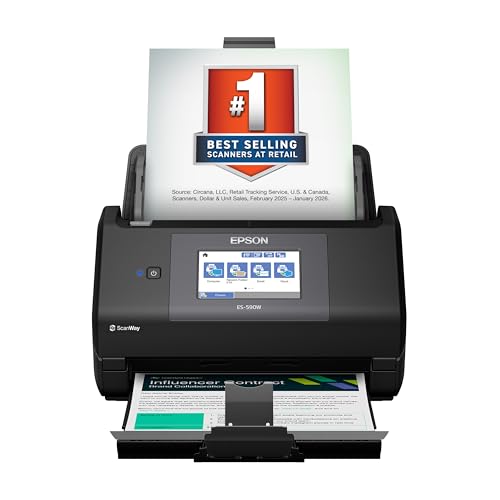
8. Epson WorkForce ES-590W - The Best Document Scanner for Paperwork Backlogs
Epson Workforce ES-590W Wireless & USB High-Speed AI & Cloud Ready Desktop Color Duplex Document...
600 dpi
45 ppm duplex
100 sheet ADF
4.3 inch touchscreen
Wi-Fi
+ Pros
- Fastest duplex throughput here at up to 45 ppm
- 100 sheet feeder for sustained backlogs
- 4.3 inch color touchscreen for computer-free scanning
- Built-in Wi-Fi with WPA2 scanning
- Sends to email cloud storage or a USB flash drive
- Cons
- Bulky desktop body at 8.2 pounds for a machine aimed at volume
- Cloud and AI features rely on the Epson software ecosystem rather than plain scan-to-folder
- Touchscreen responsiveness reported as uneven
If you are clearing a genuine backlog rather than filing a few receipts a week, the Epson ES-590W is the machine to buy. It combines the largest feeder we tested at 100 sheets with the fastest duplex throughput in this roundup at up to 45 ppm, using single-step technology that captures both sides of a sheet in one pass. It rates 4.4 stars from more than 1000 reviews.
Resolution is 600 dpi with 30-bit input and 24-bit output and 30-bit greyscale, matching the highest optical resolution class in this roundup, which makes it a strong fit for small print, faint carbon copies and dense forms.
45 ppm duplex and a 100 sheet feeder
Forty-five pages per minute duplex means a 100 sheet stack of double-sided paperwork is roughly one pass and then a second pass to finish, with no re-stacking and no flipping. For anyone working through inherited paperwork or a season of invoices, that throughput and that hopper size together are the reason to choose this machine.
The 100 sheet hopper is double the capacity of the mid-sized desktops and five times a 20 sheet feeder, which removes refills from the workflow entirely for most jobs. Dimensions are 6.7 inches deep by 11.6 inches wide and 6.6 inches tall, and at 8.2 pounds it is a heavy machine, so give it a permanent spot on a desk rather than a high shelf.
Running scans from the touchscreen
The 4.3 inch colour touchscreen lets you start a scan and choose a destination without a computer in the loop, sending output to email, cloud storage or a USB flash drive. For a shared office or a reception counter, that is a genuine workflow improvement over a machine that is only useful when tethered.
Users are split on the screen itself, with several describing it as somewhat unresponsive relative to how much it can do. In practice the buttons work, but a faster panel would make a busy shared machine feel better.
Wi-Fi, WPA2 and the AI workflow
Built-in Wi-Fi with WPA2 scanning lets a computer or a mobile device send jobs to the scanner without a cable across the desk, which in a multi-person office removes one of the most common causes of friction. Epson ScanSmart AI is the software layer, and it converts scanned documents into structured data intended for AI workflows.
This is where the most common reservation sits. Cloud and AI features depend on Epson's own software ecosystem rather than standard scan-to-folder behaviour, so if you want a plain folder on a network share, plan to use the driver instead of the bundled app. Do that test before you commit.
Who should skip it
Skip the ES-590W if your paperwork is light. It is large, heavy and built around a 100 sheet hopper, and a household filing twenty receipts a month will not get value from it. It is also the wrong machine for photo capture and for anyone who refuses to use vendor cloud software.
9. Epson WorkForce ES-C220 - The Best Compact Duplex Scanner for Small Desks

Epson Workforce ES-C220 Compact Document Scanner Duplex 20-pg ADF
300 dpi CIS
30 ppm and 60 ipm duplex
20 sheet ADF
USB
saves 60% of desk space
+ Pros
- 30 ppm and 60 ipm single-step duplex in a small body
- Saves about 60% of desk space
- 20 page feeder can be topped up mid-job
- Auto crop blank page deletion background removal and dirt detection
- Handles cards and passports through a flexible scan path
- Cons
- USB only with no wireless option
- Scanner can sleep and drop off the network on some Mac systems
- ScanSmart save flow has short filename fields
- Limited paper thickness can jam stiff media
The ES-C220 answers a narrow question well: how much duplex capability can be packed into a small footprint. At 4.1 inches deep, 11.7 inches wide and 4.9 inches tall, Epson claims it saves about 60% of desk space, and at 3.9 pounds it can be moved to a different room when needed. It holds a 4.2 rating from more than 200 reviews.
Under the small body is a 30 ppm single-step duplex engine rated at 30 pages and 60 images per minute, with a 20 page automatic document feeder that can be topped up while a job is running. For a home office or a small study that needs duplex capability and cannot give up desk space, this combination is worth a close look.
Users report handling hundreds of pages quickly once the rhythm is established, which is the real argument for the machine. The frustration is concentrated in the software on macOS and in the feeder size.
30 ppm duplex in a small body
Thirty pages per minute duplex puts the ES-C220 well ahead of the Canon imageFORMULA R10 and the Brother mobile units on speed, matches the ScanSnap iX1300 at 30 ppm, and runs behind the Canon imageFORMULA R50 at 40 ppm. Resolution is 300 dpi from a CIS sensor under an LED light source with 24-bit output and 24-bit greyscale, which is the right figure for text and adequate for anything that is not a photograph.
Image handling for messy originals
Automatic cropping, blank page deletion, background removal, dirt detection, skew correction and staple protection are all automatic, and that list is aimed squarely at real paper problems. Staple protection in particular matters when you are scanning a filing folder without unpicking it first, and dirt detection is useful on old, dusty originals.
The flexible scan path also handles cards and passports, which many compact feeders cannot manage. A 20 page feeder that accepts top-ups mid-job is a thoughtful design for a machine this size.
macOS behaviour and the save flow
There are two recurring complaints on Mac. The first is that the scanner can sleep and drop off the network on some Mac systems, requiring a manual power cycle to reconnect. The second is the save flow in Epson ScanSmart, which has short filename fields and forces a Finder workaround on some versions.
Neither is a hardware problem, but both are the kind of friction that makes people abandon a paperless workflow in month two. Test on your actual Mac before you commit, and check the current ScanSmart release.
Who should skip it
Skip the ES-C220 if you are scanning in volume, because a 20 page feeder means constant refills and its paper path has a thickness limit that can jam stiff media such as product wrappers. It is USB only, so there is no wireless option, and it is not a photography machine.
10. Canon imageFORMULA R50 - The Best Document Scanner for Shared Office Workstations

Canon imageFORMULA R50 Business Document Scanner for PC and Mac
600 dpi CIS
40 ppm duplex
60 sheet ADF
4.3 inch touchscreen
USB and Wi-Fi
+ Pros
- 40 ppm duplex with a 60 sheet automatic feeder
- 4.3 inch color touchscreen for destinations and shortcuts
- SuperSpeed USB plus Wi-Fi for networked sharing
- Automatically adjusts output resolution on mixed batches
- Handles receipts plastic cards and long documents
- Cons
- Needs a running computer and Canon app despite the touchscreen
- Wi-Fi setup is reported as difficult and 5 GHz is not supported
- Capture software spreads options across multiple tabs
- Known software limit around 200 images in one session
The Canon imageFORMULA R50 pairs two things that are normally found apart: a large colour touchscreen and built-in Wi-Fi for sharing between several people. It scans 40 ppm duplex from a 60 sheet feeder at 600 dpi, and it rates 4.3 stars across more than 160 reviews with owners reporting large time savings on high-volume paperwork.
For a small office where several people need to scan, the appeal of a networked machine with a screen is obvious. The catch is that the touchscreen is more of a control and status display than an independent scanning surface, and we will explain why below.
40 ppm duplex with a 60 sheet feeder
Forty pages per minute duplex from a 60 sheet hopper is a serious office configuration, and it is the second fastest duplex throughput in this roundup after the Epson ES-590W. The sensor is a CIS type at 600 dpi with 24 bpp colour and 256 greyscale under an LED light source, and the machine weighs 5.3 kilograms at 9.8 inches deep by 11.5 inches wide and 9.5 inches tall.
Automatic output resolution adjustment is a genuinely clever feature for mixed batches. It balances image quality against file size per page, so a batch containing both a dense invoice and a mostly blank form does not produce two enormous files. It handles receipts, plastic cards, contracts and thick, thin or long documents fed individually or in batches, and the slide-out front output tray keeps finished paper in order.
Touchscreen plus Wi-Fi for multiple users
The 4.3 inch colour touchscreen is used to select destinations, shortcuts and settings, and SuperSpeed USB plus Wi-Fi allows the scanner to be shared across a network rather than sitting on one desk. Windows and Mac are supported and a TWAIN driver is included, with a one year warranty and US-based technical support.
Important caveat: despite the touchscreen, the R50 needs a running computer and the Canon app to scan. It is not cloud-standalone. If your requirement is a machine that works with no computer anywhere near it, the ScanSnap iX1300 is the one in this list that delivers that.
Where the software gets in the way
Wi-Fi is the most common friction point. Users report the connection being difficult to establish and 5 GHz networks not being supported, which is a real limitation in offices that have moved to dual-band or mesh networks. Touchscreen sensitivity is also described as needing firm taps rather than light ones.
Canon Capture spreads its options across multiple tabs, and the layout takes some getting used to. More significant for archival work is a documented software defect that prevents viewing, editing or rotating scanned images past roughly page 200 in a single session, which means a long digitisation project needs the software restarted periodically.
Who should skip it
Skip the R50 if you need a scanner that runs with no computer, or if you are digitising several hundred pages in one sitting without pausing. It is also a poor fit for a home network on 5 GHz. If you want a larger feeder and a faster duplex rate, the Epson ES-590W has both, and if you want computer-free scanning, the ScanSnap iX1300 is built around it.
ScanSnap iX1300 vs Epson WorkForce ES-400 II: Which One Fits Your Desk?
This question comes up repeatedly in the search data for this topic, so it deserves a direct answer rather than a tiebreak buried in two separate reviews. The honest summary: the ScanSnap iX1300 wins on connectivity, speed and how little it asks of you, and the Epson ES-400 II wins on feeding reliability, feeder capacity and driver flexibility.
The iX1300 scans up to 30 ppm duplex at 600 dpi and can send files to a computer, a phone, a cloud service or a Chromebook over USB or Wi-Fi, and it needs no computer at all. That is a category difference, not a feature difference, and it is why the ScanSnap family keeps coming up in recommendations on Ars Technica and TidBITS threads.
The ES-400 II is USB only, scans 300 dpi duplex from a 50 sheet feeder, and leans on ultrasonic double feed detection to survive mixed paper. It carries a 4.5 star average against the iX1300's 4.2, and it includes a TWAIN driver for document management systems. If you already run a specific records system, that driver is worth more than a wireless radio.
Choose the iX1300 if the paperwork arrives where you are rather than where your computer is, or if you want one-touch scanning with no driver setup. Choose the ES-400 II if the paper is stapled, curling and mixed, and if the top priority is that nothing jams in the middle of a long run.
One practical warning for both. Owners on both models describe software setup, Wi-Fi configuration or save-location handling as the hardest part of getting started. Give yourself an afternoon with either machine before you commit to a large archive project.
How to Choose a Document Scanner for Paperwork
How much paper are you actually scanning?
Sizing a scanner starts with a number, not a brand. Count the pages waiting for you right now, then estimate your monthly average. Under about 50 pages a month, a mobile sheetfed unit or a flatbed is the right call. Between 50 and 300 pages, you want an ADF of at least 20 sheets with duplex. Above 300, you need a 50 to 100 sheet feeder and you should be shopping on ppm.
Then work backwards through the steps for clearing a large stack. Sort and remove staples first, because no scanner should be asked to feed hardware. Load no more than the rated feeder capacity and top up rather than overfilling. Choose duplex so nothing is manually flipped. Set one scan profile and reuse it instead of adjusting settings per job. And confirm your destination folder is set once, at the start, so finished files do not scatter.
ADF capacity, ppm and ipm explained
ADF means automatic document feeder, the hopper that pulls sheets in without you lifting each one. Capacity is the sheet count it holds. ppm is pages per minute, and ipm is images per minute, which counts both sides of a duplex page. A machine rated at 30 ppm and 60 ipm scans 30 double-sided sheets a minute, or 60 images.
Feeders in this roundup run from 10 sheets at the bottom to 100 at the top. The practical rule is to buy a feeder roughly twice your typical batch so you are not topping up constantly, and to treat the manufacturer daily volume figure as a ceiling rather than a target. Canon's R10 publishes 500 scans per day, which is a useful anchor for planning.
Optical dpi versus interpolated dpi
Optical resolution is real captured detail. Interpolated resolution is software filling in pixels that were never measured, and a listing claiming 1200 or 2400 dpi on a 300 dpi sensor is describing upscaling. For text paperwork, 300 dpi optical is the working standard. For photographs, fragile documents or anything for preservation, you want 600 dpi optical or better, which in practice means the Canon LiDE 300 or a 600 dpi machine such as the ScanSnap iX1300 or the Epson ES-590W.
Higher resolution is not automatically better. It multiplies file size and processing time, and a 1200 dpi scan of a crisp typed invoice gains nothing a 300 dpi scan did not already capture.
OCR and searchable PDF output
Optical character recognition turns a picture of a page into text you can search and copy, which is the difference between a digital image and a usable digital document. Searchable PDF is the baseline output across this category, and the Epson models also convert to editable Word and Excel.
Be realistic about the limits. OCR on clean printed text is dependable. On handwritten notes, faint thermal receipts and creased old documents it will drop out, and this is the single most common complaint in community threads about cheap scanners. Scan at 300 dpi or higher, avoid aggressive image compression, and do a test page of your worst material before committing to a large job.
Connectivity: USB, Wi-Fi and scanning without a computer
Most scanners here are USB only, which means they need a running computer nearby. The ScanSnap iX1300 and the Canon imageFORMULA R50 have built-in Wi-Fi, and the ES-590W does as well. Of those, the iX1300 can genuinely scan with no computer at all, sending output to mobile devices or cloud services directly.
That distinction matters more than the wireless badge. A wireless scanner that still requires a PC on the desk has solved a different problem than one that can start a job from a touchscreen or from a phone. USB-only units do have an advantage though: there is no network to configure, so setup failure is far less common, and the same machine behaves identically on every computer in the building.
Flatbed, sheetfed or both
Sheetfed scanners with an ADF are for volume. Flatbeds are for originals that cannot risk being dragged through a roller, and for photographs. If you are digitising family records, the flatbed Canon CanoScan LiDE 300 at 2400 x 2400 dpi optical is the right instrument, and genealogy users looking at documents and photos consistently ask for both capabilities in one machine.
None of the ten units here combines a full-size flatbed with an automatic document feeder. If your work genuinely needs both, budget separately and accept a workflow where photos go through the flatbed and paper goes through the feeder.
Paperless workflow software and file naming
The scan is only useful if it lands somewhere findable. Set up automatic file naming with a date prefix so files sort chronologically, and set your destination folder once. The Epson units support direct upload to Dropbox, Google Drive, OneDrive and Evernote, and the Brother units send to PC, network, cloud, email and OCR destinations.
If you want searchable PDFs stored and indexed locally rather than in a vendor account, check the TWAIN driver situation before you buy. The Epson ES-400 II and the Canon R50 both include a TWAIN driver, which means you can use third-party scanning software with deeper control. Some wireless units tie their cloud features to a vendor account, and that is worth knowing before you commit.
Who does not need a dedicated scanner at all
If you scan fewer than a dozen pages a month, a phone camera with a document scanning app will do the job. The trade-offs are real: no duplex, no automatic feeder, no batch handling, and files land in whatever app's folder structure rather than a naming convention you control. For a shoebox of twenty receipts, that is fine. For a hundred pages, it becomes tedious quickly.
A multifunction printer's scanning function is also worth evaluating before you spend anything. It is already on your desk and already networked. What it usually lacks is feeder capacity, duplex control and paper handling quality, which is precisely what this roundup is about. If your volume is low, the printer is a reasonable answer. If paper jams or scans land crooked, that is the moment to buy a dedicated machine.
One last piece of advice that costs nothing. If you are scanning financial documents, tax records or anything with personal data, wipe the scanner's internal storage or reset it before selling or giving it away, and delete the scan history from the software on any shared computer. Most of these machines keep the last several jobs in the app's list, which is convenient day to day and undesirable when the machine changes hands.
Frequently Asked Questions
What is the best document scanner for office use?
For most offices, the Epson WorkForce ES-590W is the strongest all-round choice: it scans up to 45 pages per minute duplex, holds 100 sheets in the feeder, and can run jobs from a 4.3 inch touchscreen without a computer. For a shared team that values reliable feeding above speed, the Epson WorkForce ES-400 II with its 50 sheet feeder and ultrasonic double feed detection is the safer pick.
What is the best scanner for home office use?
The Canon imageFORMULA R10 is a strong home office pick because it combines a 20 sheet feeder with single-pass duplex in a body weighing under a kilogram, and its software is built in with no installation. If you need wireless or computer-free scanning, the ScanSnap iX1300 is the better choice, since it can send files to a phone, cloud service or Chromebook without a PC.
Which scanner is better, the ScanSnap or the Epson?
The ScanSnap wins on connectivity and convenience: faster duplex scanning, built-in Wi-Fi, and the ability to scan with no computer present at all. The Epson wins on paper handling: a larger feeder, ultrasonic double feed detection on mixed stacks, and an included TWAIN driver for document management software. Choose the ScanSnap for flexibility and the Epson for batch reliability.
What resolution do I need for scanning documents and old papers?
For printed paperwork, invoices and receipts, 300 dpi optical resolution is the working standard. For photographs, handwritten records or archival material, use 600 dpi optical or higher. Be aware that interpolated dpi above a scanner's optical rating is software upscaling and adds file size without adding detail.
Can I scan documents to my phone without a computer?
Yes, but only with certain models. The ScanSnap iX1300 can send scans over Wi-Fi to mobile devices or cloud services with no computer involved, and the Epson WorkForce ES-590W and Canon imageFORMULA R50 can run jobs from their touchscreens to email, cloud storage or a USB flash drive. Most other scanners, including every mobile and flatbed unit in this roundup, require a running PC.
How do I scan a large stack of documents quickly?
Remove staples and sort the paper first, then load no more than the feeder's rated capacity and top up rather than overfilling. Use duplex so nothing is manually flipped, set one scan profile and reuse it instead of changing settings per job, and configure your destination folder once at the start. Machines with 50 to 100 sheet feeders and single-pass duplex will clear a several-hundred-page backlog in minutes.
Do document scanners work on Mac as well as Windows?
Most do. The Brother mobile models support Windows, Mac and Linux with TWAIN and WIA on PC and ICA on Mac, and the Canon R10 and R50 support both Windows and Mac. Two cautions: the Canon LiDE 300 has some reported Mac connection and multi-page collation issues, and the Epson ES-C220 has been reported to sleep and drop off the network on some Mac systems.
Is a dedicated document scanner better than a multifunction printer?
It depends on volume. A multifunction printer is already on your desk and already networked, which makes it reasonable below about a dozen pages a month. Beyond that, a dedicated scanner wins on feeder capacity, duplex control and paper handling quality. A printer that jams on stapled stacks or feeds pages crooked is the usual signal to move to a dedicated machine.
Which Document Scanner Should You Buy?
Paperwork does not stay filed on its own, so the right question is not which scanner is the most capable. It is which one you will actually reach for. If your documents are spread across a kitchen counter, a bag and a car, our top pick, the Brother DS-640, wins because it needs no setup, weighs about a pound and runs off a single cable.
If you clear a real backlog every week, the Epson WorkForce ES-590W is the right buy, with a 100 sheet feeder and 45 ppm duplex throughput. If the paper is stapled, curling and mixed, the Epson WorkForce ES-400 II feeds it more dependably than anything else here, and it carries the highest average rating in the roundup.
If your priority is scanning without a computer in the room, the ScanSnap iX1300 is the one on this list that does it with no host device involved, sending output to a phone, a cloud folder or a Chromebook over Wi-Fi. If the originals are fragile, handwritten or photographs rather than forms, the Canon CanoScan LiDE 300 at 2400 dpi optical will not tear anything and will capture far more detail.
Whichever one you pick, do a test page of your worst material before you start. Ten minutes spent on a faded receipt and a stapled contract will tell you more than any specification table, and it is the difference between a scanner you use for years and one that ends up in a cupboard. Our picks and reasoning are current as of 2026, and the buttons above will show you the latest options for each model.