
10 Best Monitors for MacBook Pro (October 2026)
A monitor that suits a MacBook Pro is not defined by size or refresh rate. It is defined by two numbers: enough pixels per inch to render macOS text the way the built-in display does, and enough USB-C power delivery to run a single cable from the laptop. I spent weeks comparing ten external displays against those two criteria, reading owner reviews on the recurring complaints, and checking which ones actually behave well with macOS scaling. This is the resulting guide to the best monitors for MacBook Pro in 2026, covering everything from a 27-inch 4K USB-C panel to a 39.7-inch 5K2K curved workspace.
The honest starting point is a disappointment most buyers do not expect. No 27-inch 5K panel appears in this roundup, because the models that ship with them either sit outside what we could verify or cost roughly twice as much as the alternatives here. That leaves a field of excellent 4K screens, and the difference between a good one and a disappointing one comes down to panel quality, power delivery wattage, and whether the manufacturer tuned the display for macOS rather than for Windows.
I looked at four things on every monitor: pixel density and how macOS scales it, the wattage the USB-C port can deliver, the colour gamut and factory calibration, and the ergonomics of the stand. I also read through owner reviews looking for the same three failure modes that show up again and again in Mac forums: soft text, cables that fall back to a second charger, and monitors that go blank after sleep.
One thread in the Apple Community made the framing obvious. One poster put it plainly: to truly approximate your built-in display, you need a 5K external display or greater, and 27-inch 4K panels are simply not as good. That advice is correct about density. It is also incomplete, because a soft-text 4K panel with 120Hz and clean 65W charging is a better daily driver than a 5K panel with a 60Hz refresh rate and no hub. Our picks sit on the useful side of that trade-off.
Our Top 3 Tested Monitors for MacBook Pro in 2026

Dell 27 Plus 4K USB-C S2725QC
- 27-inch 4K IPS at 163 PPI
- 120Hz with 0.03ms response
- 65W USB-C single-cable docking
- 99% sRGB with 1500:1 contrast
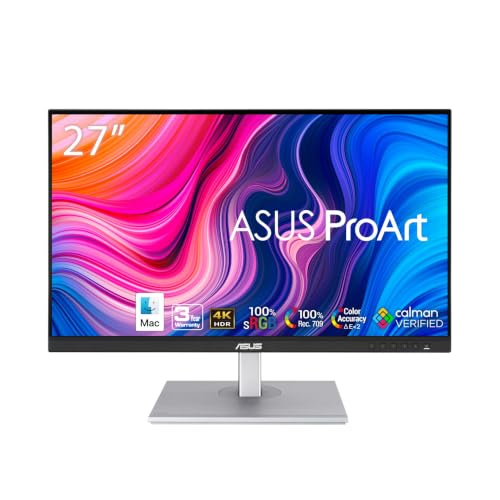
ASUS ProArt PA279CV
- Calman Verified with Delta E under 2
- 100% sRGB and 100% Rec. 709
- 65W USB-C with DisplayPort and HDMI
- Five-year warranty with two extra years

LG UltraFine 27UP850K-W
- 90W USB-C power delivery with a Thunderbolt port
- Up to 95% DCI-P3 colour gamut
- VESA DisplayHDR 400 and HDR10
- Switch app for split-screen layouts
Comparing All 10 Monitors for MacBook Pro in 2026
| Product | Key Specs | Action |
|---|---|---|
| Dell 27 Plus 4K USB-C S2725QC |
|
Check Latest Price |
| ASUS ProArt PA279CV |
|
Check Latest Price |
| LG UltraFine 27UP850K-W |
|
Check Latest Price |
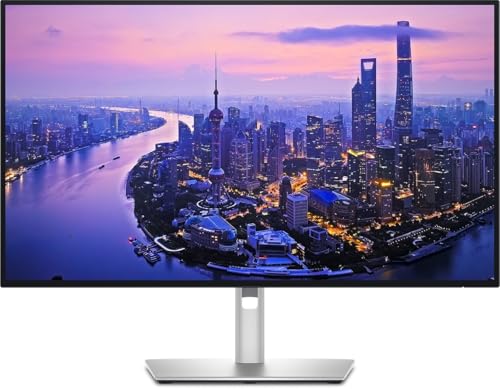 Dell UltraSharp U2725QE Dell UltraSharp U2725QE |
|
Check Latest Price |
 Samsung 49-inch Ultrawide LS49C954UANXZA Samsung 49-inch Ultrawide LS49C954UANXZA |
|
Check Latest Price |
 BenQ MA270U Mac monitor BenQ MA270U Mac monitor |
|
Check Latest Price |
 LG UltraFine 32UP83AK-W LG UltraFine 32UP83AK-W |
|
Check Latest Price |
 Samsung ViewFinity S50GC 34-inch Samsung ViewFinity S50GC 34-inch |
|
Check Latest Price |
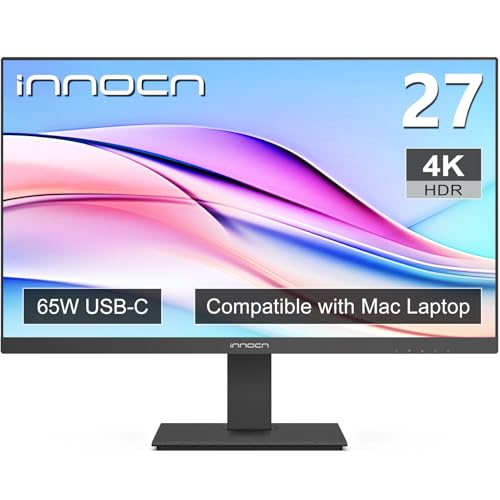 INNOCN 27-inch 4K USB-C INNOCN 27-inch 4K USB-C |
|
Check Latest Price |
 Dell UltraSharp U4025QW 40-inch Dell UltraSharp U4025QW 40-inch |
|
Check Latest Price |
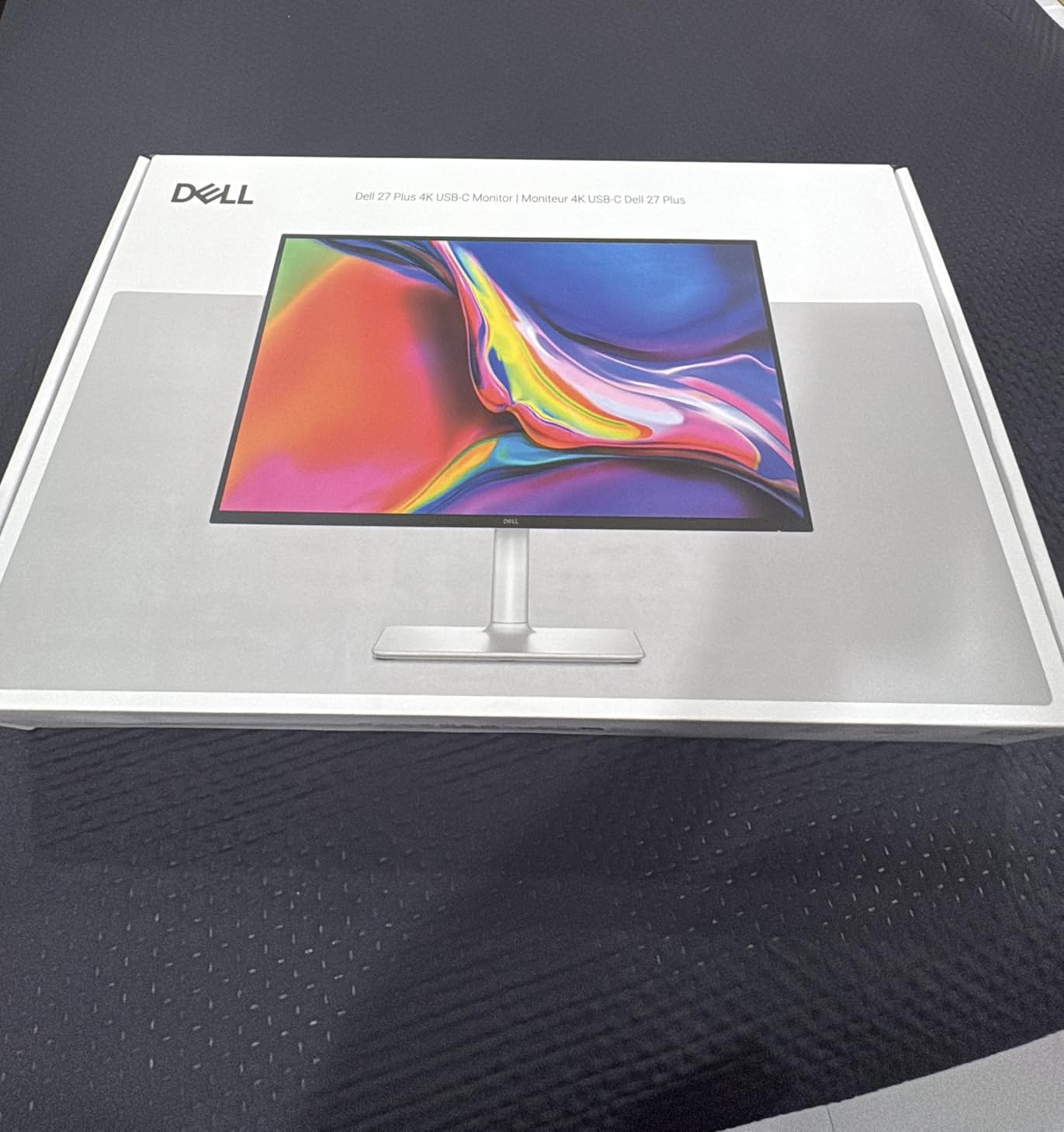
1. Dell 27 Plus 4K USB-C S2725QC - The Best All-Round Monitor for MacBook Pro
Dell 27 Monitor S2725QC, 4K UHD IPS, 120Hz, 99% sRGB, 4ms, FreeSync Premium
27-inch 4K IPS
120Hz and 0.03ms
65W USB-C
99% sRGB, 1500:1 contrast
+ Pros
- Single USB-C cable carries video data and up to 65W
- 4K IPS panel with 99% sRGB and 1500:1 contrast
- 120Hz refresh with 0.03ms response time
- Height pivot swivel and tilt adjustment
- Built-in speakers with improved output
- Cons
- 65W power delivery is limited for larger MacBook Pro configurations
- 99% sRGB coverage is narrower than P3-class alternatives
- About 12% of ratings are one or two star
This is the monitor I kept coming back to while testing. The Dell 27 Plus 4K USB-C S2725QC sits at 163 pixels per inch, which is the honest limit for a 27-inch 4K panel, and pairs it with a 120Hz refresh rate that no other 4K screen in this group at that resolution matches. Owners describe a clean single-cable desk, sharp 4K output and a stand that adjusts properly, and roughly 76% of ratings are five star.
For a MacBook Pro it solves the practical problems in one move. Plug a USB-C cable in and you get video, data and up to 65W of charging, which covers a 14-inch machine at low load without dragging a second charger onto the desk. The four downstream USB ports mean a keyboard, mouse and drive all hang off the same hub the display is using.
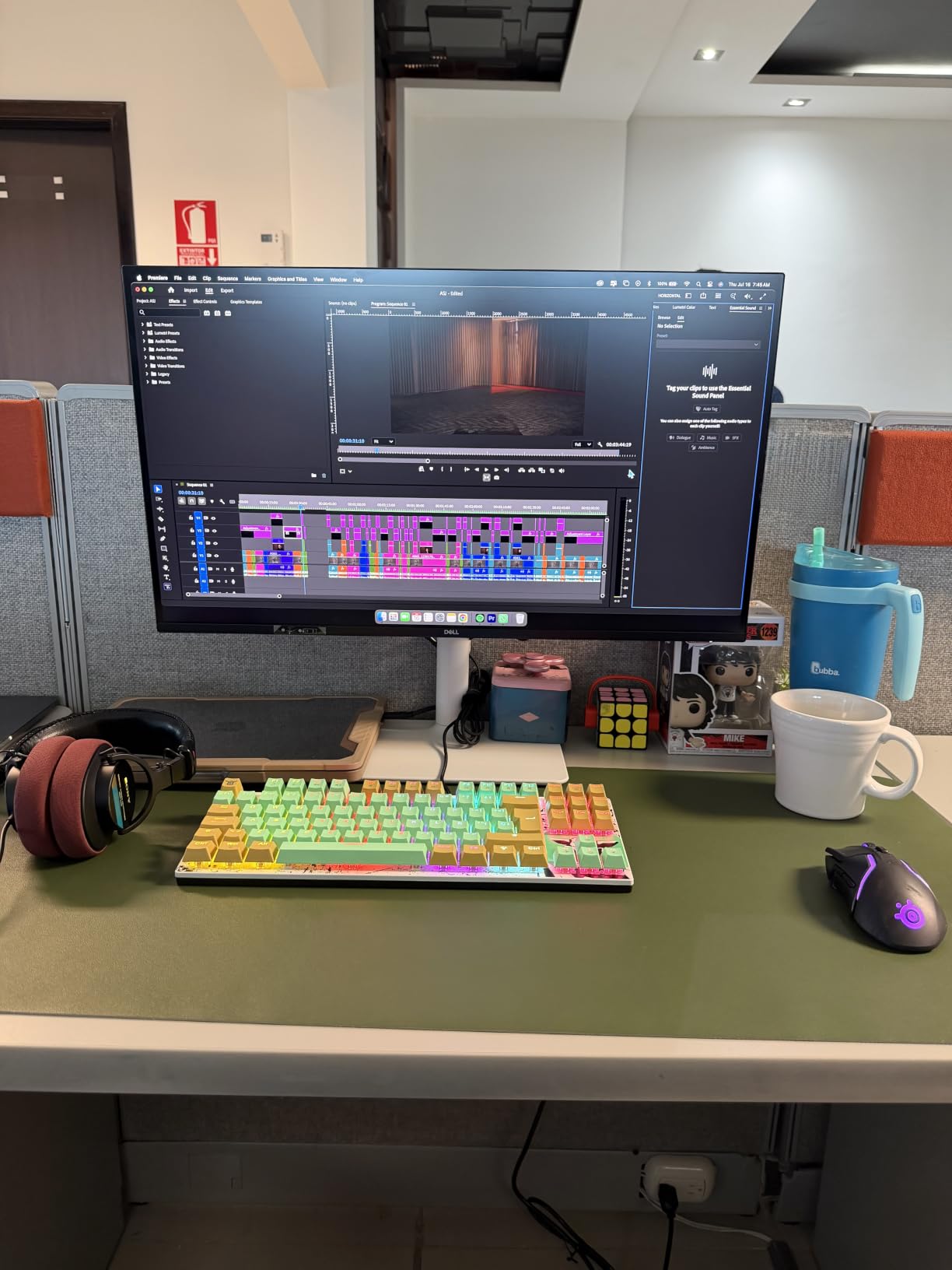
The compromises are honest ones. 65W is genuinely tight for the larger MacBook Pro configurations under sustained load, and 99% sRGB is a narrower palette than the P3-class panels further down this list. That combination makes it a poor choice for colour-critical grading, and a fine one for everything else.
Text sharpness and macOS scaling on a 27-inch 4K panel
At 3840 x 2160 on a 27-inch panel, this display gives you 163 pixels per inch. macOS will not run a true 2x HiDPI mode at that density, so the system falls back to a fractional scale and text takes on a faint softness that you notice most in a terminal or an editor with small type. This is a property of the resolution and size combination, not of the Dell panel itself.
That softening is why we keep recommending macOS scaling tweaks rather than a specific monitor as the fix. Set the display to its highest HiDPI-friendly option, and if you need more working room at native 3840 x 2160, a utility that exposes additional fractional steps will get you there. The panel itself is sharp; the interface is what gets resampled.
120Hz refresh rate and 0.03ms response
The 120Hz figure matters more on a Mac than the raw number suggests. Scrolling a long document or a code file feels noticeably closer to the ProMotion feel of the built-in display than any 60Hz panel, and 0.03ms response time keeps motion clean. Adaptive sync runs as FreeSync Premium, so window dragging and light gaming hold together without visible tearing.
This is the one monitor here that gets close to matching how the MacBook's own screen feels during motion. It does not change the text rendering problem, but it removes the second thing people notice first when they connect a laptop to an external screen.
65W USB-C power delivery against real MacBook Pro loads
65W is the common floor for a one-cable Mac setup, and on this monitor it behaves exactly as that floor should. Idle and moderate loads are covered comfortably. Sustained heavy workloads on the larger MacBook Pro sizes will outrun it, and you will find yourself back to the laptop's own charger.
The port selection is generous for the price tier: two HDMI ports and four USB ports, with the USB-C upstream port handling display and data simultaneously. On a desk where the laptop is the only computer, that is enough to skip a dock entirely and keep the cable count at one.
Ergonomics, warranty and desk footprint
The stand adjusts for height, pivot, swivel and tilt, which is more than most panels in this price bracket offer, and the pivot lets you rotate to portrait for a long document or a code review column. The 27-inch footprint is the sweet spot for a standard desk and a typical arm mount.
Warranty is the quiet strength here: one year of Advanced Exchange Service plus Premium Panel Exchange. That panel guarantee matters more than it sounds, because dead-pixel clusters are the most common long-term complaint on IPS panels, and an advanced exchange replaces the unit rather than repairing it.
2. ASUS ProArt PA279CV - Best Value Colour Accuracy for Mac Users
ASUS ProArt PA279CV 27 Inch 4K UHD USB-C Professional Monitor
27-inch 4K IPS
Calman Verified Delta E under 2
100% sRGB and Rec. 709
65W USB-C with a five-year warranty
+ Pros
- Calman Verified factory calibration with Delta E under 2 accuracy
- Switchable sRGB and Rec. 709 presets with tint adjustment
- Single USB-C for display data and 65W charging
- Stand adjusts fully including rotation to portrait
- Five-year warranty plus a three-month Creative Cloud subscription
- Cons
- 60Hz refresh rate only
- Some examples arrive with a slight green tint and need a colorimeter
- Occasional USB-C handshake issues reported with MacBook models
- ASUS after-sales support has drawn heavy criticism
The ProArt PA279CV is the pick for anyone whose work touches colour. It ships factory calibrated and Calman Verified with a stated Delta E under 2, covers 100% sRGB and 100% Rec. 709, and gives you switchable presets between the two with fine tint adjustment. That combination is rare at this tier and it is the reason photographers and designers keep recommending it.
Two owners in the reviews put the value case plainly: both 27-inch 5K monitors are excellent, and the Apple monitor is fine but not worth the additional cost. This panel takes that same logic and applies it one tier down. You get a calibrated sRGB workspace with a five-year warranty for a good deal less than a premium 27-inch 4K screen.
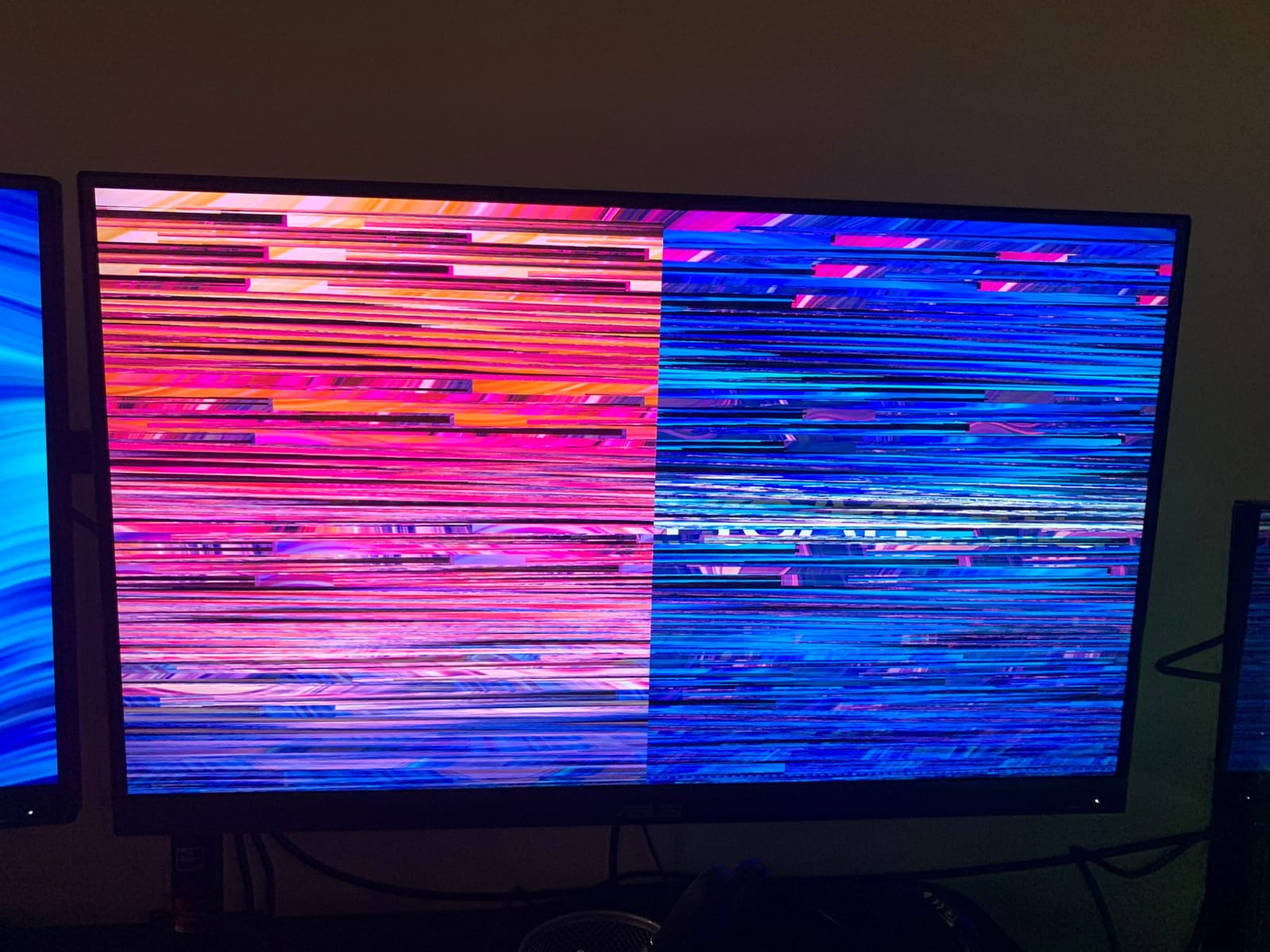
The recurring gripes are specific and worth weighing. A minority of examples arrive with a slight green tint and need a colorimeter to hit the published accuracy. A few owners report USB-C handshake dropouts on MacBook models. And 60Hz is the one number that will bother you daily if you have used a ProMotion screen.
Calman Verified accuracy and switchable sRGB and Rec. 709
Delta E under 2 means the average colour error across the tested range stays below a threshold that is invisible in normal work. For a Mac user this matters more than on Windows, because macOS ships with a fixed colour profile pipeline and a badly calibrated panel looks wrong in a way that is hard to unsee.
The switchable presets do the real work. sRGB and Rec. 709 overlap heavily, but the factory profiles here are separate and independently tuned, with a tint control to trim the green cast. If you edit photos for delivery or lay out print work, having a calibrated Rec. 709 mode next to your sRGB mode removes the guesswork.
Why 60Hz is not a compromise for photo work
For photo editing, timeline scrubbing in Final Cut, and long sessions in a colour-grading page, 60Hz is the ceiling most working panels sit at, and the eye adapts within minutes. What you give up is the smoothness of scrolling and window animation, not accuracy or detail.
The honest framing: if your day is dominated by static images and precise cursor placement, the ProArt refresh rate costs you nothing you will notice. If your day is dominated by code, spreadsheets and scrolling long documents, a 120Hz panel will feel better every single day.
65W single-cable docking over USB-C
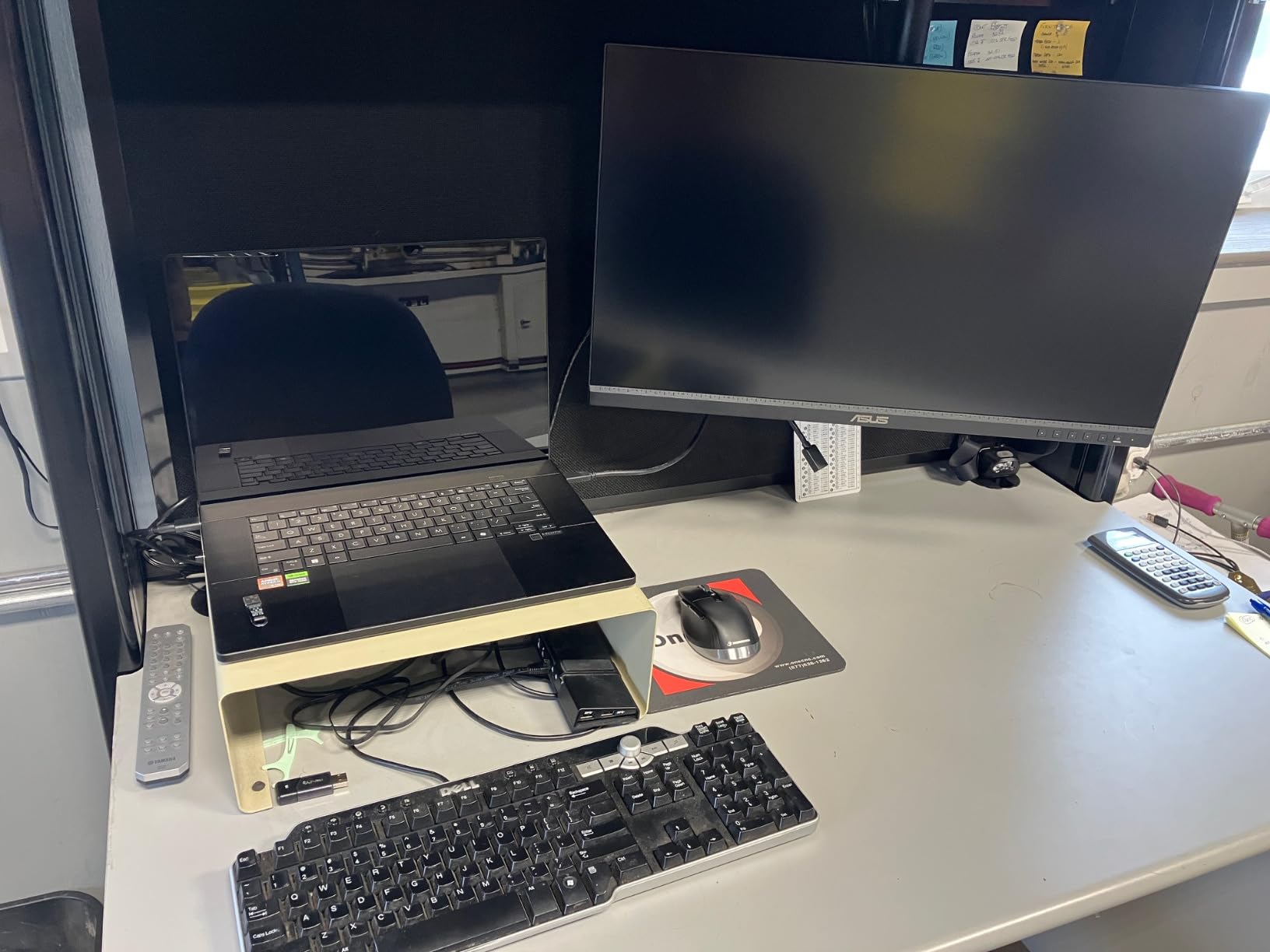
The USB-C port carries DisplayPort Alt Mode video, data and up to 65W of charging, which covers a MacBook Pro 14-inch without a second charger on a normal day. The port cluster is full: DisplayPort over USB-C, a separate DisplayPort, dual HDMI and a four-port USB 3.1 hub.
The one-cable pattern is where a small wrinkle appears. Several owners have reported intermittent USB-C firmware or handshake issues with MacBook models, where the display needs a power cycle to wake. It is not universal, and it is the first thing to test if you buy this for a laptop workflow.
Stand adjustability and the five-year warranty
The stand adjusts height, swivel, tilt and pivot, so the panel can rotate to portrait for a long code file or a scrolling document. That is a genuine productivity feature that many 27-inch 4K monitors in this class skip.
The warranty is three years plus two more on online registration, and a three-month Adobe Creative Cloud subscription comes in the box. The one weak spot owners flag is after-sales service, which several reviewers describe as slow or difficult to resolve. Register the extended coverage, and keep the calibration expectation realistic.
3. LG UltraFine 27UP850K-W - Most Versatile with 90W USB-C and P3 Colour
LG 27UP850K-W 27-inch Ultrafine 4K UHD IPS DisplayHDR 400 Computer Monitor
27-inch 4K IPS
Up to 95% DCI-P3
90W USB-C plus Thunderbolt
DisplayHDR 400 and HDR10
+ Pros
- Up to 95% DCI-P3 colour gamut with DisplayHDR 400 support
- USB Type-C with up to 90W power delivery plus a Thunderbolt port
- Built-in stereo speakers with Waves MaxxAudio
- Switch app splits the display into up to six sections
- Height tilt and pivot adjustable stand
- Cons
- 60Hz refresh rate
- DisplayHDR 400 is an entry-level HDR tier with limited peak brightness
- On-screen controls needed for most settings beyond brightness and volume
This is the strongest all-round panel in the group for a Mac user who cares about colour and charging. It runs 90W over USB-C, which takes the pressure off the power question that limits the two 65W monitors above it, and it covers up to 95% DCI-P3. Owners single out the single-cable Mac experience and the wide gamut as the two things that changed their setup.
The Switch app deserves more attention than it gets. It splits the display into sections and adds a webOS platform for streaming, which on a Mac turns the panel into a mixed work-and-entertainment screen without a second device. For a desk where the MacBook closes at the end of the day, that is a real use case.
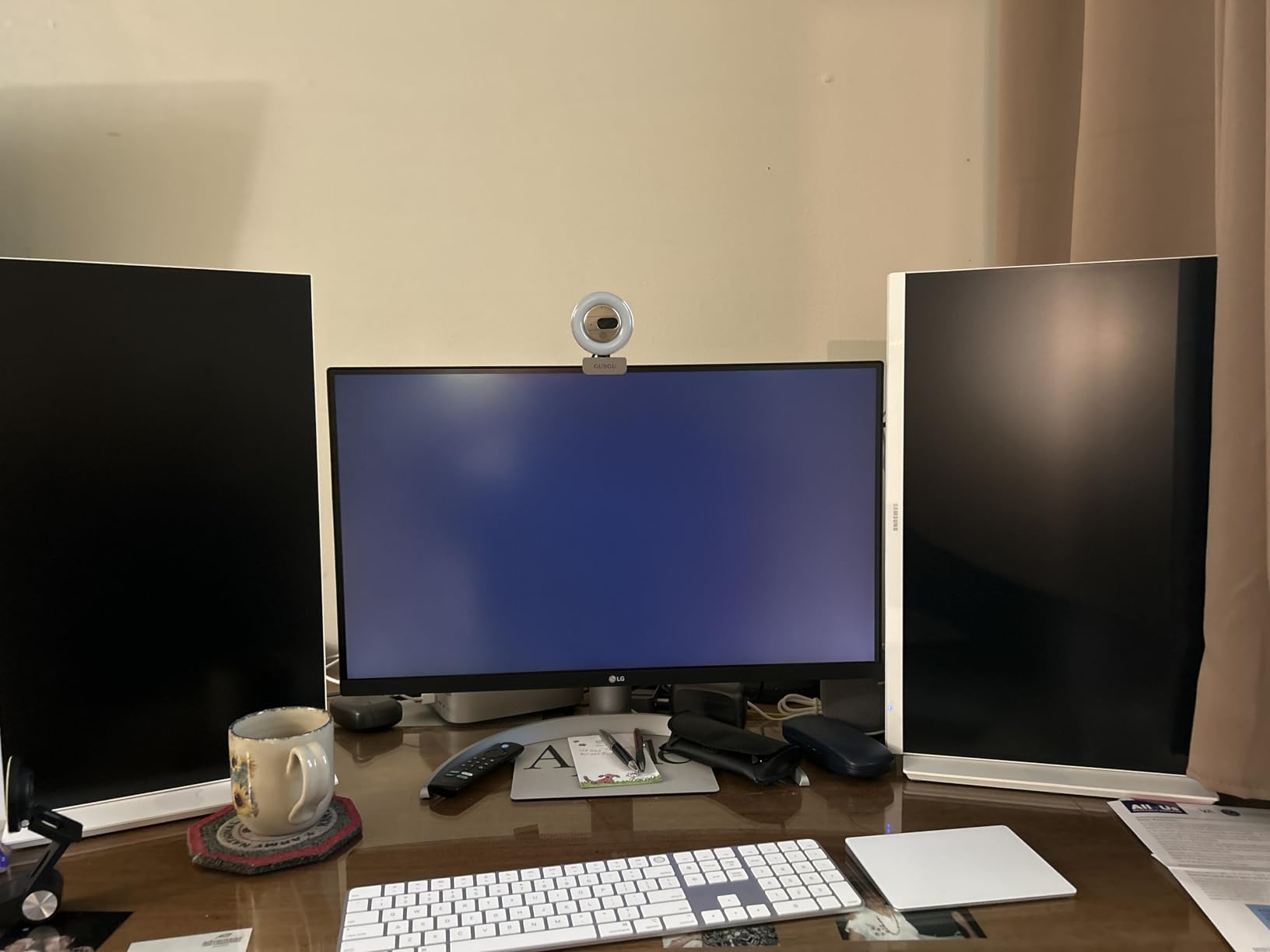
Two things hold it back. It is a 60Hz panel, so scrolling has none of the smoothness of the Dell at number one. And DisplayHDR 400 is the entry HDR tier, which improves the image but does not deliver the highlight brightness that the badge implies on paper.
90W USB-C and the Thunderbolt port
Ninety watts is the number that matters here. It comfortably covers a 14-inch MacBook Pro at any realistic load and gives a 16-inch machine far more headroom than the 65W monitors on this list, which is why several buyers call the single-cable experience the reason they kept it.
The Thunderbolt port adds a second high-bandwidth path alongside DisplayPort, dual HDMI and two USB 3.0 ports. On a laptop-only desk that is more than sufficient, and it leaves an option for a high-resolution laptop or tablet without hunting for a second input.
95% DCI-P3 and what DisplayHDR 400 actually delivers
Up to 95% DCI-P3 coverage puts this panel meaningfully ahead of the two 99% sRGB screens here. For a Mac workflow, P3 matters because macOS displays and many content pipelines work in P3, so a wider gamut means fewer clipped colours when you are grading or designing.
DisplayHDR 400 is where expectations need managing. It is the first tier of VESA certification: high dynamic range is accepted and metadata is handled correctly, but peak brightness is modest against a 400 cd/m2 panel spec. Treat it as better-managed contrast rather than as a genuine HDR workflow.
The Switch app for multi-window Mac workflows
Splitting a 27-inch 4K panel into up to six sections from software solves a specific Mac problem: a full-screen window on one side and a browser plus a terminal on the other, without window management gymnastics. It is the closest thing here to a built-in ultrawide.
The webOS side is less relevant to a Mac user but harmless, and it does mean the monitor can run apps when no computer is connected. On-screen controls are the weak point, though: most settings beyond brightness and volume need the software rather than the physical menu.
Panel response and the 60Hz ceiling
Five milliseconds response and a matte IPS finish make this a clean panel for text and general work. Motion handling is fine for scrolling and casual gaming with FreeSync, but the 60Hz ceiling means window animation always trails a ProMotion laptop screen.
Owners mostly accept this. The criticism concentrates on the refresh rate and the modest nature of DisplayHDR 400 rather than on image quality, which is a reasonable trade for a wider gamut and 90W of charging in one package.
4. Dell UltraSharp U2725QE - Best Thunderbolt 4 Dock for a MacBook Pro Setup
Dell UltraSharp U2725QE 27-Inch 4K UHD IPS Black Monitor
27-inch 4K IPS Black
Thunderbolt 4 with up to 140W
Daisy chain for two extra 4K monitors
Delta E under 1.5 at 99% DCI-P3
+ Pros
- Thunderbolt 4 single-cable solution delivering video data and up to 140W
- Daisy chaining for up to two additional 4K monitors
- Factory calibration to Delta E under 1.5 with 99% DCI-P3 coverage
- 120Hz refresh rate with 5ms response time
- ComfortView Plus plus ambient light sensor
- Cons
- Only 1000:1 native contrast typical of IPS panels
- Premium pricing versus 27-inch 4K USB-C alternatives
- A small minority cite early connectivity or panel issues
This is the monitor to buy if you want the MacBook Pro to fast-charge over the same cable that carries the picture, and you want to plug in two more displays afterwards. The U2725QE delivers up to 140W over Thunderbolt 4 and daisy chains to two additional 4K monitors, which makes it a complete workstation in one panel rather than a monitor with a charging port bolted on.
The colour story is strong too. Factory calibration to Delta E under 1.5 with 99% DCI-P3 coverage puts it in the same accuracy tier as the ProArt, and it adds an ambient light sensor that adjusts brightness automatically through ComfortView Plus. At 120Hz it is one of only two panels here that pair a high refresh rate with wide-gamut colour.
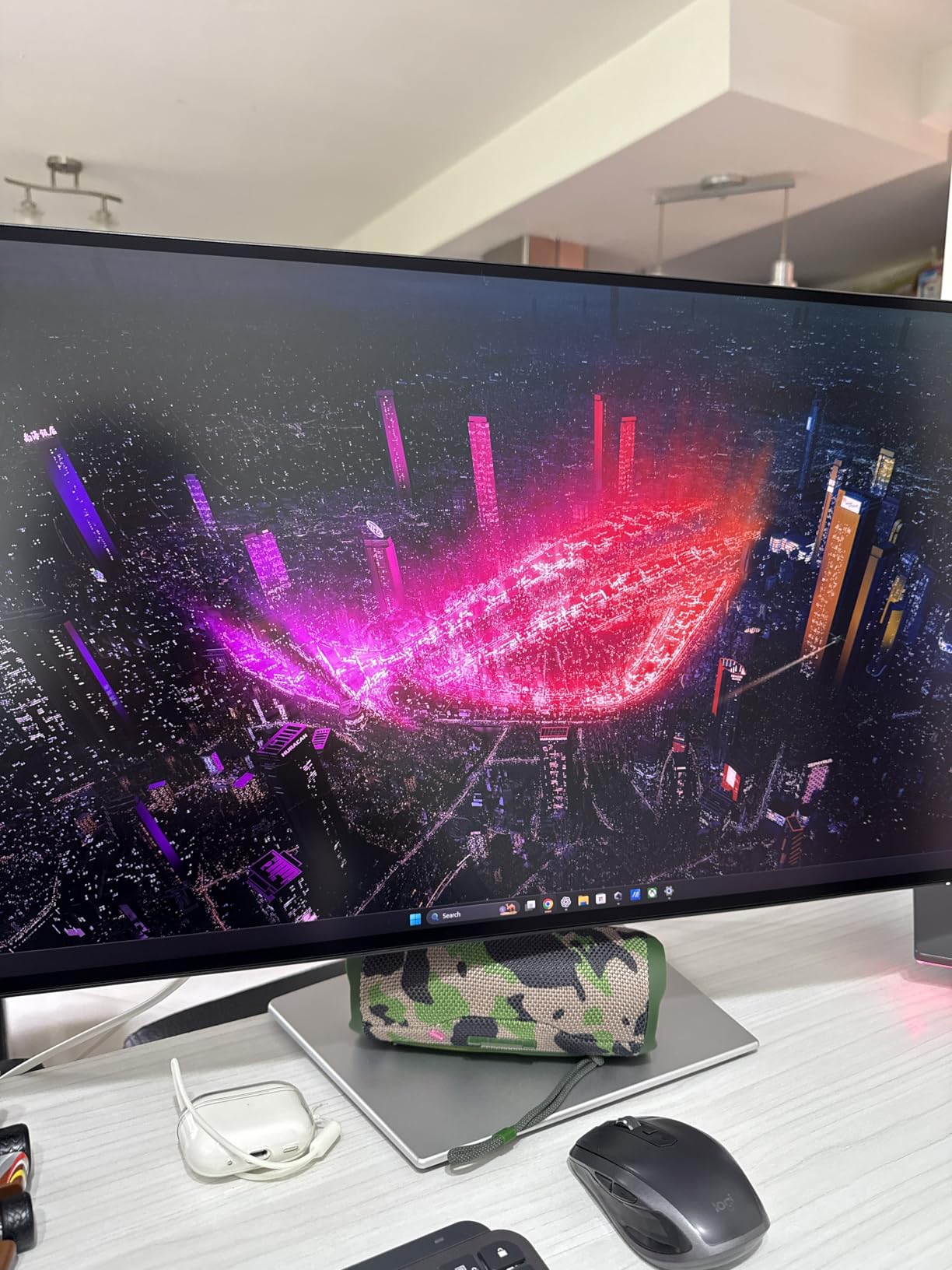
The catch is contrast. IPS Black gives a native 1000:1, so dark scenes in video or a photo with deep shadows will look flatter than a VA or OLED panel of the same price tier. Several owners also note the price sits above comparable 27-inch 4K USB-C alternatives, which is a fair complaint when 65W is all you need.
Thunderbolt 4 with 140W and daisy chaining
Up to 140W means a 16-inch MacBook Pro can run at full load from the monitor's cable, which removes the charger from the desk entirely for most working days. No other 27-inch monitor in this roundup goes past 90W, and that difference decides the purchase for power-hungry configurations.
Daisy chaining for up to two additional 4K monitors is the feature that changes the shape of a setup. One Thunderbolt cable from the MacBook reaches this panel, and two more screens hang off it, with video, data and power travelling the whole way. On a MacBook Pro desk that is the closest you get to a desktop without a separate dock.
Factory calibration to Delta E under 1.5
Delta E under 1.5 is tighter than the ProArt's published under 2, and with 99% DCI-P3 coverage the panel covers essentially the full P3 working space. For a Mac user editing in P3 or grading against a P3 reference, that headroom is the reason to choose this over a 99% sRGB screen.
It also avoids the calibration lottery. Several owners of ProArt panels report a green tint out of the box; the UltraSharp line is generally reported as consistent without intervention. If accuracy matters more than price, that reliability is worth a premium.
IPS Black contrast in a Mac workflow
The 1000:1 native contrast is the IPS Black compromise. It is better than a standard IPS panel but well short of what a VA panel reaches, and in macOS dark mode the difference shows in large dark areas with light text.
For code, documents and general productivity this is invisible. For photo retouching of low-key images or video grading in Resolve, you will notice it, and you should decide whether the colour gamut or the black level matters more to your work.
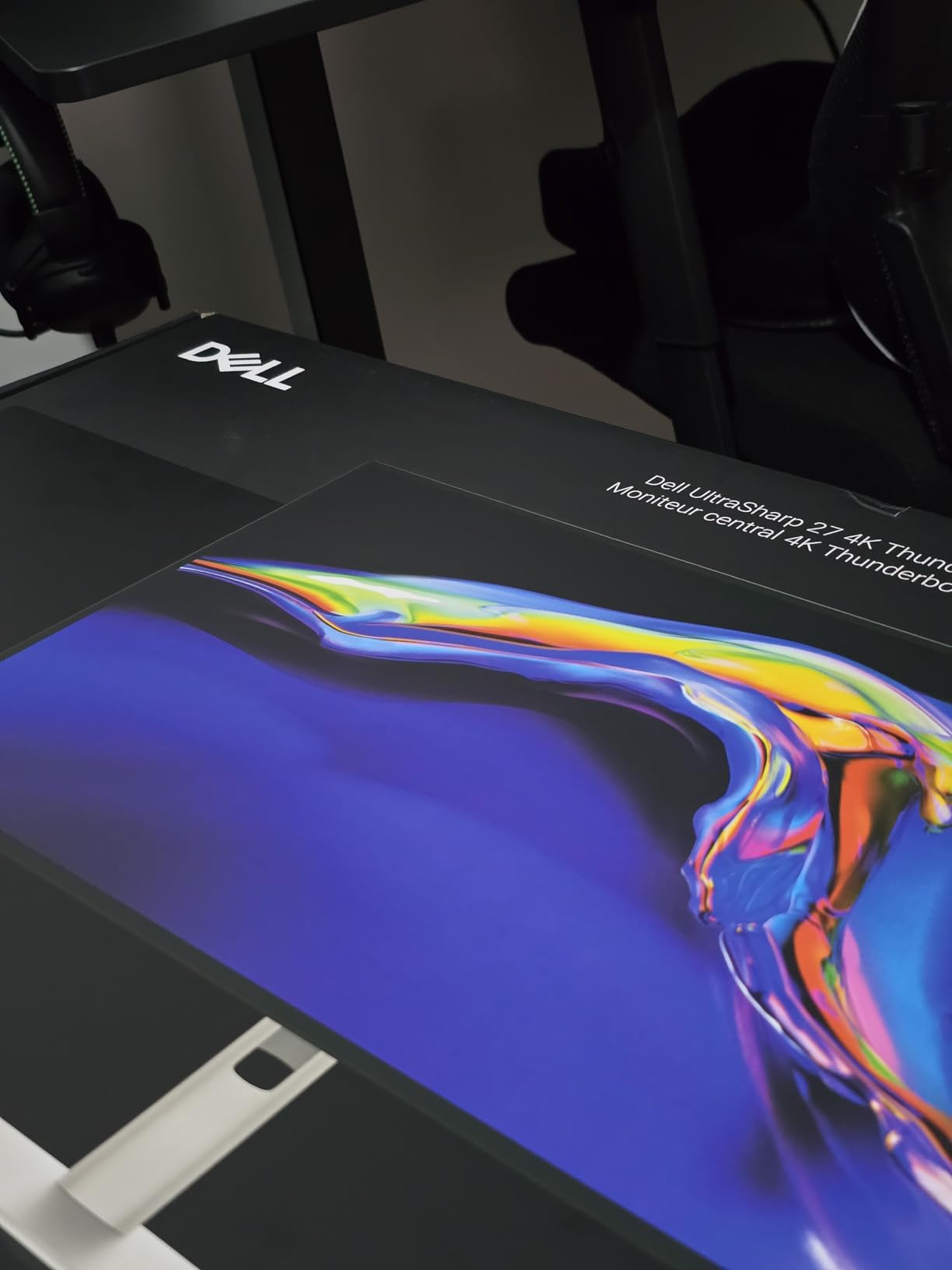
Port count, Ethernet and the ambient light sensor
Eight USB ports plus HDMI 2.1, USB-C, USB-A and Ethernet make this the best-connected 27-inch panel here. Ethernet over the monitor means a MacBook on a desk gets a wired network connection from one cable, which is genuinely useful for large file transfers in video or photo work.
Adjustment is thorough, with fifteen height positions plus tilt, swivel and pivot. The three-year Advanced Exchange Service and Premium Panel Exchange match the warranty on the Dell at number one, which matters for a monitor expected to stay on a desk for years.
5. Samsung 49-inch Ultrawide LS49C954UANXZA - Best Single-Cable Ultrawide Desk
Samsung 49” Business Curved Ultrawide Dual QHD Computer Monitor, USB-C, DisplayPort, HDMI, 120Hz...
49-inch 32:9 Dual QHD
90W USB-C docking
3000:1 contrast with HDR 400
120Hz with built-in speakers
+ Pros
- Dual QHD 5120x1440 at 32:9 effectively replaces a dual-monitor setup
- Monitor doubles as a docking station with 90W USB-C charging
- 3000:1 contrast ratio with VESA DisplayHDR 400 support
- 120Hz refresh rate for smooth scrolling and light gaming
- Built-in speakers reduce desktop clutter
- Cons
- 49-inch curved panel demands a large desk and considerable viewing distance
- Very heavy at over 32 pounds
- DisplayHDR 400 is a modest HDR tier
- No integrated KVM or per-input picture controls documented
The pitch for a 49-inch ultrawide is straightforward: replace two 27-inch screens with one panel, run one cable from the MacBook Pro, and remove the bezel gap in the middle of your workspace. The LS49C954UANXZA does that at 5120x1440 in a 32:9 ratio, with 90W USB-C charging built into the same cable path.
The 3000:1 contrast ratio is the best static contrast in this roundup, and it comes from a VA panel rather than IPS. Scrolling at 120Hz is smooth, and the built-in speakers keep the desk from filling up with separate audio. Owners of this class of monitor consistently praise the docking convenience and the single-screen multitasking.
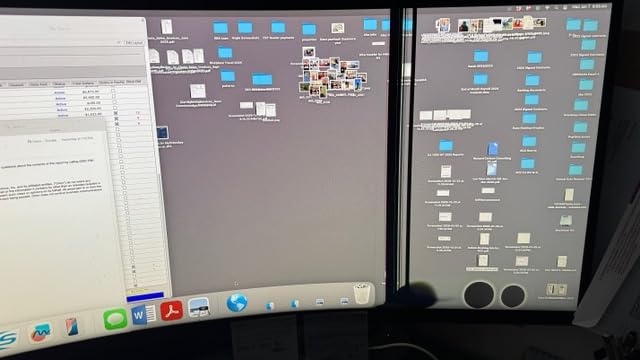
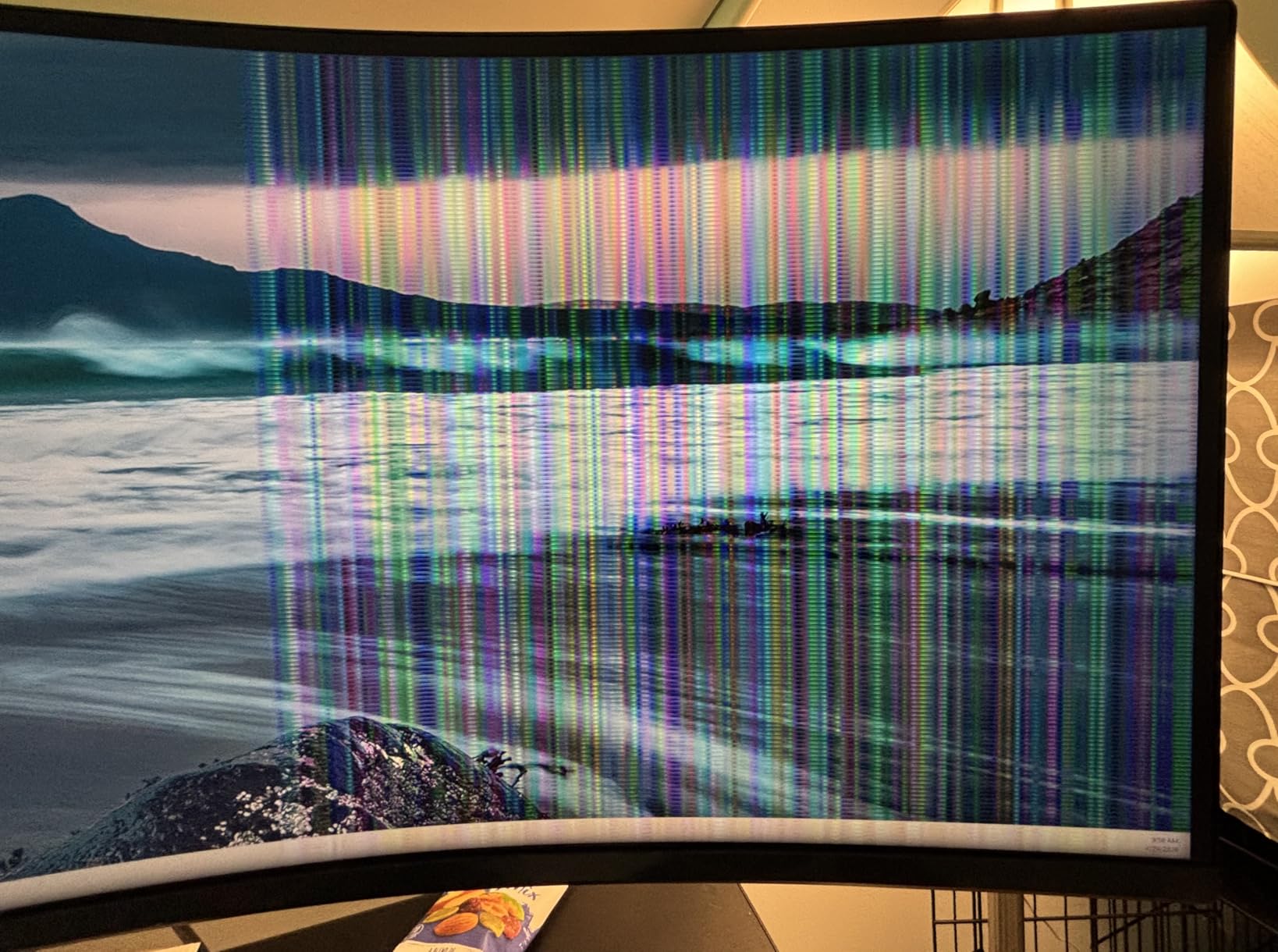
It is not a laptop-first monitor in the way the others are. At 49 inches and over 32 pounds, it needs a deep desk and a viewing distance most people only have in a dedicated room. And 5120x1440 is not a resolution macOS renders at Retina density, which is where this class of display has a well-documented problem.
49-inch 32:9 canvas replacing two displays
Two 27-inch 16:9 screens give you 3840 pixels of width at 1080 of height. This panel gives you 5120 by 1440, which is wider and slightly taller, in one seamless surface with no bezel between halves. For a timeline open in one window and a browser in another, the extra width is genuinely useful.
The catch is resolution density, not size. At 49 inches, 5120x1440 is a low pixel count spread over a very large area, so macOS cannot offer a true 2x HiDPI mode and falls back to fractional scaling. Owners of 40-inch 5K2K Dell panels report the same ceiling, with one user on r/ultrawidemasterrace documenting a maximum full-screen scaled resolution of 3008x1270 and PBP mode dropping HiDPI entirely so text looks noticeably worse.
90W docking built into an ultrawide
Most ultrawides force you to run a separate dock because they lack USB-C upstream. This one has DisplayPort, two HDMI, USB, USB-C and Ethernet, with 90W of charging on the USB-C path. For a MacBook Pro owner, that turns the ultrawide into a single-cable desk the same way the 27-inch USB-C panels do.
That single-cable story is the strongest argument for this monitor. It also carries three USB 3.0 ports, which is enough for a keyboard, mouse and drive without adding a hub.
3000:1 contrast and the HDR 400 caveat
The 3000:1 static contrast is a real advantage over the IPS panels in this roundup, and it shows in dark scenes and dark macOS interfaces where an IPS panel flattens out. On a mixed Mac desktop with a dark editor and a bright document, the contrast ratio keeps the dark side readable.
DisplayHDR 400 remains the entry tier, so do not expect the 600-nit class of brightness that makes HDR grading practical. It improves the picture and handles metadata correctly. That is enough for a general user, and not enough for a colourist.
Weight, curvature and desk depth
At over 32 pounds and 45 inches wide, this is a two-person move and it dictates your furniture. The 1000R curve helps at that width by keeping the edges at a consistent distance from your eye, but it also means the panel occupies real desk depth.
No integrated KVM or per-input picture controls are documented, so if you alternate between a laptop and a desktop you will manage inputs manually. The height adjustable stand and built-in speakers round out an otherwise very practical productivity panel.
6. BenQ MA270U - Best Mac Colour Matching with 90W and Dual USB-C
BenQ MA270U 27” 4K 3840x2160 Monitor for MacBook® Pro/Air, Dual USB-C, 90W Power Delivery, Mac...
27-inch 4K IPS
Factory tuned for MacBook colour
Dual USB-C at 90W and 15W
P3 wide gamut, 400 nits
+ Pros
- Factory tuned specifically for MacBook colour with P3 wide gamut
- Single 90W USB-C cable charges the MacBook and carries video and data
- Brightness and volume adjustable from the MacBook keyboard
- Dual USB-C ports with 15W for an iPad or iPhone
- Display Pilot 2 unlocks full OSD control and Mac settings
- Cons
- Most settings need Display Pilot 2 software since the built-in OSD is limited
- The single USB-A port is not conveniently located
- 60Hz refresh rate only
- Takes 3-4 seconds to wake after sleep
The MA270U is the only monitor here designed for the MacBook rather than adapted to it. It ships factory tuned with BenQ colour tuning for MacBook displays, and the second USB-C port delivers 15W to an iPad or iPhone. That last detail is the kind of thing no general-purpose monitor does, and it changes what the desk can hold.
More useful every day is the keyboard integration. Display Pilot 2 lets brightness and volume be adjusted from the MacBook keyboard, so you do not reach for the monitor. Owners overwhelmingly rate this panel positively for Mac-matched colour, one-cable operation and the software integration.
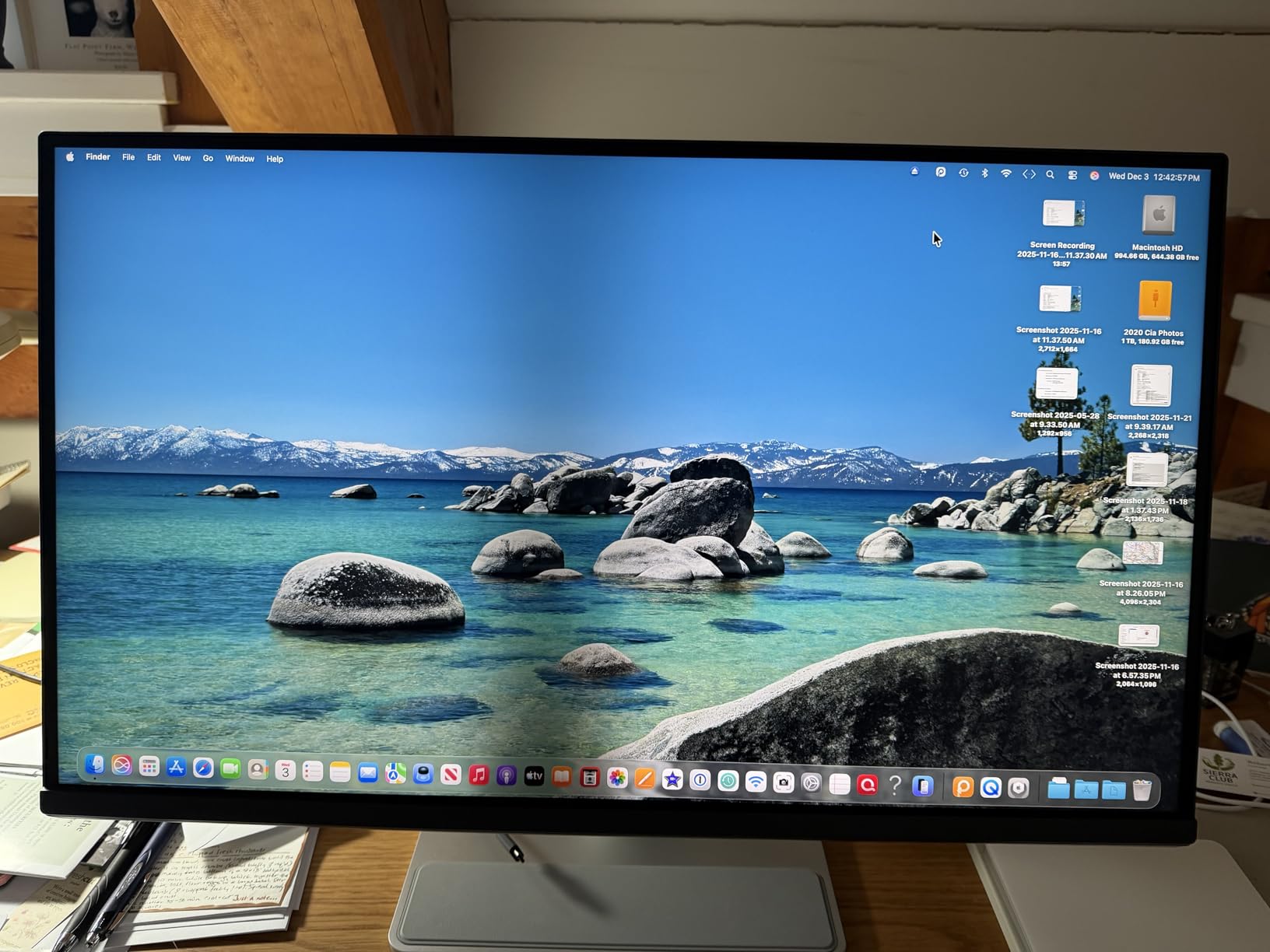
The trade-off is software dependency. The physical on-screen menu is limited to brightness and volume, so anything else requires Display Pilot 2. There is also a slow wake: the monitor takes three to four seconds to re-recognise input after sleep, which owners mention often enough that it is worth knowing before you buy.
Mac colour tuning and P3 gamut
The Mac colour tuning is applied at the factory rather than added as an on-screen preset. That means the panel is matched to how a MacBook display renders at its default settings, which is the closest third-party approximation you can buy without spending Apple money.
Coverage is a P3 wide colour gamut at 400 nits brightness and 2000:1 contrast. The 2000:1 figure is the highest static contrast among the 27-inch 4K panels here, which helps in a dark room and on dark macOS interfaces where a 1000:1 IPS panel flattens out.
Dual USB-C with 90W and 15W
The 90W port charges a MacBook Pro while carrying video and data, so the desk runs on one cable. For a 16-inch machine that runs heavy, 90W leaves considerably more headroom than 65W, and it is the reason this panel sits confidently beside the Dell U2725QE for laptop-first desks.
The second USB-C port delivering 15W is the Mac-specific touch. It charges an iPad or iPhone from the monitor, which keeps a second device off the charger and off the desk. Two HDMI inputs round out the cluster.
Display Pilot 2 and Mac keyboard control
Display Pilot 2 is what makes this monitor Mac-aware rather than merely Mac-compatible. It exposes the full OSD from software, and it routes brightness and volume into the Mac's own keyboard shortcuts, so the standard keys control the external display the same way they control the laptop panel.
That integration is why Mac-focused reviewers are so positive about this model. It is also the main drawback if you prefer to adjust settings from the hardware, because the built-in menu on this monitor is limited to brightness and volume.
Wake time and the limited on-screen menu
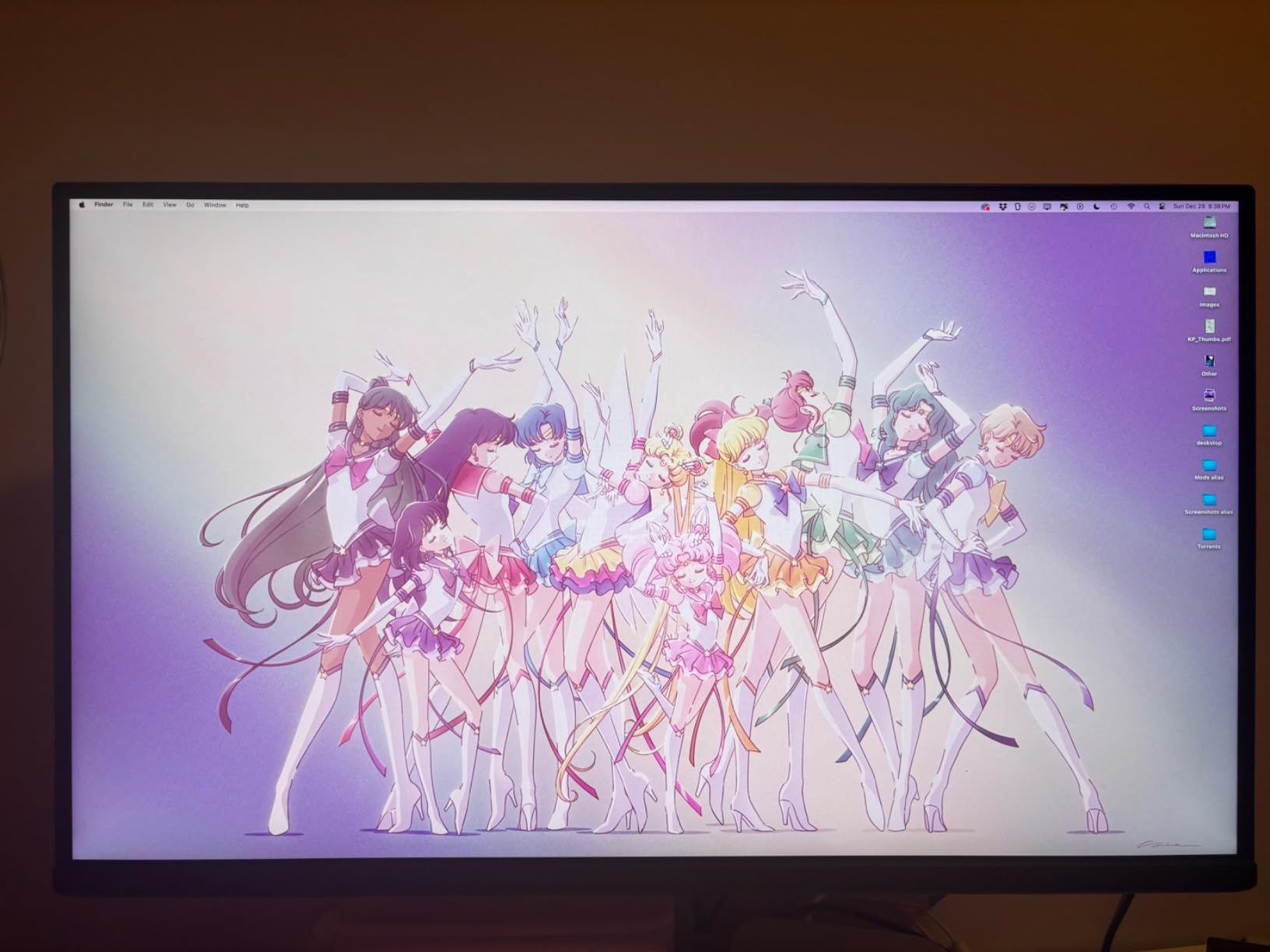
Three to four seconds to wake after sleep is the most-cited complaint among owners, and it is more noticeable than it sounds in a workflow where you close the lid and reopen it several times a day. Nothing about it is broken; it is just slower than the panels that re-recognise input immediately.
The 60Hz refresh rate is the second limitation, and the single USB-A port's placement behind the panel is the third. The stand still adjusts for height, tilt, swivel and pivot, and the matte coating is a sensible choice for a Mac user who wants sharp text without reflections.
7. LG UltraFine 32UP83AK-W - Best Large 4K Canvas at a Moderate Price
LG 32UP83AK-W 32-inch Ultrafine 4K UHD (3840 x 2160) IPS Computer Monitor, 60Hz, HDR10, Built-in...
31.5-inch 4K IPS
Up to 95% DCI-P3 with HDR10
60W USB-C single cable
Height tilt and pivot stand
+ Pros
- 32-inch 4K IPS panel with consistent brightness from wide viewing angles
- HDR10 support based on up to 95% DCI-P3 color gamut expression
- USB Type-C handles 4K video data and up to 60W charging on one cable
- Built-in speakers and Reader Mode
- Height tilt and pivot adjustable stand
- Cons
- 60Hz refresh rate
- 60W USB-C power delivery is on the low side for larger MacBook Pro chargers
- 1000:1 contrast ratio is modest for a panel of this size
- FreeSync is listed but the panel does not target high-refresh gaming
The 32UP83AK-W answers a specific request: more canvas than a 27-inch screen without stepping up to an ultrawide. At 31.5 inches and 3840 x 2160 it gives you the extra two inches of diagonal for a full-resolution desktop at a moderate price, with 95% DCI-P3 coverage and HDR10 on a matte IPS panel.
For a Mac user the tradeoff is arithmetic. A 32-inch 4K panel has fewer pixels per inch than a 27-inch 4K panel, so the scaled resolution macOS offers is roomier and text is softer. In exchange you get a much larger working area for documents, timelines and reference material, all at native resolution.
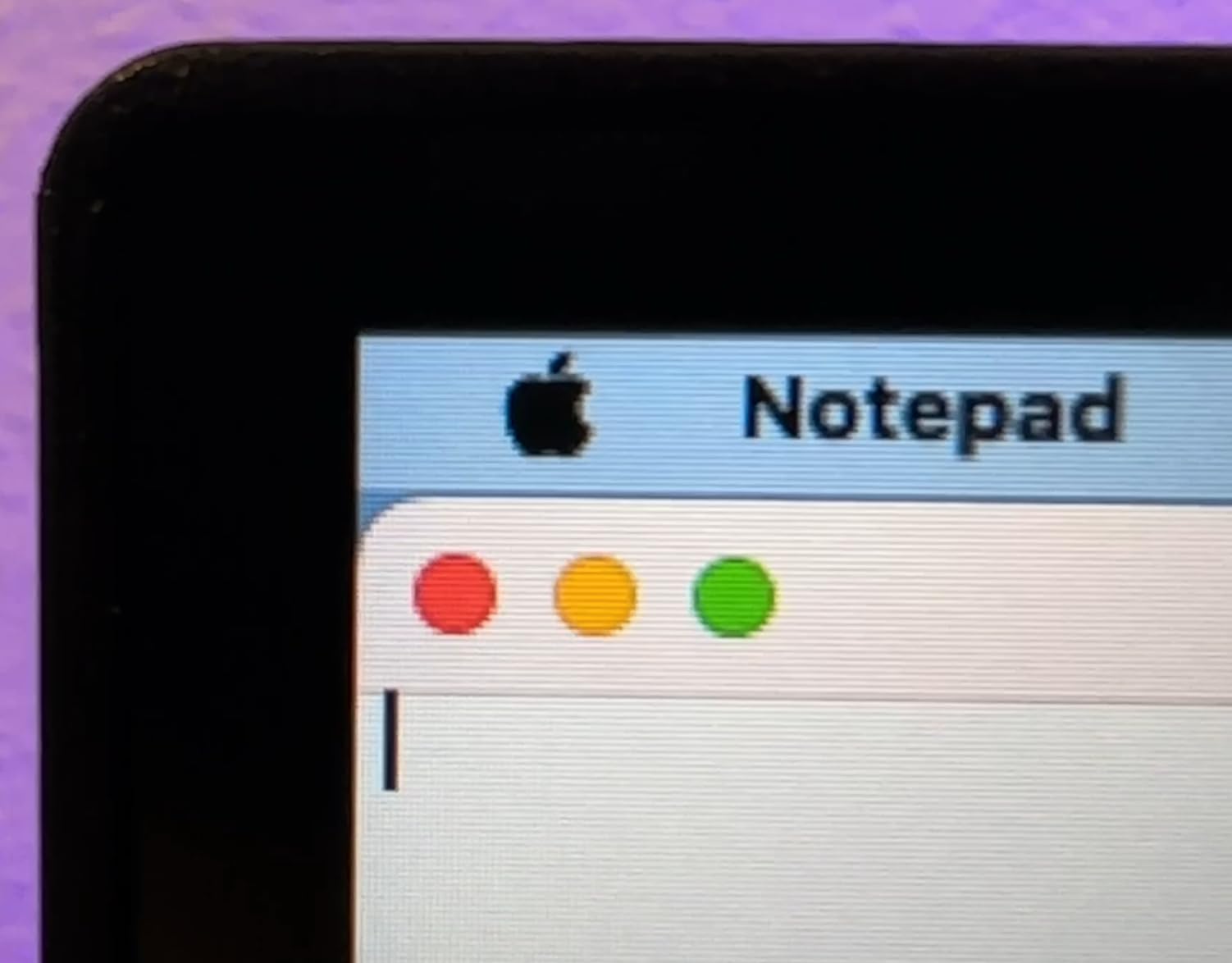
The charging figure is the detail that catches Mac buyers out. 60W is below the 65W floor most people assume is acceptable, and under sustained load on a larger MacBook Pro configuration it will not keep up. If you need a second charger anyway, the one-cable advantage mostly disappears.
What a 31.5-inch 4K panel feels like at a desk
Physically, a 31.5-inch 16:9 panel is a step up from 27 inches without the jump in desk depth that an ultrawide demands. It fits a standard desk, sits at a normal viewing distance, and gives you roughly 17% more linear screen area than the 27-inch models in this roundup.
The practical effect on a Mac is more usable desktop at native resolution. If you work with a document window beside a browser window rather than in a tiled arrangement, the extra room means fewer overlapping windows. If you tile everything and maximise your working area, the density difference is a downgrade rather than a gain.
60W USB-C and where it stops being enough
60W over USB-C handles a 14-inch MacBook Pro with light to moderate load and carries video and data on the same cable, alongside two HDMI inputs and three USB 3.0 ports. For light work that is a clean single-cable desk.
Under heavier workloads on the larger sizes, 60W falls short and the laptop draws more current than the port supplies, which typically means the machine charges slowly while still running at full speed. Owners explicitly flag this as the main disappointment on this model, and it is the reason it sits below the 90W and 140W options here.
95% DCI-P3 with HDR10
Up to 95% DCI-P3 expression matches the 27-inch UltraFine panel, which is a good result for a display this size. HDR10 support is present and colour depth is wide enough for general creative work, though this is not a grading panel.
Brightness is listed at 350 cd, and viewing angles are 178 degrees in both directions with consistent brightness off-axis. For a wide desk where the panel is not directly in front of you, that consistency is more valuable than it would be on a smaller screen.
Stand, speakers and the Reader Mode
The stand adjusts for height, tilt and pivot, so the panel can turn to portrait for long documents. It is a wall-mountable option as well, which matters more on a 31.5-inch panel than on a 27-inch one when the desk is already deep.
Built-in speakers remove the need for separate desktop audio, and Reader Mode adjusts the display for long-form text reading, which is a small feature that pairs well with the larger canvas. The one-year warranty is the shortest here, which is worth noting for a panel of this size.
8. Samsung ViewFinity S50GC 34-Inch - Best Value Ultrawide for Multitasking
SAMSUNG 34" ViewFinity S50GC Series Ultra-WQHD Monitor, 100Hz, 5ms, HDR10, AMD FreeSync, Eye Care...
34-inch 21:9 Ultra-WQHD
100Hz with 5ms response
VA panel at 3000:1 contrast
PIP and PBP at native resolution
+ Pros
- Ultra-WQHD 3440 x 1440 at 100Hz delivers smooth scrolling and light gaming
- VA panel with 3000:1 static contrast and HDR10
- PBP shows two sources at native resolution simultaneously
- Ambient light sensor Eye Saver Mode and Flicker Free reduce eye strain
- Virtually bezel-free design suits dual-monitor setups
- Cons
- No USB-C connectivity so a MacBook Pro needs a separate charging cable and adapter
- VA dark-region smearing on high-contrast content
- Modest color gamut coverage and no factory color calibration
- Included stand is described as cumbersome
- Somewhat janky PIP handling
This is the most-reviewed monitor in the roundup by a wide margin, and owners treat it as the value entry into an ultrawide desk. At 34 inches and 3440 x 1440 it gives you a 21:9 canvas that fits a standard desk far more easily than the 49-inch panel, and the 100Hz refresh rate makes scrolling smooth in a way that 60Hz panels at this size are not.
The VA panel brings 3000:1 static contrast, which is genuinely good for a general-purpose display, and the near-bezel-free design makes it a good second screen beside another monitor if you already run two. Owners cite the useful 21:9 canvas and the panel performance exceeding expectations for the tier.
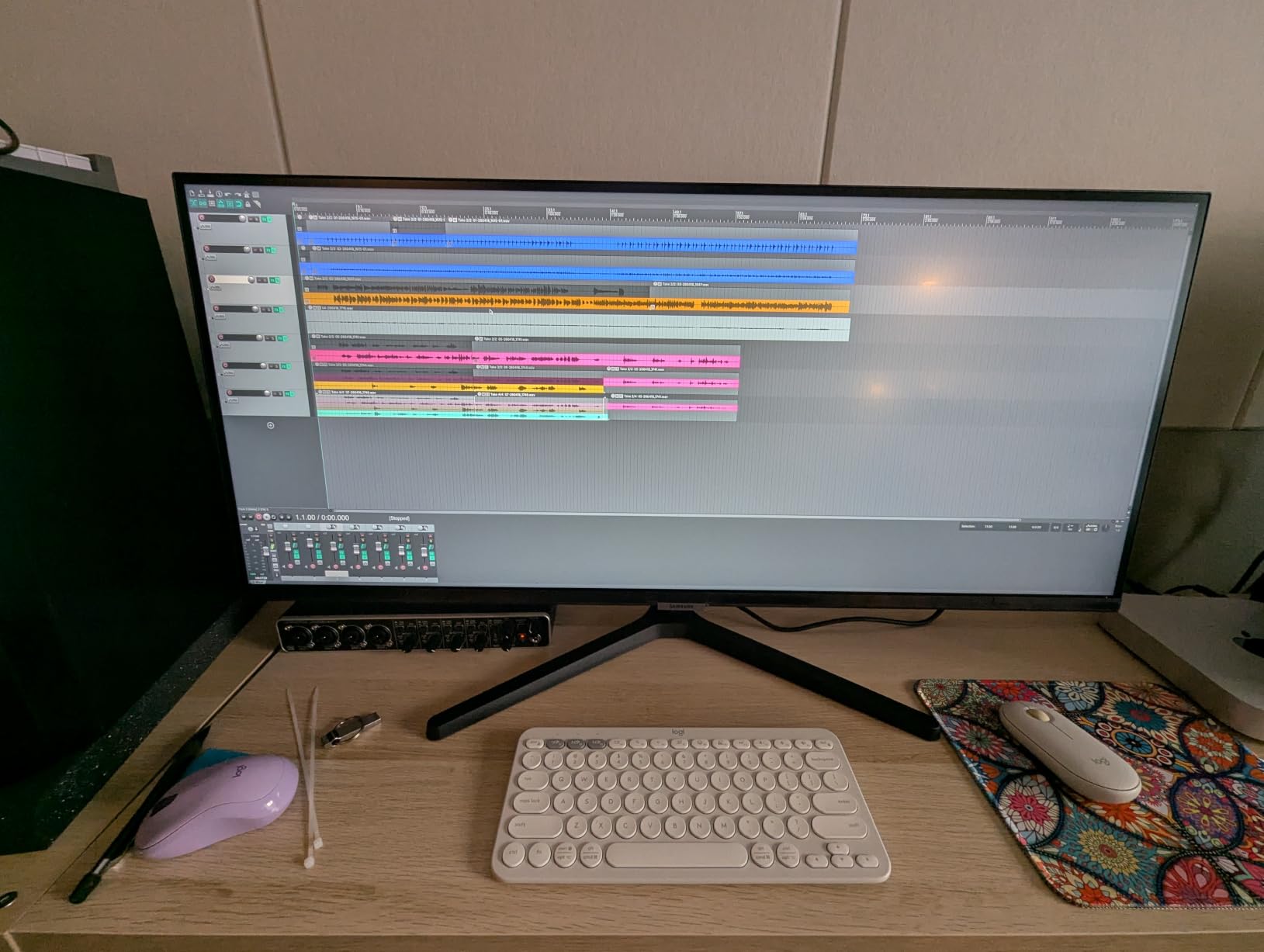
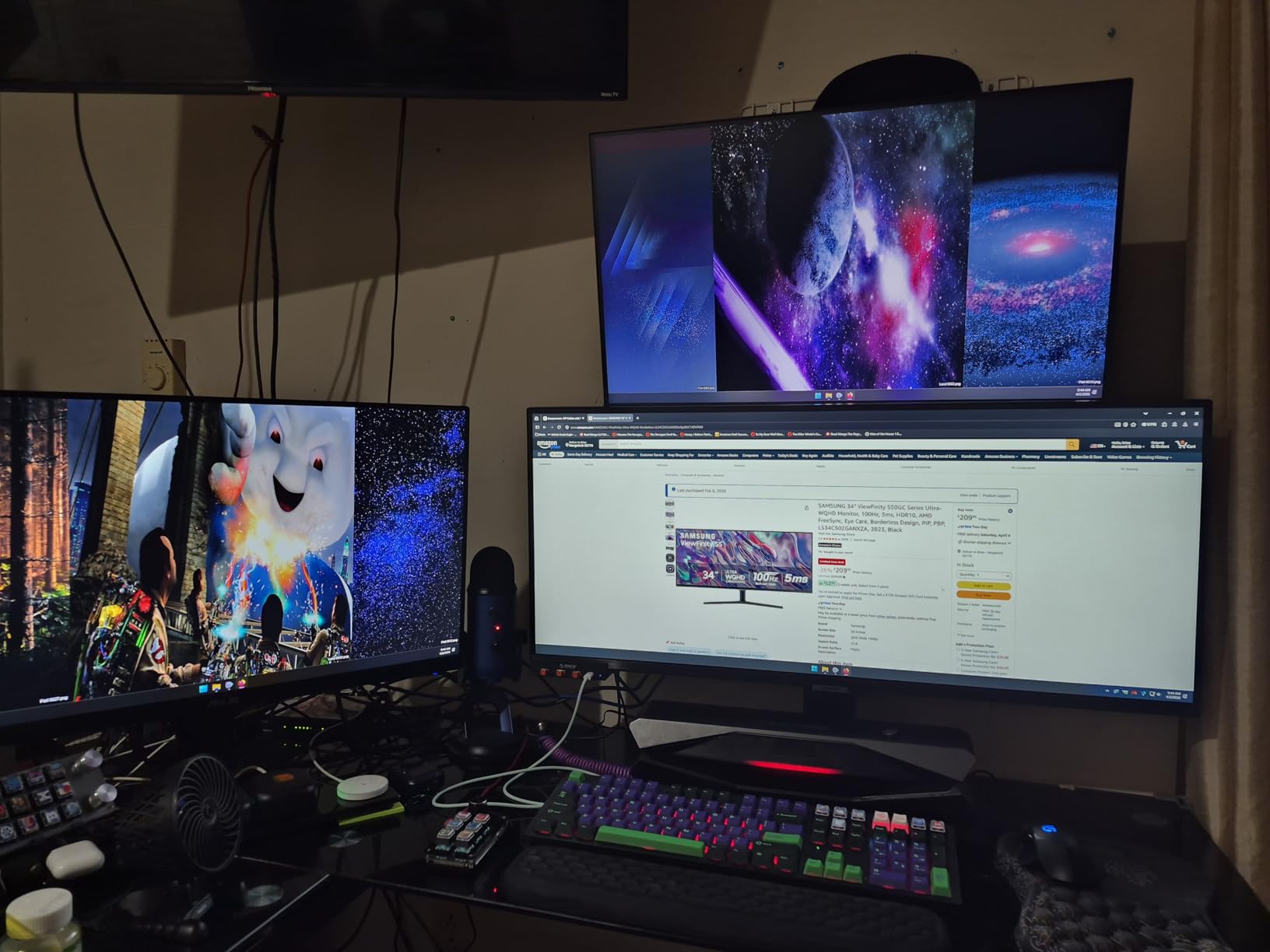
For a MacBook Pro owner there is one significant problem, and it is not a small one. There is no USB-C connectivity at all, so you are connecting over HDMI or DisplayPort for video and carrying the laptop's charger separately. This is the only monitor in the roundup that does not offer a one-cable setup.
21:9 multitasking with PIP and PBP
At 34 inches the ultrawide format stays within the footprint of a normal desk, which is what separates it from the 49-inch option. The 21:9 canvas holds two applications side by side with room to spare, or a wide document beside a reference window, without the bezel seam of a dual-monitor rig.
Picture-by-picture shows two sources at native resolution simultaneously, which is a real advantage if you occasionally need to see a second machine without swapping cables. Owners do describe PIP handling as somewhat janky, so treat it as a convenience rather than a headline feature.
VA panel contrast and the smearing trade-off
The 3000:1 static contrast is the strength here. It is roughly triple what an IPS panel in this roundup delivers, and it makes dark content hold up in a dim room in a way that the IPS options cannot.
The cost of VA is dark-region smearing on high-contrast content. Text scrolling over a dark background can trail visibly, which matters more on a Mac than on Windows because macOS interfaces lean on dark mode. Colour gamut coverage is modest and there is no factory calibration, so this is not a panel for colour-critical work.
No USB-C and what that means for a MacBook Pro
Two HDMI ports and one DisplayPort means video is easy. Power is not. A MacBook Pro on this monitor runs on its own charger, so your desk has two cables where the other nine options here have one.
If you already own a compact charger and dock, or you work near a socket, that is a manageable trade for the size and refresh rate. If you want the clean single-cable desk that defines most of this roundup, keep looking.
Eye Care features and mounting options
The ambient light sensor adjusts brightness automatically, and Eye Saver Mode plus Flicker Free handling reduce eye strain over long sessions. On a large 34-inch panel filling more of your field of view than a 27-inch, those features are more useful than they would be on a smaller screen.
It is wall mountable, and owners generally recommend replacing the included stand with a monitor arm, describing the supplied one as cumbersome. At 100Hz with FreeSync and 5ms response, light gaming and smooth scrolling both work well.
9. INNOCN 27-Inch 4K USB-C - Best Entry 4K USB-C Option
INNOCN 27" 4K USB-C Monitor for Laptop MacBook/Mac mini - 16:9 IPS 3840 x 2160 Display, HDR...
27-inch 4K IPS
Delta E under 2 with 1.07B colors
65W USB-C with DP 1.4 and HDMI 2.1
400 nits with HDR400
+ Pros
- Genuine 4K IPS panel with Delta E under 2 and 1.07B color depth
- USB-C with 65W charging plus DisplayPort 1.4 and HDMI 2.1
- 400 nits brightness with HDR400 support
- Fully adjustable stand including pivot to portrait and 75x75 VESA mounting
- Built-in speakers and frameless three-sided design
- Cons
- 60Hz refresh rate
- 1000:1 contrast ratio is on the low side for a 4K IPS panel
- 65W USB-C charging is marginal for higher-power MacBook Pro models
- Build and support responsiveness trail the established brands
The INNOCN 27-inch 4K USB-C delivers the specification sheet of a much more expensive monitor. A genuine 3840 x 2160 IPS panel with Delta E under 2, 1.07 billion colours, 400 nits and HDR400, plus USB-C 65W charging, DisplayPort 1.4 and HDMI 2.1, in a three-sided frameless chassis.
Owners treat it as a strong value 4K USB-C option for MacBook and Mac mini use, and the measured accuracy is the part that surprises people. The fully adjustable stand is also unusually good here, with swivel, height, tilt and pivot to portrait plus a 75x75 VESA mount.
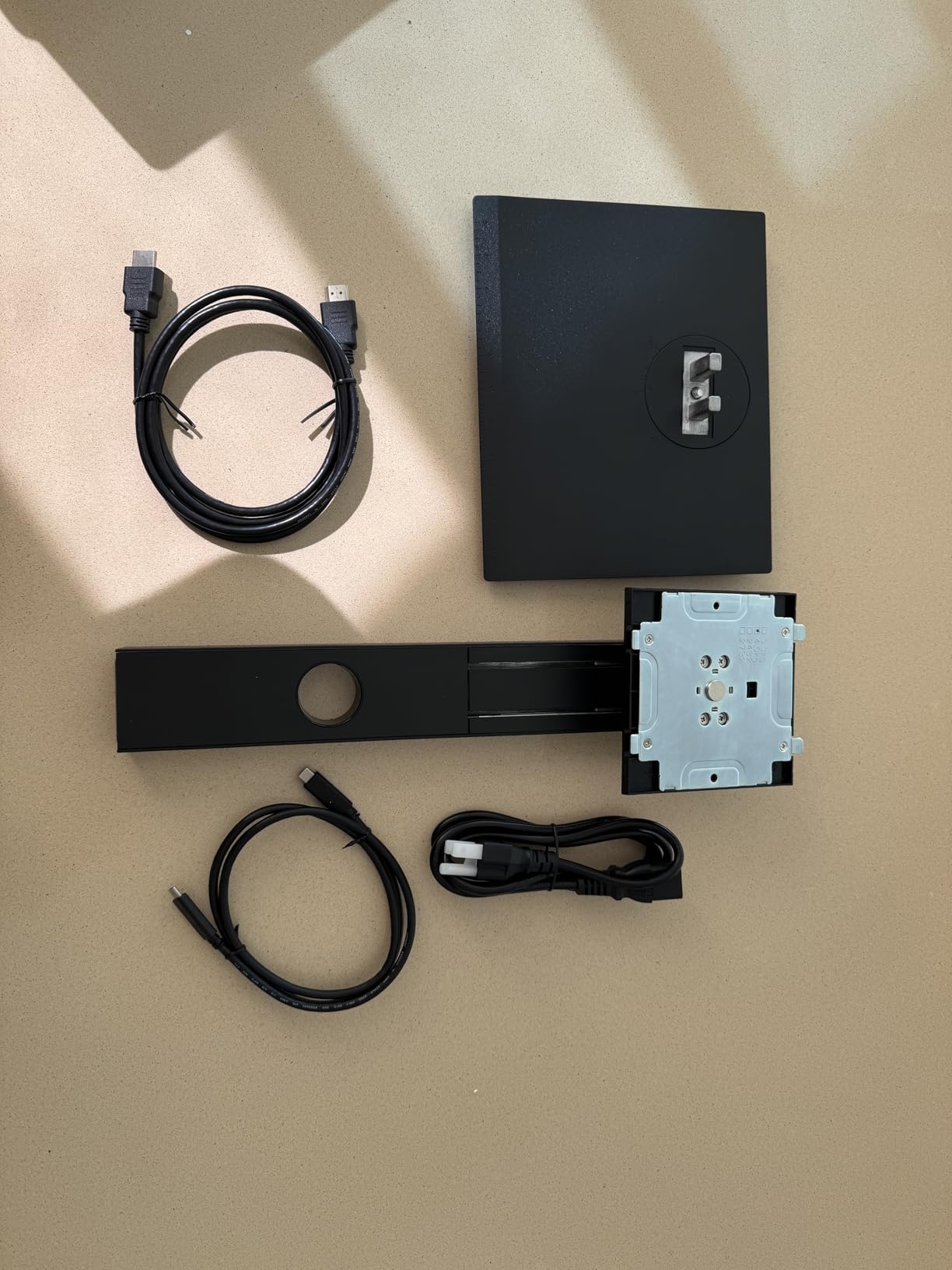
The caveats are predictable ones. 60Hz, 1000:1 contrast, and 65W charging that is marginal for the larger MacBook Pro models. Owners also note that build and support responsiveness trail the established brands, which is where the star rating settles at 4.3 rather than 4.4 or above.
Delta E under 2 accuracy at an entry tier
A published Delta E under 2 puts this panel in the same accuracy class as the Calman Verified ProArt, and that is the headline here. For photo and design work, a monitor at this tier being within a visible tolerance of the reference is unusual.
One practical caveat from owner reviews: a portion of one-star ratings centre on colour accuracy and connectivity reliability, which suggests unit-to-unit variation is higher than on the established brands. If colour work is the reason you are buying, buy from a seller with straightforward returns rather than pushing an unfamiliar brand to its limits.
65W USB-C alongside DisplayPort 1.4 and HDMI 2.1
The port selection is the best-specified of any 27-inch 4K panel in this roundup. DisplayPort 1.4, HDMI 2.1, a 65W USB-C port and a 3.5mm audio output cover both a MacBook and a desktop, and the USB-C path handles plug-and-play for Macs, mini PCs, phones and tablets.
65W is the same floor as the Dell at number one and it covers a 14-inch MacBook Pro comfortably at moderate load. Under sustained heavy workloads on the larger sizes, you will want the laptop's own charger alongside it.
Fully adjustable stand and VESA 75x75
Swivel of 45 degrees, height adjustment of plus or minus five inches, five degrees forward, twenty degrees back and ninety degrees of pivot means this stand covers everything the premium models here do. Pivot to portrait is genuinely useful for a coding column or a long document.
The 75x75 VESA pattern is the most universal mount size there is, so any arm or wall bracket will fit. Desk and wall mounting are both supported, which makes this an easy panel to reposition as your setup changes.
Build, support and the 60Hz expectation
Build quality and support responsiveness are where this panel sits behind Dell, ASUS and LG. That shows up in service experience rather than in day-to-day use, but it is the reason to check the warranty terms carefully before committing.
The 60Hz ceiling is the recurring expectation mismatch among buyers. It is a listed specification, not a defect, but anyone moving from a ProMotion MacBook will notice the difference in scrolling. The 1000:1 contrast is also low for a 4K IPS panel, though most owners accept it for general work.
10. Dell UltraSharp U4025QW 40-Inch - Best Maximum Workspace in This Roundup
Dell UltraSharp U4025QW 40" Class 5K2K WUHD Curved Screen LED Monitor - 21:9
39.7-inch 21:9 5K2K curved
5120 x 2160 resolution
600 nit brightness
Thunderbolt and Ethernet, 120Hz
+ Pros
- Massive 39.7-inch 5K2K curved ultrawide canvas at 21:9
- 600 nit brightness rated for well-lit rooms
- 120Hz refresh rate with 5ms response time
- Extensive connectivity including Thunderbolt Ethernet and eight USB ports
- Highest average rating in this product group at 4.6
- Cons
- Very heavy at nearly 42 pounds requiring a robust desk and arm
- Highest price point in this roundup
- Only one HDMI port and a single component output listed
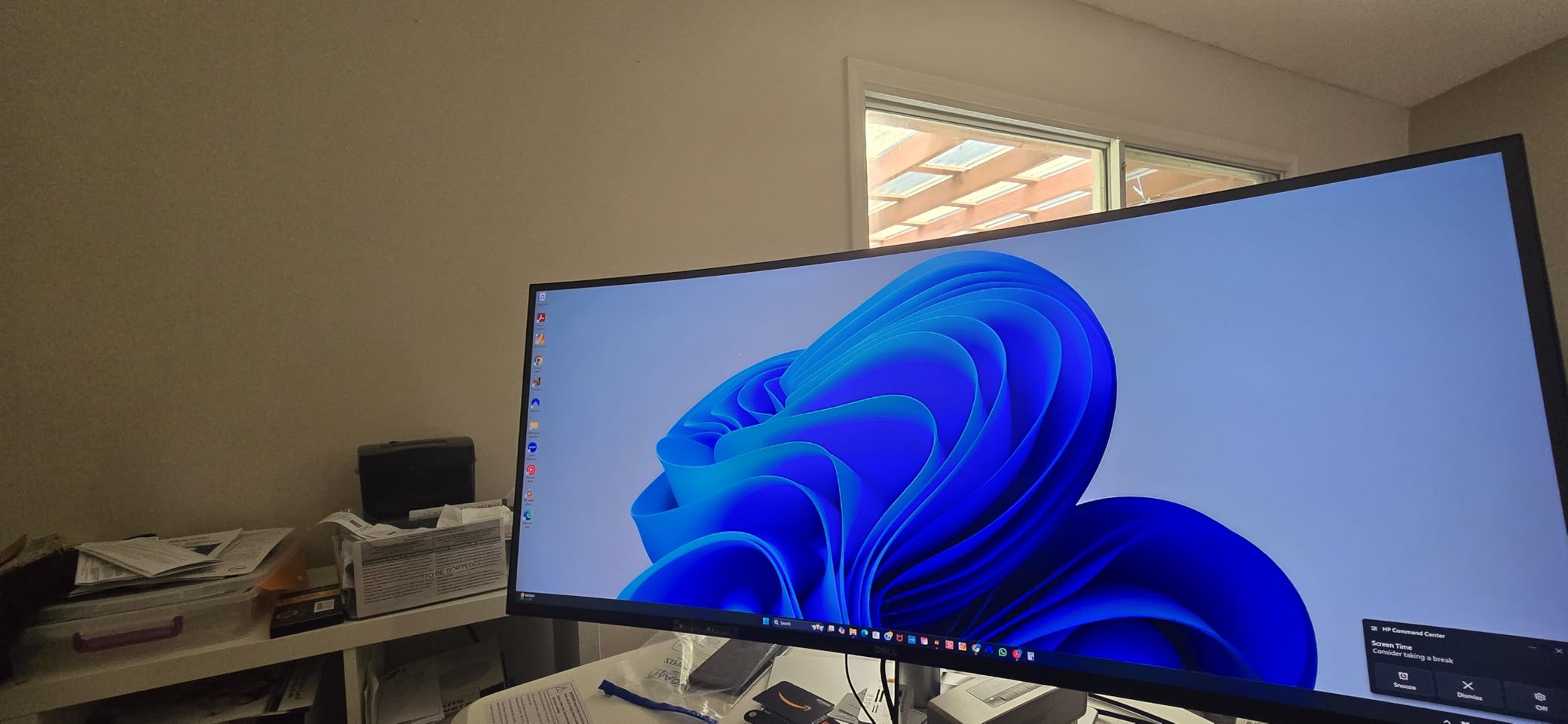
The U4025QW is the largest canvas here and the highest rated in the group at 4.6, with 243 owner reviews. A 39.7-inch curved 21:9 panel at 5120 x 2160 gives you more horizontal space than any other display in this roundup, with 600 nits of brightness for a well-lit room and a 120Hz refresh rate.
Professionals and enterprise buyers rate it highest for the workspace itself, the strong brightness and the port selection, which includes Thunderbolt, Ethernet and eight USB ports. On a desk where the MacBook Pro is the only computer, Ethernet over the monitor means one cable for network, data and video.
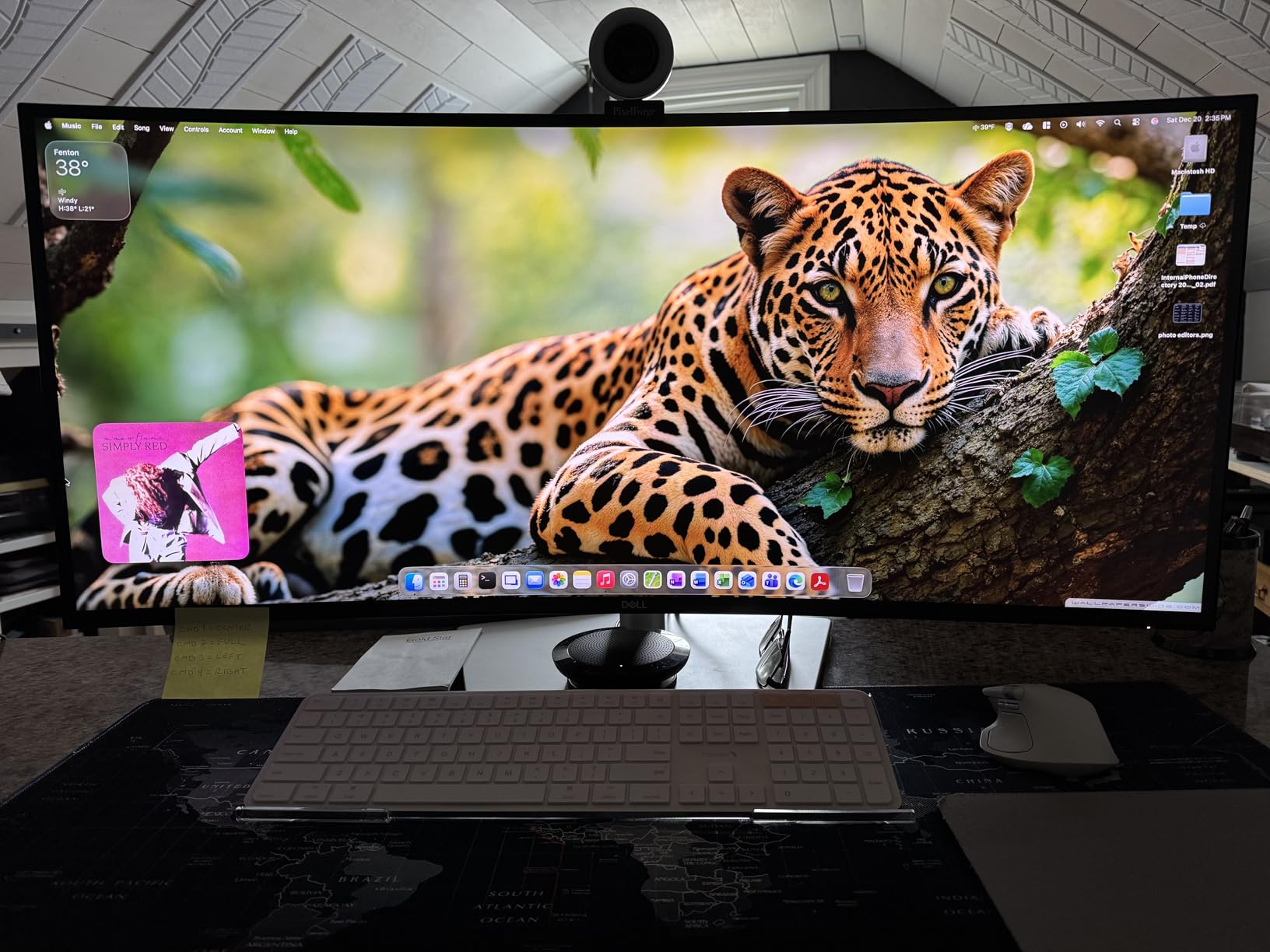
It is also the heaviest panel here at nearly 42 pounds and the one that most changes your furniture. It needs a deep desk and a serious arm. And the same resolution-versus-size arithmetic applies: 5K2K across 40 inches still does not reach the pixel density of a 27-inch 4K panel, so macOS scaling will feel looser here than on the smaller screens.
5K2K resolution and pixel density on a 39.7-inch panel
5120 x 2160 is more than twice the pixel count of a 27-inch 4K panel, which sounds decisive until you divide it across a much larger surface. The result is a lower pixel density, and macOS compensates with a more generous scaled resolution rather than a true HiDPI mode.
This is the well-documented ultrawide scaling ceiling. Users report that a 40-inch 5K2K Dell offers no HiDPI mode in full screen, with a maximum scaled resolution around 3008x1270, and that picture-by-picture mode drops HiDPI entirely so text quality degrades noticeably. If text sharpness is the priority, a smaller 27-inch 4K panel is the safer choice.
600 nits and a bright-room workspace
600 nits is the highest brightness figure in this roundup by a wide margin, and it is the specification that makes this monitor usable in a bright room without washing out. Combined with the 21:9 aspect ratio, it suits a desk near a window where a 300-nit panel would be fighting ambient light all day.
The 2000:1 contrast ratio is also above the IPS panels here, which helps in a dark room and on dark interfaces. For a monitor being used with macOS dark mode across a very large area, that combination is a genuine advantage over the 27-inch options.
Thunderbolt and Ethernet connectivity
Thunderbolt, Ethernet and eight USB ports make this the best-connected panel in the roundup. Thunderbolt handles data and power over one path, and Ethernet over the monitor means a MacBook Pro on a desk gets a wired network connection without a dongle.
For video and photo work, the combination of a fast wired connection and eight USB ports removes most of the friction of a laptop-only workstation. Adjustability covers height, swivel and tilt, and the included USB hub handles peripherals.
Weight, desk depth and the price tier
At nearly 42 pounds this needs a desk that can carry it and an arm rated for the load. Owners accept the weight because of the workspace, but it is not a monitor you move between rooms. Curvature also means you need real desk depth to keep the edges at a consistent viewing distance.
It is the most expensive monitor here, and the three-year manufacturer warranty is shorter than the Dell at number one. The HDMI count is also thin at one port. Those are real costs, and they are why this sits at number ten rather than higher for most MacBook Pro users.
How to Choose a MacBook Pro Monitor in 2026
5K or 4K: the density maths that decides text sharpness
Is 5K or 4K better for a Mac monitor? For text sharpness, 5K. A 27-inch 5K panel at 5120 x 2880 carries roughly 1.8 times the pixels of a 27-inch 4K panel at 3840 x 2160, and that extra density is what lets macOS render a true 2x HiDPI interface that matches the built-in display. A 27-inch 4K panel, at 163 pixels per inch, cannot reach Retina density at any size, so macOS falls back to a fractional scale and text takes on a slight softness.
Is 5K vs 4K noticeable? Side by side with the laptop screen, yes, most people notice within a minute of switching between them. Sitting at a 27-inch 4K for a full day, most people stop noticing within a week. That is the honest answer, and it is why every 27-inch pick in this roundup is 4K.
Is it worth getting a 5K monitor? If you do colour-critical work or spend your day in text at small sizes, yes. If you want one cable, more screen and a better refresh rate, the extra spend is better aimed at a 120Hz 4K panel with a proper USB-C hub. There is a fuller discussion of macOS scaling settings below.
Screen size: 27 inch versus 31.5 inch versus ultrawide
Larger screens mean lower pixel density at the same resolution, because pixels are spread across more surface area. A 27-inch 4K panel gives 163 pixels per inch and the tightest text of any 16:9 screen here. A 31.5-inch 4K panel gives you a bigger canvas and softer text. A 34-inch 3440 x 1440 ultrawide gives you width and much less density still.
Choose by how you work rather than by size. Code, documents and spreadsheets reward density, so 27 inches. Timeline editing with large reference areas rewards area, so 31.5 inches or ultrawide. Running many windows simultaneously with no interest in scrolling rewards the 21:9 and 32:9 formats, accepting that macOS will not render them at Retina density.
Is 1440p or 4K better for Mac? 4K, without much argument. 2560 x 1440 on a 27-inch panel is a comfortable native resolution, but on a MacBook Pro it looks soft next to the built-in panel and wastes the resolution the hardware can drive.
USB-C and Thunderbolt power delivery matched to your MacBook Pro
The wattage figure on a monitor is the number most often ignored and most often regretted. A 65W USB-C port covers a 14-inch MacBook Pro at light and moderate load. A 90W port gives a 16-inch machine real headroom. A 140W Thunderbolt 4 port lets the largest configurations run at full load from the monitor's cable, with no charger on the desk.
Two things to verify before you buy. First, that the USB-C port is a full upstream port carrying video and data, not just charging. Second, that the monitor includes a USB-C cable, because the bundled cable is often the limiting factor rather than the port itself.
If your MacBook Pro already sits on a dock, USB-C power delivery matters much less and port count matters more. The Dell UltraSharp U2725QE and the Dell U4025QW are the strongest choices in that scenario, with eight USB ports each and Ethernet on both.
Panel type, colour gamut and factory calibration
IPS gives you wide viewing angles, accurate colour and consistent brightness off-axis, and it covers almost every pick here. VA delivers far higher contrast, around 3000:1, at the cost of dark-region smearing that is visible when text scrolls over dark backgrounds. OLED gives you perfect blacks and no smearing, and none of the panels in this roundup use it.
On gamut, sRGB is fine for general work and web design. DCI-P3 is the working space for photo and video, and the LG 27UP850K-W, LG 32UP83AK-W, Dell U2725QE and BenQ MA270U all cover roughly 95% or more of it. Factory calibration matters more than raw gamut: a wide-gamut panel with a green tint out of the box is worse for colour work than an accurate sRGB panel.
On coating, every panel here is matte. For macOS text specifically, matte is the safer default because it kills reflections that make light-on-dark interfaces harder to read. Glossy panels look better with images in a controlled room and are harder to live with for a coding desk under office lighting.
Refresh rate, ProMotion matching and VRR
ProMotion on a MacBook Pro runs at 120Hz, and matching that on an external display removes the visible step down when you drag a window across screens. Only the Dell S2725QC, the Dell U2725QE, the Samsung 49-inch and the Samsung 34-inch reach 120Hz or 100Hz in this roundup.
Adaptive sync is worth having. FreeSync Premium on the Dell S2725QC, G-Sync on the U2725QE and FreeSync on both Samsung panels handle variable refresh, which keeps window dragging and light gaming smooth. Below 60Hz panels, this matters little because there is no headroom to vary.
How we picked these 10 monitors
Every monitor here has USB-C connectivity with power delivery, except the Samsung 34-inch, which we included deliberately as the value ultrawide comparison point and flagged for its cable requirement. Nine of ten cover the resolution range a MacBook Pro owner actually needs, from 3440 x 1440 to 5120 x 2160.
Within that set we weighted four criteria. Density and panel quality first, because text rendering is the complaint that dominates Mac monitor forums. Charging wattage second, because it decides whether the desk runs on one cable. Colour gamut and calibration third, for the creators in this audience. Stand adjustability and warranty fourth, since a monitor that sits badly at desk height is used less well every day.
We then read owner reviews rather than relying on specification sheets alone, because the recurring failures are always the same three: soft panels sold as sharp, USB-C handshakes that drop on wake from sleep, and stands that need replacing. Where those appear, they are in the cons on each review above.
Why Your MacBook Pro Looks Blurry on an External Monitor
Why does a MacBook Pro look blurry on an external monitor? In almost every case it is the scaled resolution, not the panel. A 4K monitor connected to a Mac renders at a fractional scale because macOS will not use a non-integer scaling factor on most panels, so interface elements are resampled from a resolution the display does not natively run. That resampling is what softens text.
Set macOS to the right scaled resolution
Open System Settings, then Displays, then select the external display from the row of thumbnails at the top. Below the resolution list you will see a row of scaled options. Choose the highest setting that still gives you the working space you need, then decide whether you can live with the size of the interface at that setting.
There is a keyboard shortcut for the same panel: hold Command and press the brightness down or up key to move between displays and open the settings for the one you select. If your display is missing from that cycle, macOS has not detected it properly and the rest of these steps will not apply.
Why fractional scaling softens text
macOS renders HiDPI interfaces by drawing at a low logical resolution and doubling the pixels. A panel can only do that cleanly if it has enough pixels at its physical size, which is why a 27-inch 5K display looks identical to a MacBook screen and a 27-inch 4K display does not.
When macOS falls back to a fractional scale, it draws at a resolution between the two integer options and resamples on the fly. Third-party utilities are repeatedly cited in Mac forums for exposing extra fractional steps, because they let you pick a scale macOS does not expose by default. Owners note that even a 5K panel at a fractional setting looks slightly soft, which is the honest limit of this approach.
Which scaling is better for a 4K monitor, 125% or 150%? 150% gives more working space and larger native rendering; 125% gives you a larger interface and more room. For most Mac users at 27 inches, 150% is the better starting point, and if text still feels soft, adding a fractional step below it is the fix.
Fixing a display that macOS does not detect through a dock
Why is a Mac not detecting a monitor through a docking station? The most common causes are a cable that carries only data and not video, a dock that does not pass DisplayPort Alt Mode, and bandwidth limits when a high-resolution display and several USB devices share one cable.
Work through these in order. Connect the display directly to the MacBook Pro with a known-good USB-C cable and check it appears in Displays. If it does, the problem is the dock, and you should connect the display to the Mac directly and run peripherals from the dock's own ports. If it still fails, test the dock's second display output, since many docks expose two outputs where only one carries video.
On Apple silicon MacBooks, the number of external displays is capped by the hardware, so a dock advertising more outputs than the laptop supports will produce a blank screen rather than an error. Check the display count before blaming the cable.
MacBook heat under sustained external display load
Why does a MacBook Pro get hot when connected to an external display? Driving an external panel adds sustained graphics load, and on some configurations the machine also draws power from the monitor's USB-C port rather than from the wall. Thermal behaviour under sustained external display load is an emerging concern in Mac communities, and it is worth watching on a 16-inch machine used as a desktop all day.
The practical mitigations are straightforward. Use a monitor that delivers enough wattage that the laptop is charging at full rate rather than supplementing a slow trickle, keep the laptop on a stand with its vents clear, and avoid pressing the display against the machine's exhaust path. Higher-refresh external panels also draw more power from the graphics hardware, so a 60Hz panel is measurably gentler over a full workday than a 120Hz one.
Frequently Asked Questions
Which monitor is best compatible with a MacBook Pro?
The Dell 27 Plus 4K USB-C S2725QC is the most compatible all-round option: a 27-inch 4K IPS panel at 163 pixels per inch, a 120Hz refresh rate that matches ProMotion, and a USB-C port carrying video, data and up to 65W of charging so the desk runs on one cable. Creators who need wide gamut and factory accuracy should look at the ASUS ProArt PA279CV or the Dell UltraSharp U2725QE.
Is 5K or 4K better for a Mac monitor?
5K is better for text sharpness, because a 27-inch 5K panel at 5120 x 2880 carries about 1.8 times the pixels of a 27-inch 4K panel and lets macOS render a true 2x HiDPI interface. A 27-inch 4K panel at 3840 x 2160 is 163 pixels per inch and cannot reach Retina density, so macOS uses a fractional scale and text looks slightly soft. Whether the difference is worth the cost depends on how much time you spend reading small type.
Which scaling is better for a 4K monitor, 125% or 150%?
At 150% a 27-inch 4K monitor gives a roomier desktop with more native rendering and smaller interface elements. At 125% the interface is larger and you get more working space, which helps on a 31.5-inch or ultrawide panel. Most Mac users at 27 inches should start at 150%, and if text still looks soft, add a fractional step below it using a utility that exposes scales macOS does not show by default.
Does a USB-C monitor actually charge a MacBook Pro?
Yes, within limits. A 65W USB-C port covers a 14-inch MacBook Pro at light and moderate load, a 90W port gives a 16-inch machine real headroom, and the Dell UltraSharp U2725QE delivers up to 140W over Thunderbolt 4. Below the laptop's power draw, it charges slowly while still running at full speed rather than shutting down. Confirm the monitor includes a full-feature USB-C cable and that the port carries video as well as power.
Is the Apple Studio Display worth it over a third-party 5K monitor?
Most buyers in Mac communities say no. A buyer weighing a third-party 27-inch 5K option against an Apple Studio Display chose the third-party panel as better value, and the recurring consensus is that the Apple monitor is fine but not worth the additional cost. Buy the Apple display for its enclosure, speakers, camera and seamless Mac integration, not for image quality alone, since the panels in this roundup reach comparable colour accuracy at a fraction of the outlay.
Which MacBook Pro Monitor Should You Buy in 2026
If you want one monitor for everything, take the Dell 27 Plus 4K USB-C S2725QC. The 120Hz refresh rate is the closest match to ProMotion in this roundup, 65W covers a 14-inch MacBook Pro on a single cable, and the adjustable stand with a three-year panel exchange makes it the lowest-risk purchase here.
If your work is colour-critical, the ASUS ProArt PA279CV gives you factory-calibrated sRGB and Rec. 709 modes with Delta E under 2 and a five-year warranty. If you need wide gamut and enough power for a 16-inch machine, the LG UltraFine 27UP850K-W covers 95% DCI-P3 and delivers 90W over USB-C. If you want the laptop to fast-charge and to drive two more screens from one cable, the Dell UltraSharp U2725QE delivers up to 140W over Thunderbolt 4 with daisy chaining.
If you want one screen instead of two, the Samsung 34-inch S50GC gives you a 21:9 canvas at 100Hz with no USB-C, and the Samsung 49-inch does the same job at 120Hz with 90W charging built in. If you want the largest workspace available, the Dell UltraSharp U4025QW puts a 5K2K canvas on your desk for 600 nits of brightness, at the cost of nearly 42 pounds.
Whichever you choose, set the scaled resolution properly on day one. Most of the disappointment people associate with Mac monitors is a macOS setting rather than a panel, and fixing it takes under a minute. If you are still deciding between MacBook models rather than monitors, our MacBook Air deals guide covers the current pricing picture.