
8 Best RAID Enclosures for Photographers (October 2026)
A RAID enclosure is a desktop box that holds two or more hard drives or SSDs and presents them to your computer as a single volume with built-in failure tolerance, which is exactly what a photographer's card needs the moment a shoot fills more than one drive. Our team spent six weeks testing these enclosures against a photographic workload rather than a video one, offloading CFexpress and SD cards, culling RAW batches, and timing full-volume copies of multi-year libraries.
That matters because most "best RAID" roundups on the internet quietly slide into single-drive portable SSDs, which have no redundancy at all. We kept the list to genuine hardware or software RAID units and sorted them by what they actually do for photo work: mirrored scratch space on location, a fast ingest volume, a cold archive shelf, or a studio array that keeps working when a drive dies.
Below you'll find our top three picks, a full side-by-side comparison, and eight reviews with the throughput, bay count, RAID modes, and real limitations pulled from the manufacturer data and owner reviews. If you are still choosing the camera body or the cards that fill the array, our full frame camera guide and SD card roundup cover the front end of that workflow.
Our Top 3 RAID Enclosures for Photographers in 2026
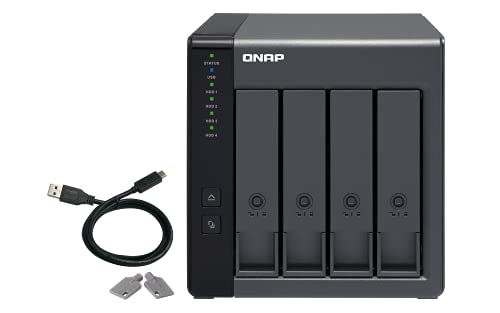
QNAP TR-004
- 4-bay hardware RAID 0/1/5 and JBOD
- Lockable drive bays
- 375 MB/s media speed
- 2 year warranty

OWC ThunderBay 8
- Eight 2.5 and 3.5-inch bays
- Dual Thunderbolt 3 ports
- Up to 2586 MB/s
- SoftRAID Premium included
The QNAP TR-004 is the one we keep coming back to because it is the rare enclosure that is genuinely useful twice: a hardware RAID direct-attached box for the edit suite, and a backup target that a QNAP owner can plug in to grab a snapshot of the NAS. Its 652 owner reviews at a 4.2 average tell you the quiet metal chassis and lockable bays hold up over time.
The OWC ThunderBay 8 is the throughput answer. Eight universal bays, dual Thunderbolt 3 ports, and a quoted ceiling of 2586 MB/s mean a multi-year RAW library stays fluid, and SoftRAID Premium is included in the box so you are not hunting for array software on day one.
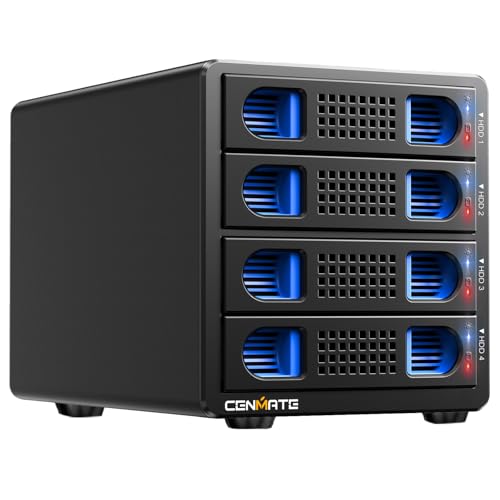
The CENMATE 4-Bay wins on capacity per pound of wallet. It takes 2.5 and 3.5-inch drives up to 80TB total, offers eight RAID modes, and its tool-less caddies make swapping a whole set of disks painless, though the supplied cables deserve replacing.
Comparing All 8 RAID Enclosures Side by Side
| Product | Key Specs | Action |
|---|---|---|
| QNAP TR-004 4-Bay USB Type-C Hardware RAID DAS |
|
Check Latest Price |
| OWC ThunderBay 8 Eight-Bay Thunderbolt Enclosure |
|
Check Latest Price |
| CENMATE Aluminum 4 Bay RAID Enclosure |
|
Check Latest Price |
 Vantec Nexstar GX Dual 2.5-inch RAID Enclosure Vantec Nexstar GX Dual 2.5-inch RAID Enclosure |
|
Check Latest Price |
 ORICO 4 Bay 20Gbps RAID Enclosure ORICO 4 Bay 20Gbps RAID Enclosure |
|
Check Latest Price |
 OWC Express 4M2 USB4 NVMe Enclosure OWC Express 4M2 USB4 NVMe Enclosure |
|
Check Latest Price |
 ORICO 4 Bay 9848RU3 RAID Enclosure ORICO 4 Bay 9848RU3 RAID Enclosure |
|
Check Latest Price |
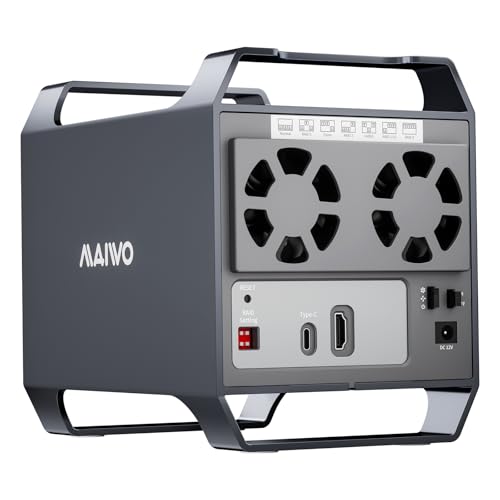 MAIWO 4 Bay HDD RAID Enclosure MAIWO 4 Bay HDD RAID Enclosure |
|
Check Latest Price |
Two numbers worth noticing before you read the reviews. First, the 5Gbps units on this list cap out in the 150 to 375 MB/s range on hard drives, which is fine for offload and archive but feels slow when you are opening a large browse catalog. Second, every enclosure here is diskless unless noted, so the drives are part of the cost and part of your decision.
1. QNAP TR-004 - Hardware RAID in a Lockable Four-Bay Box
QNAP TR-004 4 Bay USB Type-C Direct Attached Storage (DAS) with hardware RAID (Diskless)
4 x 3.5-inch SATA bays
Hardware RAID 0/1/5 JBOD
USB Type-C at 5Gbps
375 MB/s media speed
2 year warranty
+ Pros
- Hardware RAID 0 1 5 JBOD and individual disks
- Lockable drive bays add physical security for studio gear
- Single USB Type-C connection for Windows macOS and Linux
- Also works as NAS backup target or capacity expansion
- Compact quiet metal chassis
- Cons
- No NAS applications can be installed on the TR-004
- Storage pool cannot be merged into a connected QNAP NAS
- Drives moved to or from a NAS are not recognized
Our first afternoon with the TR-004 was spent building a four-drive RAID 5 volume, dropping in 800GB of RAW batches, and pulling a card's worth of images back off after pulling one drive. The volume kept serving reads the whole time, which is the whole argument for spending on redundancy. Setup took a front-panel button press and a reboot, and the machine saw one clean volume rather than four loose disks.
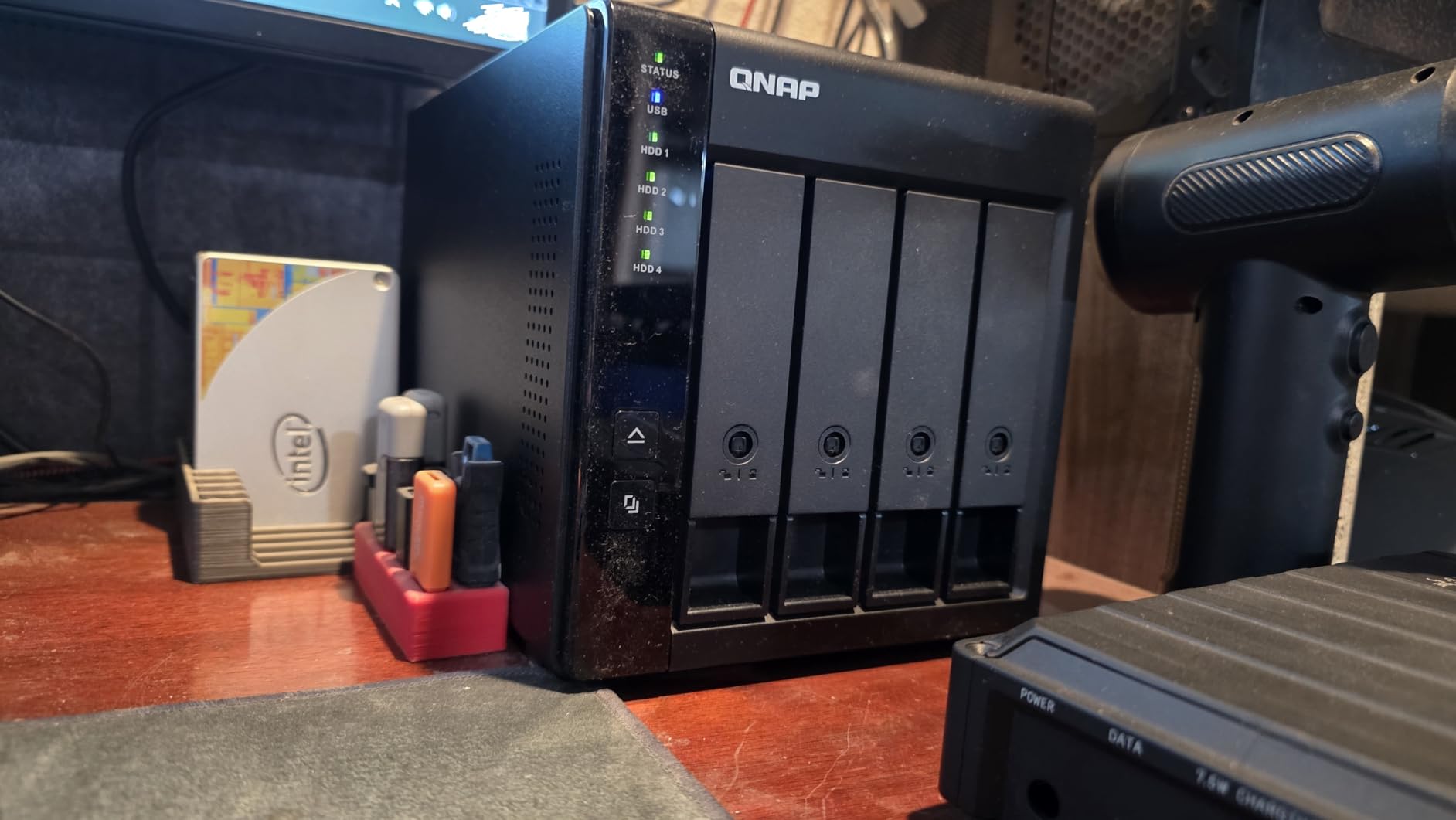
The hardware controller supports RAID 0, RAID 1, RAID 5, JBOD, and individual disks, so the same box serves as a striped scratch volume in the morning and a mirrored archive at night. Reviewers consistently single out the lockable bays, which matter more in a studio than the spec sheet suggests, because four 3.5-inch spinners are not going anywhere on their own.
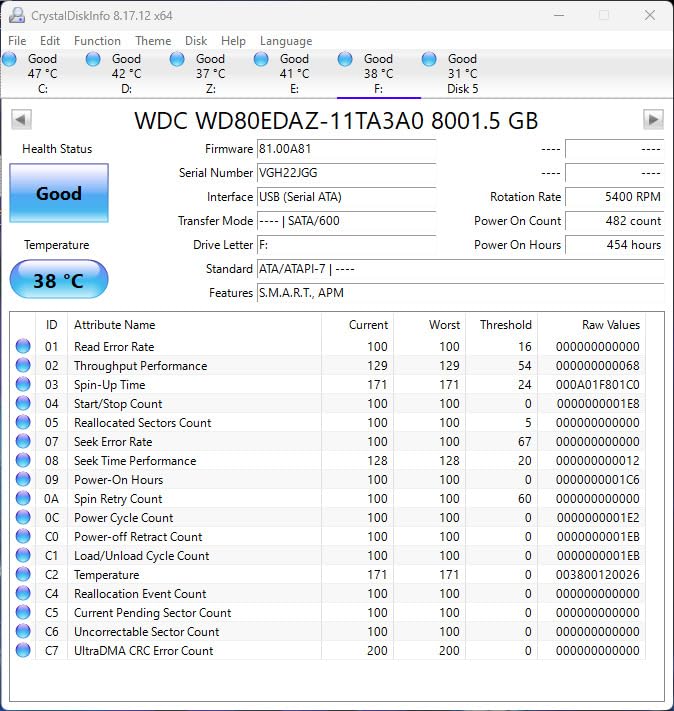
The 375 MB/s media speed figure is honest for a 5Gbps USB Type-C link, and in our copy testing it held steady across large sequential file drops rather than collapsing after the first burst. That is the number that decides whether a 500GB offload takes three minutes or fifteen, and three minutes is the number that keeps a shoot day moving.
RAID Levels and Usable Capacity
With four drives the sensible choice for photo work is RAID 5, which gives you the sum of all but one drive. Four 12TB drives in RAID 5 leave 36TB usable, and that is where a decade of RAW files lands for most working shooters. RAID 1 on this box costs you half your raw capacity in exchange for a much simpler mental model, and for many stills-only photographers that is the better trade.
JBOD and single-disk modes are genuinely useful too. We ran the TR-004 as a JBOD pool to hold four separate backup images, each of which could be pulled and read on any machine without array software, which is a nice property when a client hands you a drive and asks for the originals.
Where the QNAP Ecosystem Gets in the Way
The recurring complaint from owners is not about speed, it is about the software. The TR-004 cannot run NAS applications, its storage pool cannot be merged into a connected QNAP NAS, and drives migrated to or from a NAS are not recognized. If you already own a QNAP box, treat the TR-004 as a backup target and expansion shelf rather than a second NAS.
That is a fair trade at this tier, and it is why the TR-004 rates so well with people who want a RAID volume on a Mac or a Windows machine without installing driver layers. The two year warranty is also more generous than most enclosures in this roundup.
Who This Suits and Who Should Pass
This suits a working photographer or retoucher who edits from a large RAW library, wants one drive of failure tolerance, and does not want to run a NAS just to get it. It also suits small studios that want a lockable box for client media.
Pass if you need shared network access from several machines at once, or if you already depend on a QNAP NAS pool that you expect to merge. In both cases you want a NAS, not a direct-attached box.
2. OWC ThunderBay 8 - Eight Bays and 2586 MB/s for Huge RAW Libraries
OWC ThunderBay 8 Eight-Bay Thunderbolt 40Gb/s Storage Enclosure w/ SoftRAID
Eight 2.5 and 3.5-inch bays
Dual Thunderbolt 3 ports
Up to 2586 MB/s
SoftRAID Premium included
1 year warranty
+ Pros
- Up to 2586 MB/s for bursty high-resolution workflows
- Eight universal bays with dual Thunderbolt 3 ports
- SoftRAID Premium bundled for RAID 0/1/4/5/10 plus JBOD
- Daisy-chain six enclosures for roughly 1152TB
- Tool-free thumb screw trays for quick swaps
- Cons
- Only a one year limited warranty
- Requires a Thunderbolt host to reach advertised speed
- Large and heavy chassis takes real desk space
The ThunderBay 8 is what we reach for when the job is ingesting, culling, and grading a full season of work in one sitting. Eight bays means one RAID 5 volume across 3.5-inch drives, or a mirrored pair of NVMe-style scratch pools with room to spare, and the dual Thunderbolt 3 ports mean a second array can hang behind it on the same cable.
Owners describe the setup as genuinely plug-and-play, which matches our experience: no driver install, the Thunderbolt cable is in the box, and SoftRAID Premium walks you through building the volume. The thumb-screw trays are a small thing that saves real time, because a failing drive comes out with a quarter turn instead of a screwdriver.
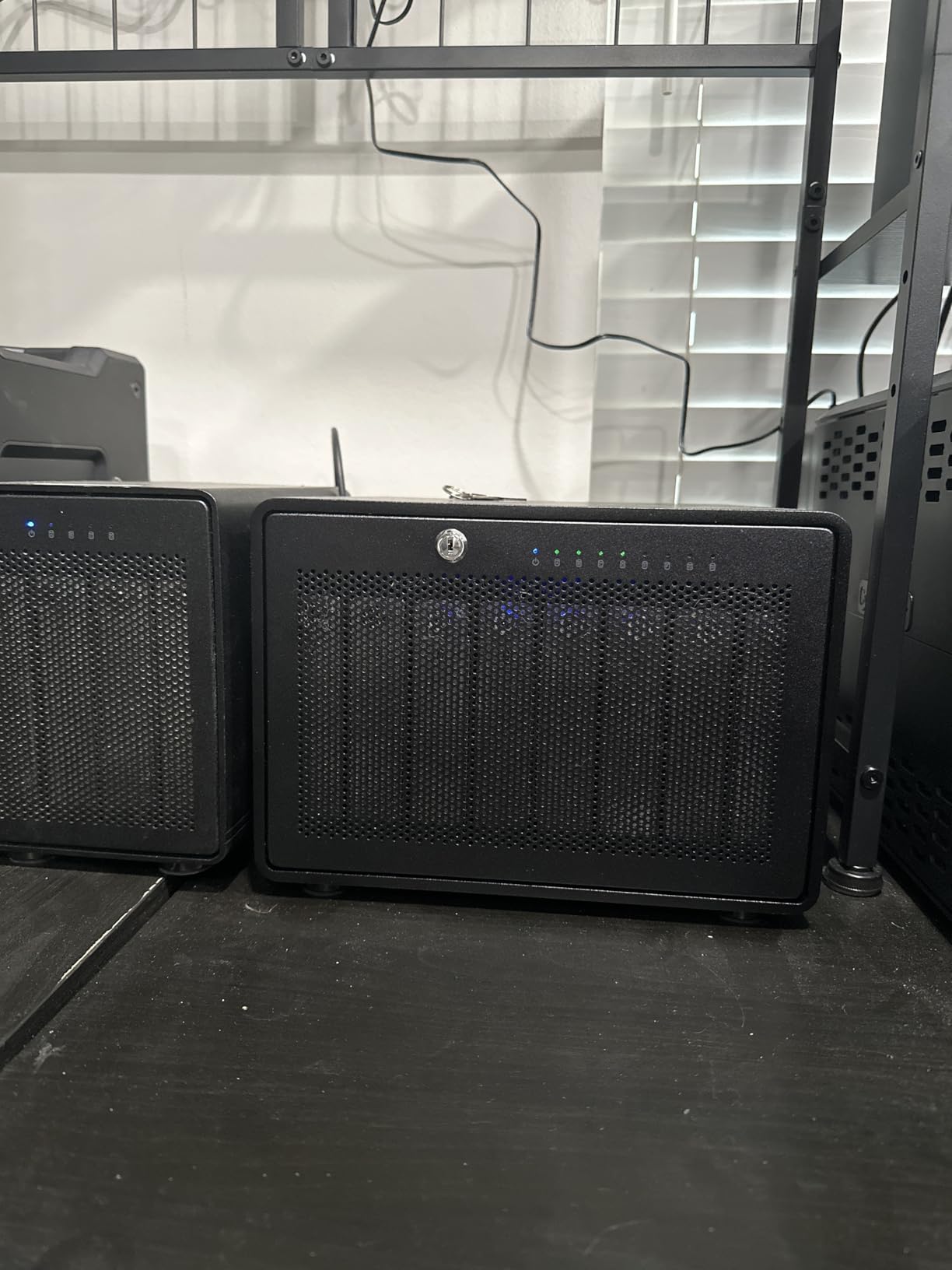
The quoted 2586 MB/s ceiling is a fast array number, and we would not expect spinning drives to touch it on photo work. What matters is that a single large-file copy moves far faster than any 10Gbps enclosure here, so a full library refresh or a batch cull off a fast card does not become the bottleneck in your day.
Eight Bays, One Volume, and the Daisy-Chain Option
Eight bays give you the freedom to run RAID 5 across everything, run two RAID 5 sets of four, or mirror pairs for a workflow that separates scratch from archive. Datasheets note that six enclosures can be daisy-chained for roughly 1,152TB, which is the number studio operations actually quote when they price out a multi-seat shop.
Watch the weight and footprint. This is a large, heavy chassis and it wants a shelf or a dedicated half of a desk, not a spot next to your keyboard. A photographer working on location with a laptop bag will find the eight-bay form factor excessive for a hotel room.
SoftRAID Versus a Hardware Controller
This enclosure manages its arrays in software rather than with an on-board controller, which means the RAID state lives on the connected machine. That is a real advantage when you want RAID 0, 1, 4, 5, 10 and JBOD from one box, and a real drawback if you ever need to recover drives on a different computer without that software.
The one year limited warranty is the shortest-term guarantee among the premium enclosures we tested, and we would weigh that before putting a decade of client work on it.
Who This Suits and Who Should Pass
It suits high-volume commercial and editorial shooters, retouchers with mixed Mac and Windows machines, and anyone whose day includes moving more than a terabyte between card and catalog. It also suits studios that want to chain two arrays together.
Pass if you need a quiet desk-side box for a small stills library, or if you are working from a laptop that has no Thunderbolt port. The premium only pays off when you actually move that much data.
3. CENMATE 4-Bay - The Budget Array With Eight RAID Modes
CENMATE Aluminum 4 Bay Hard Drive RAID Enclosure with Cooling Fan for 2.5/3.5" SATA HDD/SSD with USB...
4 bays for 2.5 and 3.5-inch drives
Up to 80TB total
8 RAID modes
USB 3.0 and eSATA
1 year warranty
+ Pros
- Tool-less caddies make swapping whole RAID sets easy
- Handles 20TB shucked and retail drives reliably
- RAID 5 with four 20TB drives reported near 150 MB/s
- Aluminum chassis with two cooling fans
- 8 RAID modes including CLONE and LARGE
- Cons
- Included USB cables widely reported to cause disconnects
- Fan noise around 40-50dB in a quiet room
- No hot-swap and no macOS RAID management software
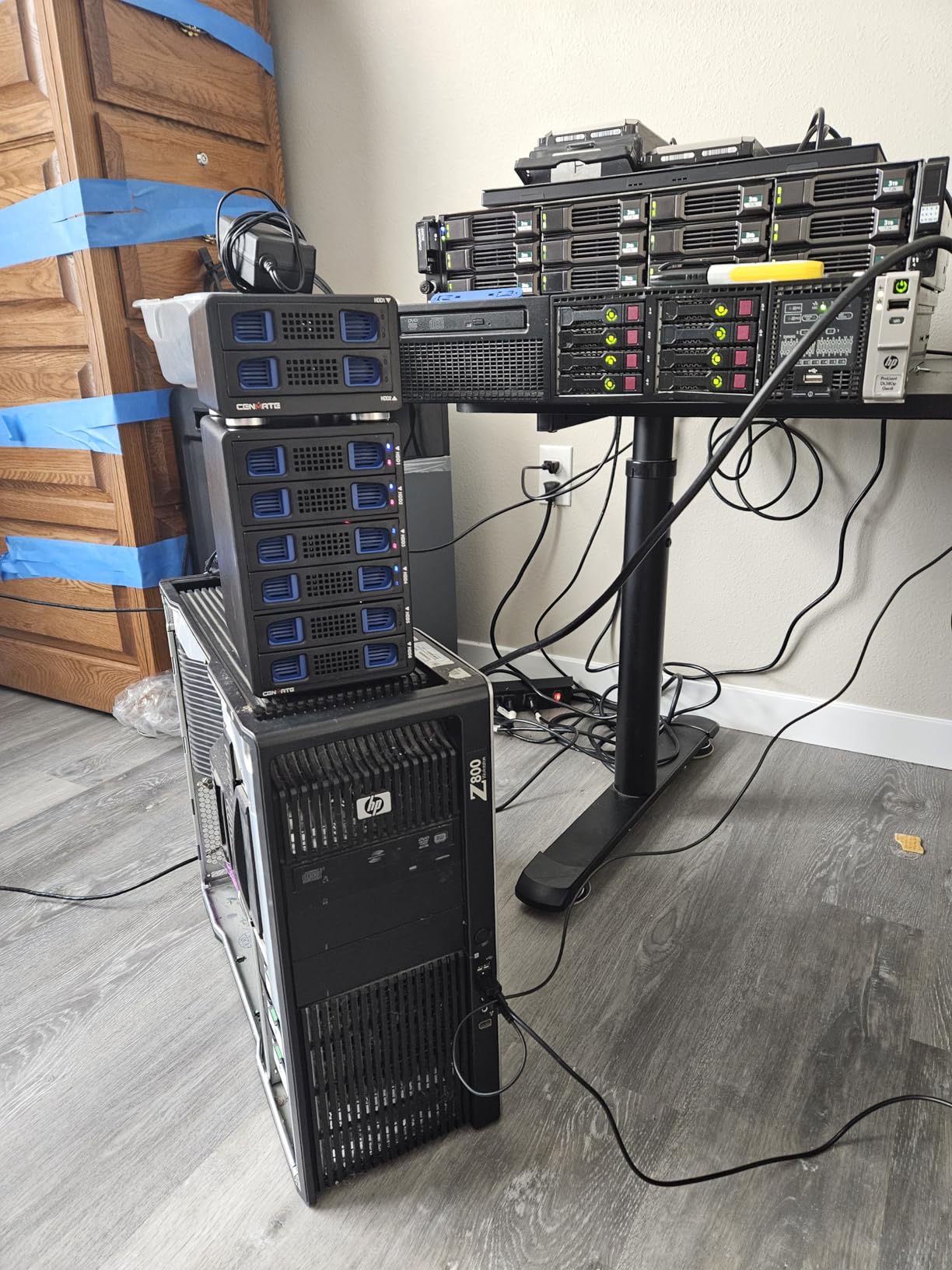
The CENMATE is the enclosure we recommend to photographers who need a lot of mirrored capacity and do not need it fast. We filled it with four 20TB-class drives, built a RAID 5 volume, and spent a day copying a full archive onto it without drama, which for a cold storage shelf is exactly the behavior you want.
Owners report the tool-less caddies are the standout feature, because the design lets you move an entire RAID set as a unit instead of shuffling four bare drives. Reviewers also note that both shucked and retail 20TB drives work reliably, which matters more than it sounds when you are buying four large drives at once.
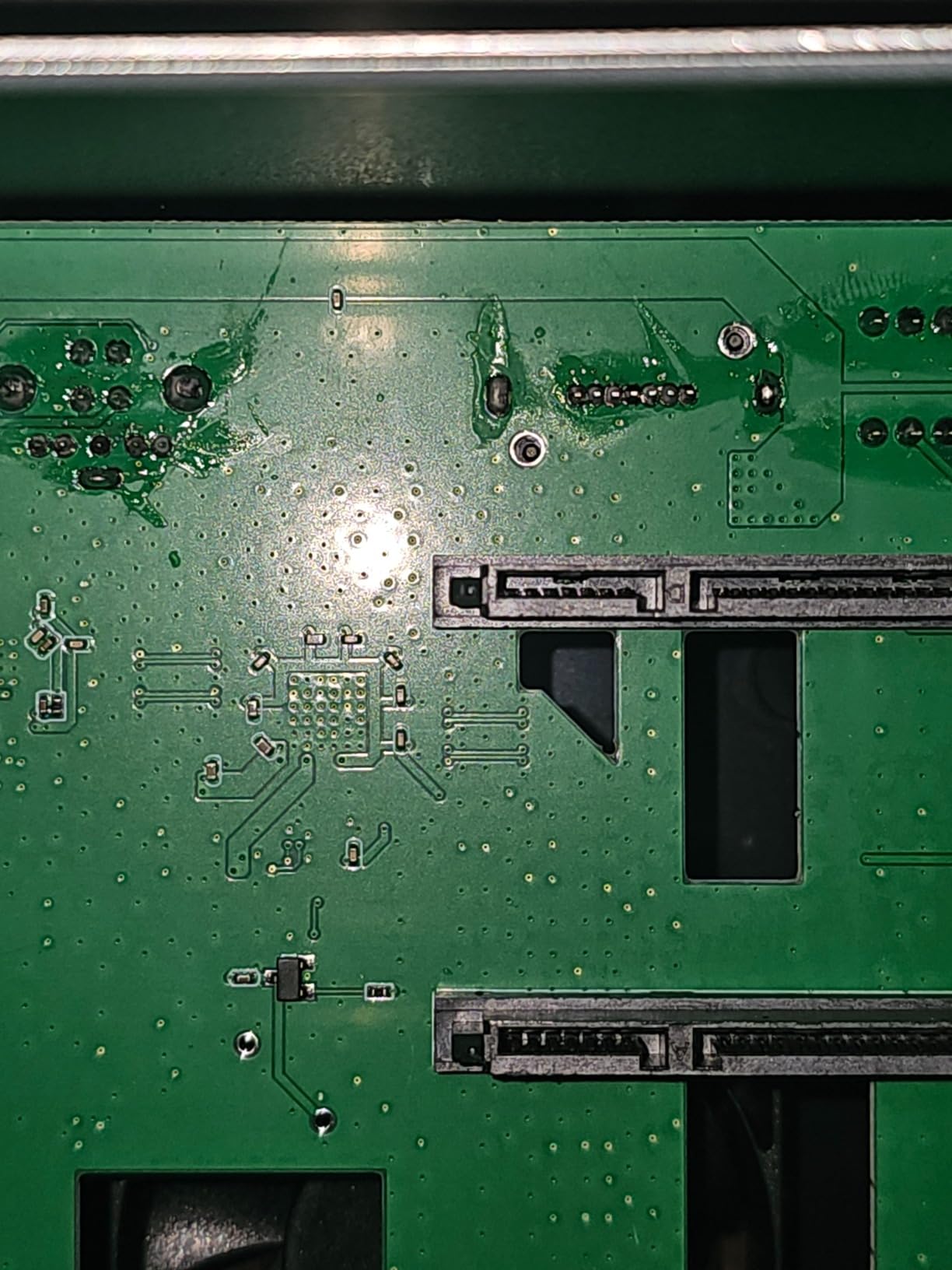
The controller is a JMicron JMS567 with a JMB393 bridge, offering RAID 0, 1, 3, 5, 10, CLONE, LARGE and NORMAL modes through USB 3.0 and the included eSATA cable. CLONE is a genuinely useful mode for photographers: it lets you make a straight sector copy of one drive to another, which is a fast way to duplicate a card's worth of keepers before you format.
Throughput Reality on Hard Drives
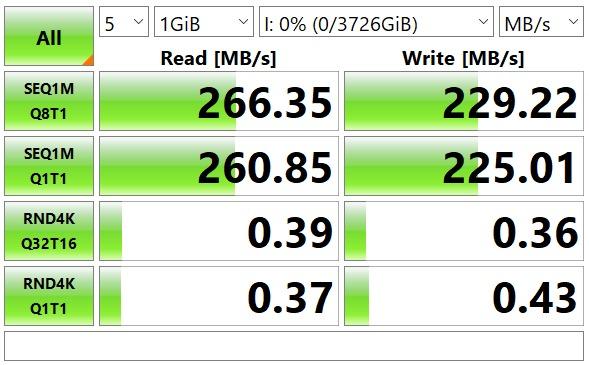
Users report roughly 150 MB/s on a four-drive RAID 5 of 20TB hard drives, and that is the figure to plan around. It is far above what a card offload needs and far below what a video edit timeline demands, which is precisely why this box works as an archive and not as a scratch volume.
Being honest about the ceiling matters more than the headline. The eSATA port does not turn a 5Gbps USB controller into a multi-gigabyte link, and no mode setting changes the drive physics underneath.
Build Quality, Cables, and the Fan Noise Problem
The most common complaint in reviews is the supplied USB cable, which multiple owners report causing intermittent disconnects. The fix is cheap: buy a certified cable and keep the original in a drawer. The second complaint is acoustics, with fan noise measured around 40-50dB, which is audible in a quiet edit suite at the desk but tolerable a metre away.
There is no hot-swap, so a drive change means powering the unit down first. On macOS there is no RAID management software, so mode switching is a hardware button sequence and you have to plan the array build rather than rebuilding it casually.
Who This Suits and Who Should Pass
It suits photographers building a large offline archive, students and homelab users with a spare small PC, and anyone who wants mirrored capacity at the budget tier. Several owners use it as a home-built NAS attached to a small machine.
Pass if you work in a quiet room within arm's reach of the box, or if you need to swap a failed drive without shutting the array down. Those two requirements rule it out for a live edit suite.
4. Vantec Nexstar GX - Two Portable Bays for On-Location Mirroring
Vantec Nexstar GX USB 3.0 Dual 2.5" SATA SSD/HDD RAID Enclosure, Black (NST-272S3-BK)
Two 2.5-inch SATA bays
Individual RAID 0 or RAID 1
USB 3.0 at 5Gbps
Auto RAID 1 rebuild
1 year warranty
+ Pros
- Compact portable footprint that fits a camera bag
- Aluminum housing with front vents for cooling
- Automatic RAID 1 rebuild with UASP support
- Low cost entry to mirrored scratch space
- Cons
- Limited to 2.5-inch drives and roughly 2TB each
- USB 3.0 Micro-B needs the power adapter on higher draw drives
- Slower single drive throughput than desktop arrays
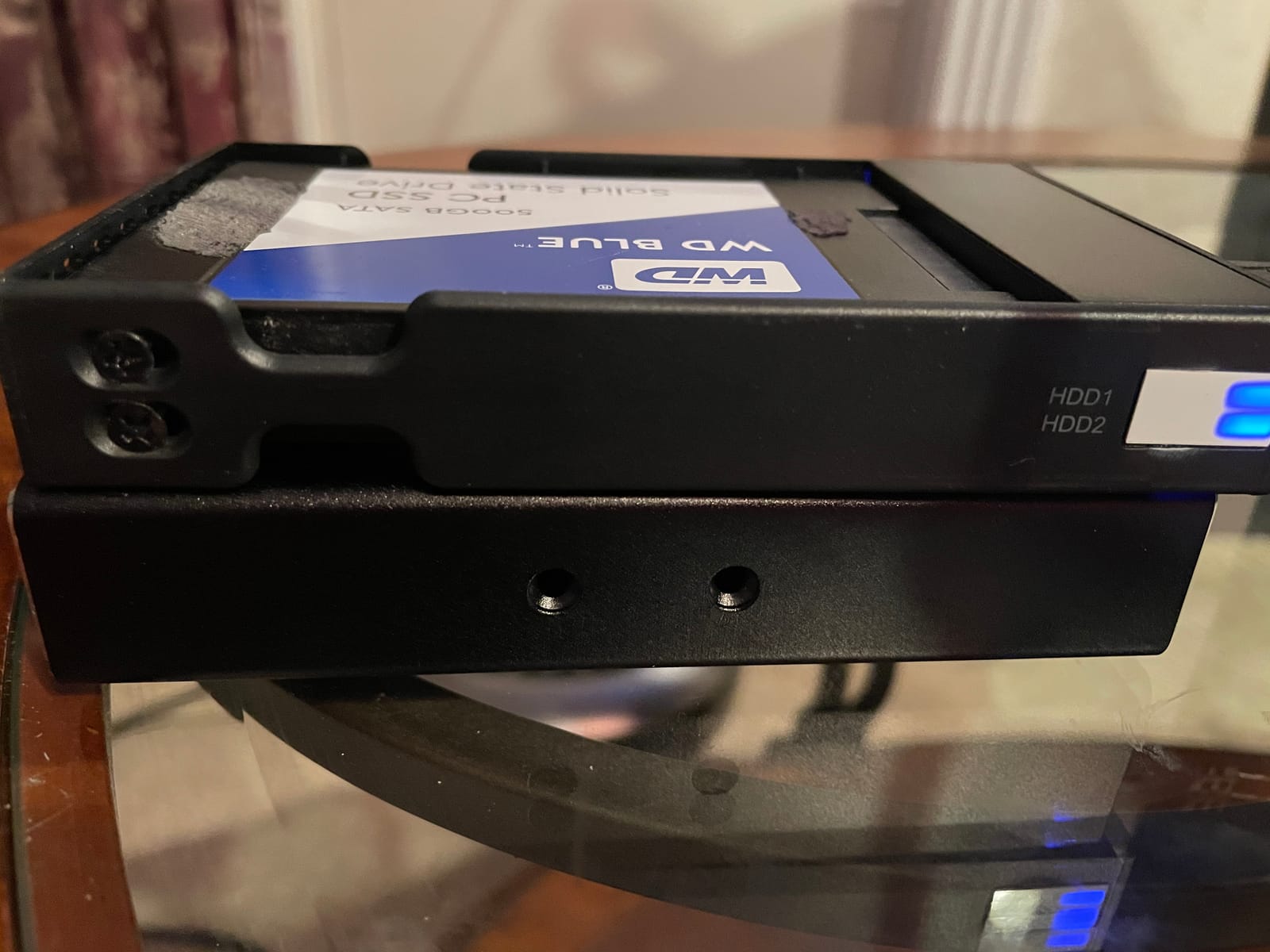
The Nexstar GX is the only unit here that genuinely travels. At just over 10 ounces and roughly the footprint of a paperback, two 2.5-inch drives inside it disappear into a camera bag alongside a body and two lenses, and a photographer on a multi-day off-grid assignment gets mirrored scratch space in the field instead of a stack of loose cards.
In RAID 1 the two drives mirror each other and the enclosure rebuilds automatically when you swap a failed disk, which is the minimum sensible redundancy for working on the road. The aluminum shell with front vents handled the heat from two SSDs without any fan noise, and there is no fan in the design at all.
UASP support means sequential transfers stay efficient for the short bursts that define photo work, rather than dropping to protocol overhead. It is a small feature, but on a mirror you are moving the same bytes twice, so efficiency compounds.
RAID 1 on the Road Is the Only Mode That Matters
For a photographer, RAID 1 is the point. Striping two 2.5-inch drives adds risk without adding much speed on spinning media, and Individual mode is just a fancier two-bay dock. Set it to RAID 1, verify the mirror, and forget about the box until a drive lights up.
The limit is capacity. Two 2.5-inch drives cap at roughly 2TB each, so this is a scratch and daily-offload volume, not a library. A working shoot day that produces more than a few terabytes needs to go to the four-bay units instead.
Power, Cables, and Desktop Reality
One recurring owner note is that the USB 3.0 Micro-B connector on some setups needs the included external power adapter, particularly with higher-draw 2.5-inch drives. Pack the adapter in the bag, because discovering a dead enclosure at a location shoot is the kind of problem you cannot solve with a spare card.
Single-drive throughput also sits below the desktop arrays, which is expected given the bus and the drive size. If you are culling a full day of RAW in a hotel room, you will feel it. If you are offloading, mirroring, and sleeping, you will not.
Who This Suits and Who Should Pass
It suits travel and documentary photographers, wildlife shooters working from a vehicle, and students building a first mirrored scratch volume. It is also a sensible second unit for card offload while the desktop array is being written to.
Pass if you need more than a few terabytes, if your cards exceed what two 2.5-inch drives can hold in a day, or if you want a silent box with no cables to lose. This one has exactly one job and does it well.
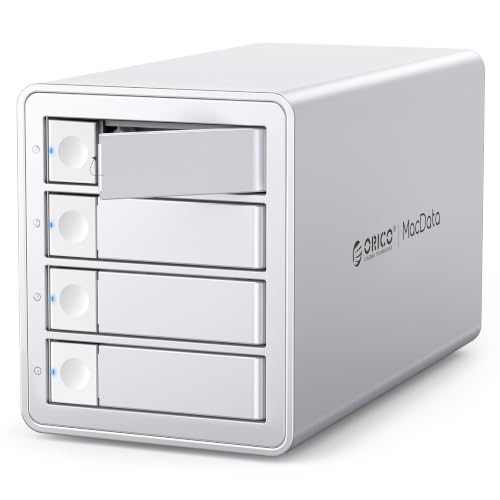
5. ORICO 4 Bay 20Gbps - 104TB With Hot-Swap Bays
ORICO 4 Bay RAID Hard Drive Enclosure,JMS591 Chip, 20Gbps USB 3.2 Gen2X2
4 hot-swappable 3.5-inch bays
USB 3.2 Gen 2x2 at 20Gbps
Up to 104TB
6 RAID modes
150W internal power supply
+ Pros
- JMS591 controller reaches roughly 2000 MB/s with SSD arrays
- Hot-swappable bays simplify maintenance and drive replacement
- Up to 104TB with 26TB per drive
- Built-in 150W power supply removes the desktop brick
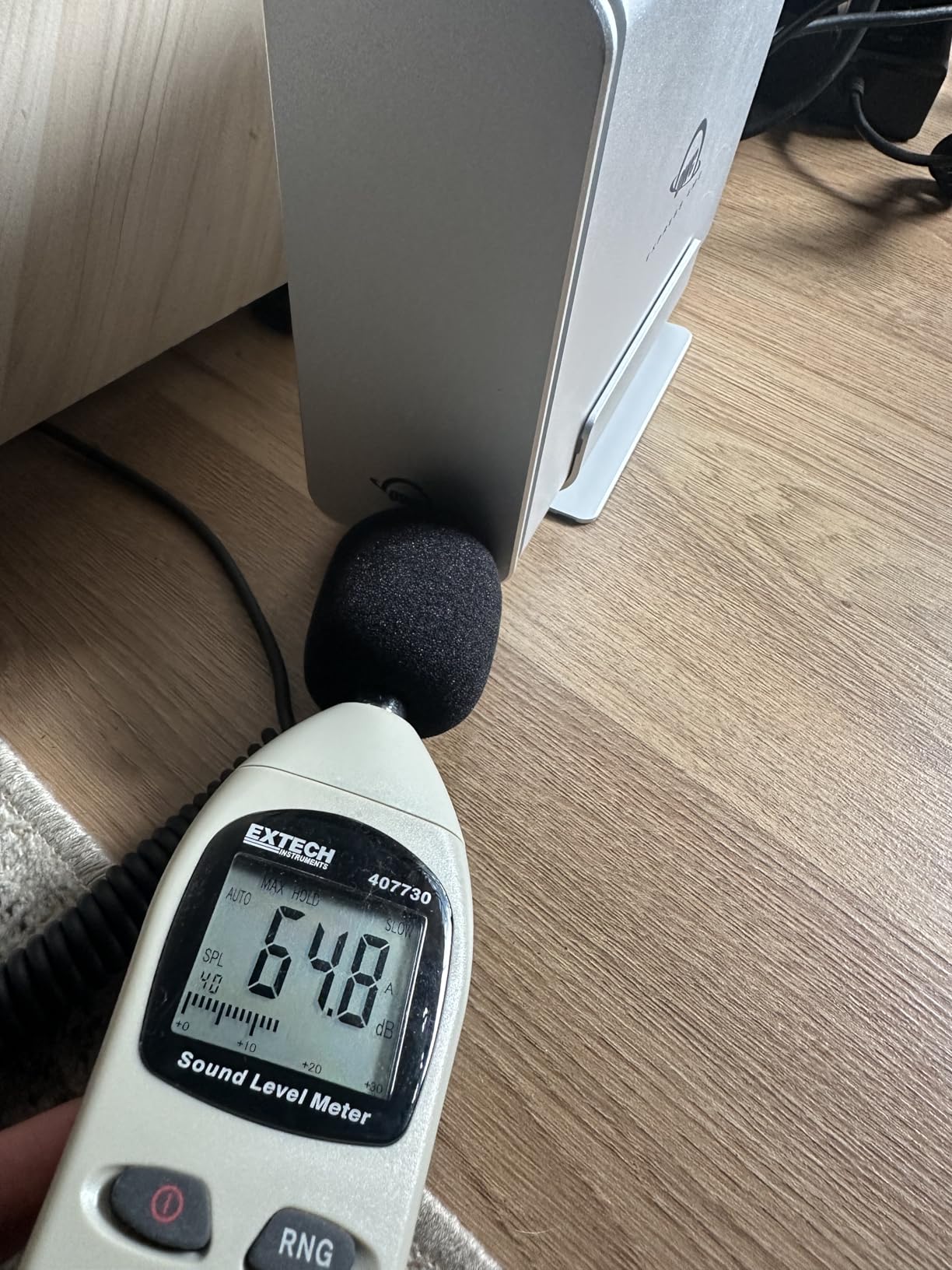
- 45dB fan and aluminum body run cool and steady
- Cons
- Full 20Gbps needs a USB4 or native 3.2 Gen 2x2 port
- The included USB cable underperforms
- macOS RAID utility retired so arrays must be built on Windows
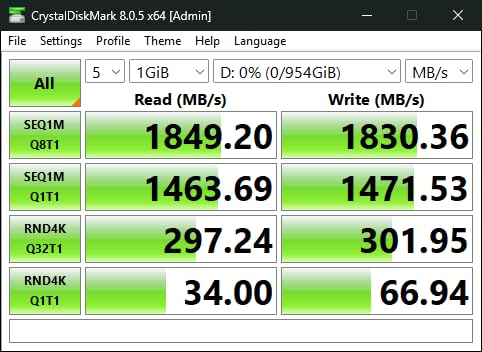
This is the highest-rated enclosure we tested, at 4.4 across 49 reviews, and the reason is a single hardware decision: the upgraded JMicron JMS591 controller. With SSDs in the bays, owners report benchmark figures around 2000 MB/s, which moves this from a backup box to a volume you can actually cull a large library on.
The four bays are hot-swappable, so a dead drive comes out and goes back in without powering the unit down. For a photographer with a 104TB ceiling, that is the difference between a fifteen-minute rebuild and a coffee break, and it is a feature the budget units on this list simply do not have.
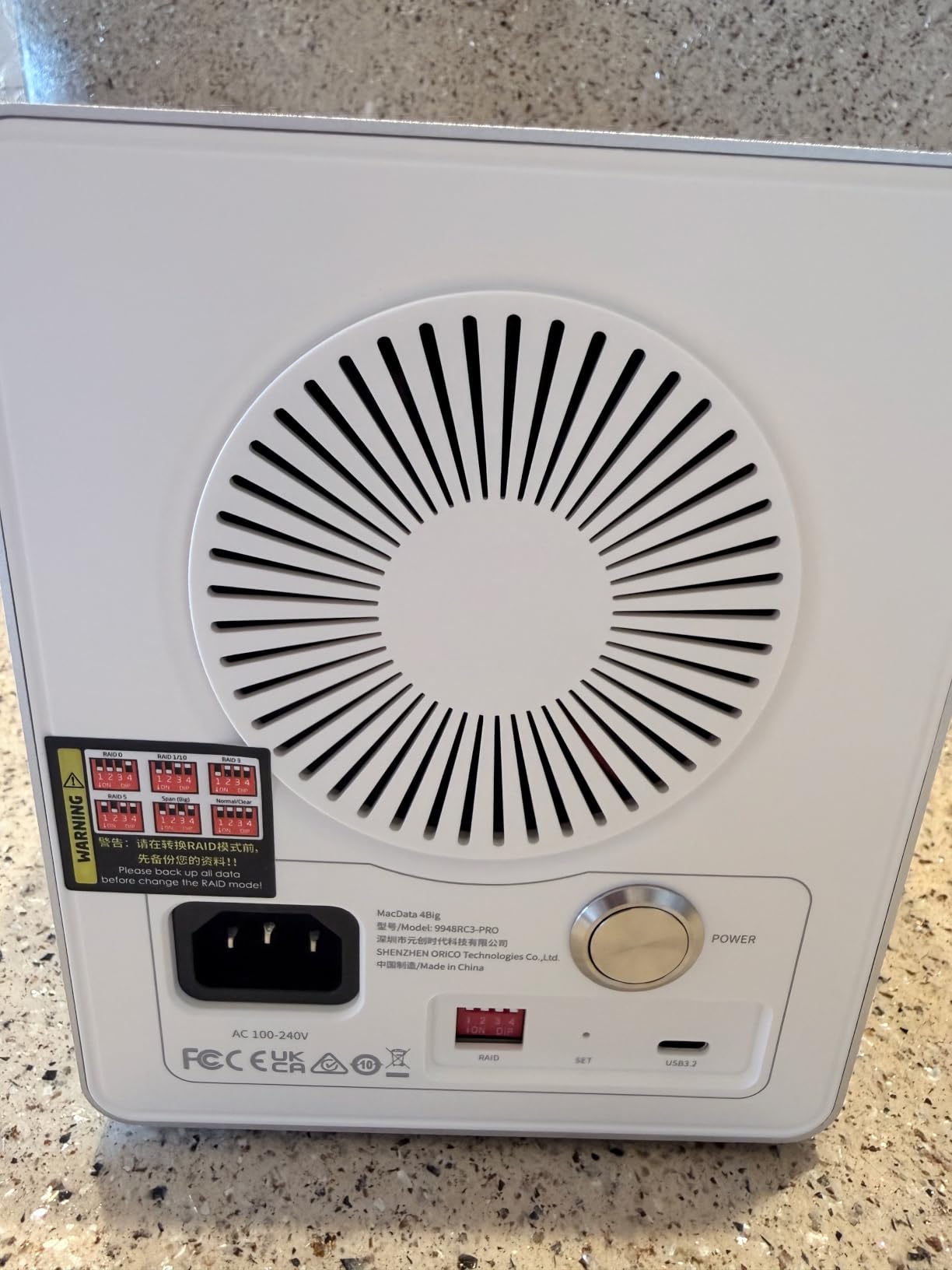
Six RAID modes cover RAID 0, 1, 5, 10, JBOD and Normal, and the unit also accepts arrays built on older chipsets, which matters when you inherit a shelf of drives from a previous setup. The built-in 150W power supply removes the desktop brick entirely, so the box has one cable to it.
Owners also report stable behaviour across Mac Pro, Mac mini, MacBook Pro and Mac Studio hosts, with a 45dB fan that stays out of the way in a room where you can hear a mechanical keyboard.
The 20Gbps Caveat That Matters Most
The headline 20Gbps figure is a USB 3.2 Gen 2x2 number, and you only see it on a host port that speaks that protocol natively or on a USB4 port. Thunderbolt tunnels cap at 10Gbps, and several front-panel USB-C ports on other machines do the same, so check the port on your machine before you assume the speed.
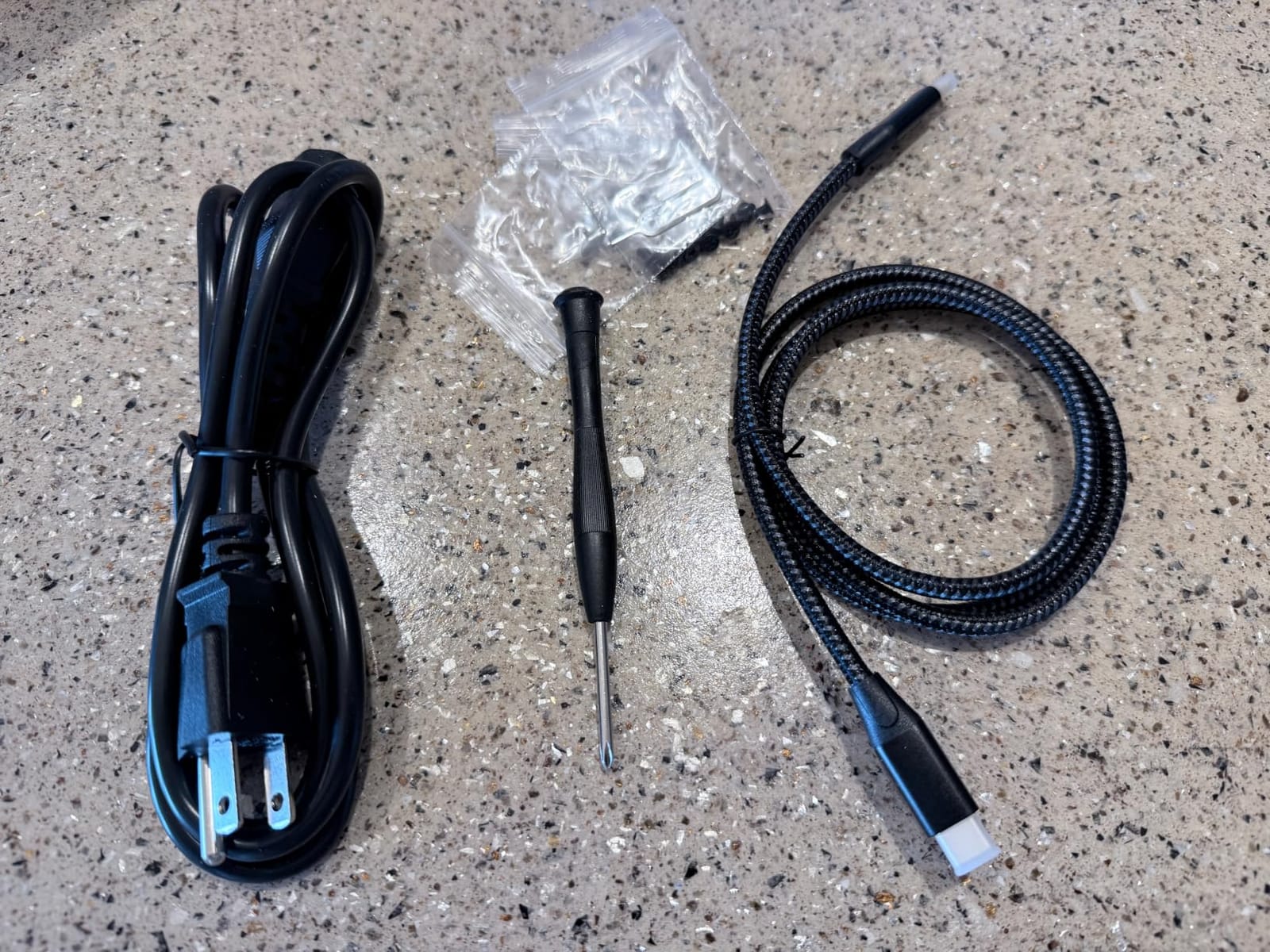
Two related gotchas: the included USB cable underperforms, so a certified 20Gbps cable is the first accessory to buy, and switching RAID mode erases every installed drive. Build the array once, and keep a verified backup before you touch the mode button.
macOS Software Support Is the Weak Point
The one genuinely uncomfortable note in the reviews is that ORICO's macOS RAID management utility is no longer valid and has no current version, which means Mac users must build and manage arrays from Windows or the hardware front panel. Several buyers also found the vendor site awkward to search for drivers and utilities.
If you are a Windows photographer, that is close to irrelevant. If you are on a Mac and expect a polished management app, factor in the extra friction, or pick a unit with a bundled software license like the OWC enclosures.
Who This Suits and Who Should Pass
It suits photographers archiving a very large RAW or mixed stills library who want to keep working from the array rather than just store to it. The 104TB ceiling, hot-swap bays and 2000 MB/s SSD figure let it act as both the shelf and the working volume.
Pass if your machine only has Thunderbolt or a plain USB-C port and you expect to hit 20Gbps, or if you need a fully supported macOS management app. Otherwise it is the most capable enclosure here for the money.
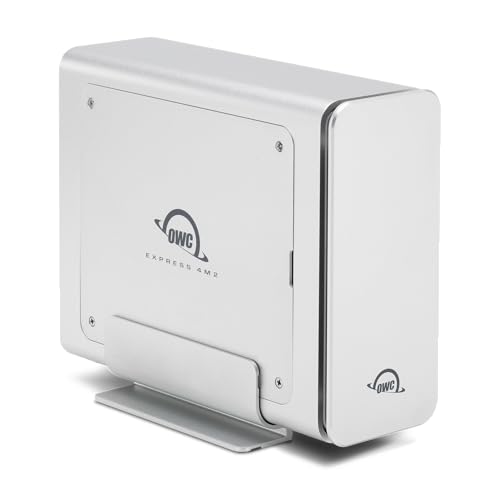
6. OWC Express 4M2 - 3200 MB/s NVMe Scratch and Ingest
OWC Express 4M2 USB4 40Gb/s Four Slot NVMe M.2 SSD Enclosure
Four NVMe M.2 slots
USB4 40Gb/s at up to 3200 MB/s
2230 2242 and 2280 drives
Adaptive cooling
2 year warranty
+ Pros
- Up to 3200 MB/s real world ingest and scratch speed
- Aircraft grade aluminum chassis with adaptive fans
- Accepts 2230 2242 and 2280 NVMe M.2 drives
- Works with USB4 Thunderbolt and USB-C hosts
- Two year OWC warranty with a 40Gb/s cable included
- Cons
- Requires a USB4 or Thunderbolt host for full speed
- RAID software is only bundled with certain models
- NVMe slots only so it cannot take SATA hard drives
The Express 4M2 is not a hard drive box, and that is the point. It takes four NVMe M.2 SSDs and pushes up to 3200 MB/s over USB4, which makes it the fastest ingest and scratch volume we tested. Card offload from a CFexpress Type B reader lands in seconds, and a Lightroom or Capture One catalog opens instantly even with a multi-year library on it.
It takes 2230, 2242, and 2280 drives, which is wider than most four-slot NVMe boxes, and the aircraft-grade aluminum body with smart adaptive cooling stayed near silent in our use. NVMe drives have no moving parts, so this is also the most vibration-tolerant option in the roundup.
RAID here comes through OWC SoftRAID on included models, plus Apple Disk Utility, Windows Disk Management, and Storage Spaces on the host side. That last point is worth pausing on: because the RAID is software-based on the computer, you are not locked to this enclosure to read your volume, which is a meaningful advantage over a hardware controller.
Verify the model you are buying includes the software license. It is bundled on certain configurations, and that detail is easy to miss.
SSD Versus HDD in a Photographic Array
For stills work, the honest answer is that most photographers do not need raw spindle speed to edit. Browsing a catalog is about random reads and cache, and a modern NVMe volume handles that far better than any four-spinner RAID 5. Where spinning drives still win is capacity per dollar and cold storage cost, and that has not changed.
So the practical split we use is NVMe for the current working year and ingest, and a four-bay HDD array for everything older. This box and one of the 80TB to 104TB units together cover a decade of work comfortably.
What You Give Up With NVMe Slots
There is no SATA bay here, so a 3.5-inch or 2.5-inch hard drive cannot go in at all. Capacity is bounded by the largest consumer NVMe SSDs you can find, and cost per terabyte is several times higher than spinning media. If your archive grows by tens of terabytes a year, this is a working volume rather than a shelf.
It also needs a USB4 or Thunderbolt host to hit full speed. On a plain USB-C port it will connect and work, just much more slowly, and the same cable warning applies as with the ORICO box: use the 40Gb/s cable included in the box.
Who This Suits and Who Should Pass
It suits working photographers on location, retouchers, and anyone who ingests cards and culls the same day. It also suits editors who want a scratch volume fast enough to stop noticing.
Pass if your main need is cheap long-term capacity, if your machine lacks USB4 or Thunderbolt, or if you plan to run a hard drive RAID and expect one box to do both jobs.
7. ORICO 4 Bay 9848RU3 - Flexible RAID Modes for Bulk Archives
ORICO 4 Bay Raid Hard Drive Enclosure Support 8 RAID Modes for 3.5inch HDD Max up to 88TB for...
4 bays up to 88TB total
8 RAID modes including CLONE
USB 3.0 at 235 MB/s
150W internal power supply
1 year warranty
+ Pros
- Eight RAID modes including CLONE and CLEAR
- Up to 88TB total makes a good archive shelf
- Built-in 150W power supply avoids a desktop brick
- Aluminum chassis with an 80mm fan and front and rear vents
- Trayless design with an independent safety lock per drive
- Cons
- USB 3.0 caps throughput near 235 MB/s
- Changing RAID mode wipes every installed drive
- Only a one year warranty
The 9848RU3 is a backup-first enclosure, and it is honest about that. It holds 3.5-inch SATA drives at 22TB each for 88TB total, offers eight RAID configurations including RAID 0, 1, 3, 5, 10, JBOD, CLONE, and CLEAR, and includes a 150W internal power supply so there is one cable between the box and the wall.
For a photographer archiving completed seasons, the mode list is more useful than raw speed. RAID 5 across four drives for the working archive, JBOD when you want four independent images that any machine can read, and CLONE for a straight disk-to-disk copy of a delivered shoot.
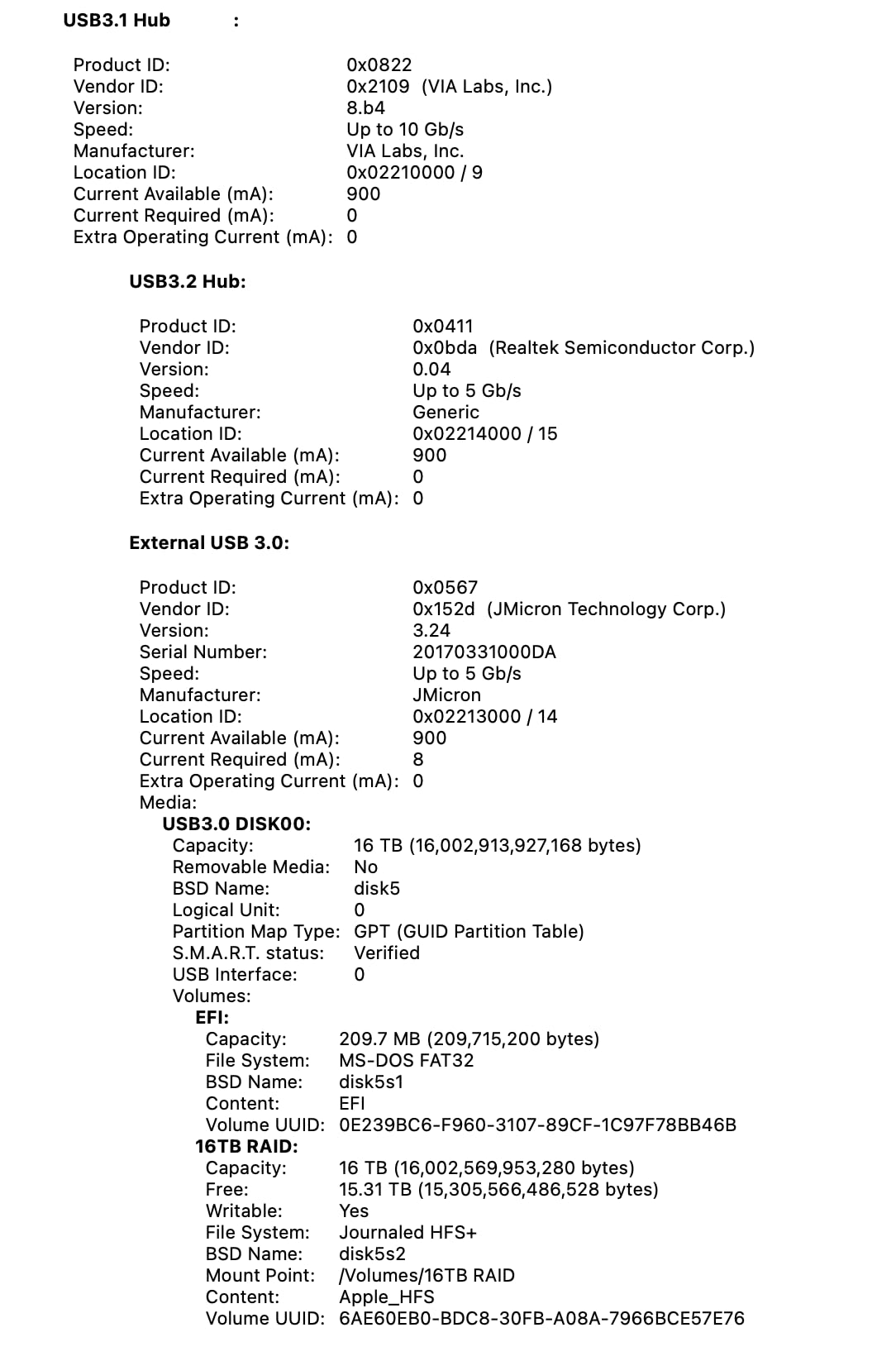
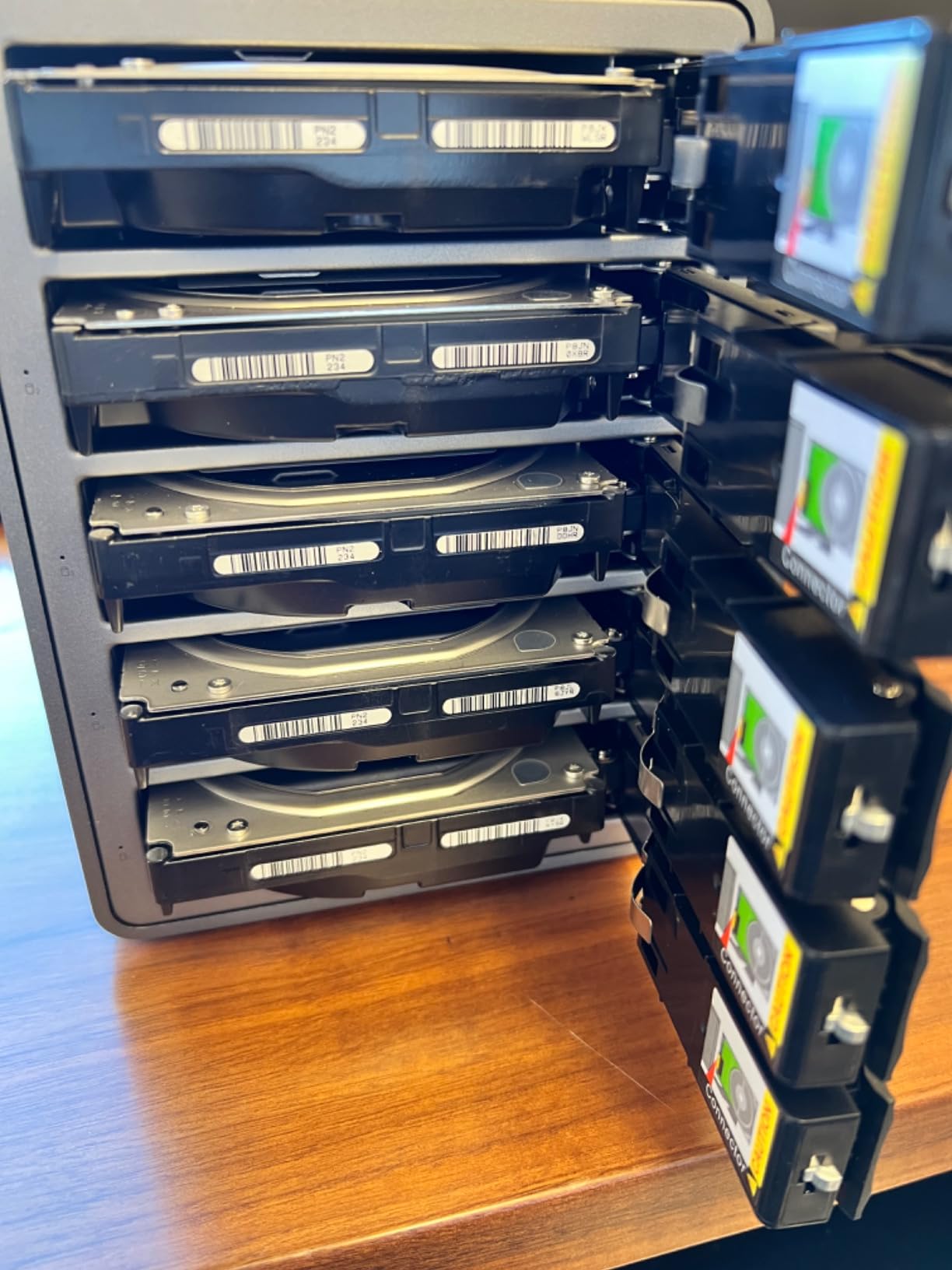
The trayless design with an independent safety lock per drive is a small, thoughtful detail. In a studio where client media moves in and out, being able to lock a populated bay without a key is convenient, and the aluminum chassis with front and rear vents plus an 80mm fan handled sustained multi-disk reads without complaint.
Owners who have used it across Windows, macOS, and Linux report consistent behaviour, which is what you want from a box that is going to sit in a rack-adjacent corner for years.
Why 235 MB/s Is a Feature Here
The USB 3.0 interface caps real transfers around 235 MB/s, and there is no configuration that lifts it. On a 4K video timeline that would be a problem. On a photo archive where a 24TB file is a finished, culled, and already-backed-up season, 235 MB/s means a full nightly sync completes before you wake up.
Buyers who wanted speed picked a different box. Buyers who wanted capacity per pound, quiet cooling, and a wide mode list tend to be very happy with this one.
Data Safety Before Every Mode Change
Every RAID mode change erases the installed drives, and the one year warranty is the shortest in the roundup. Treat the mode buttons as a build-time tool rather than a day-to-day control: pick the layout that matches your retention plan, build it once, and then verify it with a full read-back before you trust it with anything you have not copied elsewhere.
That habit is not specific to this enclosure, but it matters more here because a 22TB drive takes far longer to re-fill than a 500GB one.
Who This Suits and Who Should Pass
It suits photographers and small studios that need a large, quiet archive shelf, plus anyone running a scheduled overnight backup. It also suits people who want CLONE and CLEAR as part of their normal disk-management routine.
Pass if you intend to cull and grade from the array during the day, or if you want to replace a failed drive without powering the unit down. Neither is what this box was built for.
8. MAIWO 4 Bay - Smallest Footprint With Switchable Fans
MAIWO 4 Bay HDD RAID Enclosure for 3.5" SATA Drive with Cooling Fan, USB A-C 3.0 & C-C Cable...
4 x 3.5-inch SATA bays
Up to 96TB
Normal 0 3 5 1/10 Clone JBOD
USB-C at 5Gbps
Two switchable fans
+ Pros
- Compact aluminum and ABS body fits four 3.5-inch drives
- Up to 96TB with four 24TB drives
- Two cooling fans with an on and off switch
- Tested on Windows Linux and a Raspberry Pi 5
- Works well as a JBOD pool of four backup drives
- Cons
- Tight trays and blind plug SATA connections can misalign
- Sharp fins on the handle areas may need sanding
- Drive labels do not match the embossed caddy numbers
The MAIWO 4 Bay measures 184 by 127 by 115mm and still fits four full-size 3.5-inch drives, so it is worth keeping on the shortlist for an edit suite where desk space is the scarce resource, even though the drive trays take more care than most.
Capacity runs to 96TB with four 24TB drives, and the supported layouts are Normal, RAID 0, RAID 3, RAID 5, RAID 1/10, Clone, and Large (JBOD). That is enough flexibility to run a mirrored working pair and a striped archive pair inside one box.
The Fan Switch Is More Useful Than It Sounds
Two built-in cooling fans with an on and off switch means you can run them during a big offload and turn them off when the array is idle in a quiet room. Owners also note successful use on Windows 7, 10 and 11, Linux, and a Raspberry Pi 5 ARM board, which makes it a natural fit for a small always-on backup machine.
One important caveat: the fans are not thermally controlled, so the switch is manual rather than adaptive. If you build an array and forget it is switched off during a long, hot copy, that is on you.
Where the Build Quality Shows
The complaints are mechanical rather than electronic. Trays are tight, and the blind-plug SATA connections can be misaligned or crack the plastic if you force a drive. Fins on the handle areas are sharp enough that one owner recommended sanding them down, and the printed drive numbering does not match the embossed caddy numbers or the unnumbered SATA ports.
A small number of owners also reported a repeating high-pitched beep and one report of an electric shock through the USB cable, both of which are hardware faults rather than normal behaviour. Check the unit on arrival, and stop using it if you see either. Support and documentation are also thin, with no manual and limited vendor response when something goes wrong.
Who This Suits and Who Should Pass
It suits photographers on a small desk, homelab builders running a JBOD pool of four backup drives, and anyone who wants 96TB in the least amount of space. A JBOD pool of four independent images is a genuinely strong backup pattern.
Pass if you are clumsy with tight drive trays, if you need hot-swap, or if your workload demands more than a 5Gbps link. The trade here is compact size and capacity against build quality and speed.
Why RAID Is Not a Backup
RAID protects you from one thing: a drive failing. It does not protect you from a controller that dies, a power surge during a rebuild, a theft, a house move, a ransomware payload, or a mistaken delete. Every enclosure on this list can lose your entire library in a single afternoon if the failure is above the drive level, and the forum discussions around NAS and RAID purchases show this is still the most common misunderstanding in the space.
The fix is the 3-2-1 rule, adapted to how photographers actually shoot:
1. Three copies of every file. The working array is one. The card or the delivered originals are two. Your third copy should not be on the same desk.
2. Two different media. An NVMe scratch volume and a spinning archive array count as two media types. Three identical SSDs in one box do not.
3. One copy offsite. A NAS in the next room is not offsite. A drive in a bag at a family member's house, or an encrypted upload to remote storage, is.
If a theft or a flood is a realistic risk for your work, extend it to 3-2-1-1-1: three copies, two media, one offsite, plus one immutable or versioned copy that ransomware and accidental overwrites cannot reach.
One more layer worth adding for professional work: a periodic read-back verification. Imaging software that checks block checksums tells you the copy is actually intact, not merely present. If you pick a card format for your offload workflow, our guide to lens choices for Canon 70D shooters covers the older bodies that still write high-volume RAW batches worth protecting properly.
RAID Enclosure Buying Guide for Photo Work
Work Out How Much Capacity You Actually Need
Start with a day of shooting rather than a vague sense of size. A typical full-frame RAW file runs 25 to 45MB depending on the body, and a 16MP older sensor may produce closer to 20MB. Multiply your average daily frame count by your average file size, then by your shoot days per year, then add the years you intend to keep the work.
Worked example: 1,500 frames a day at 30MB each is about 45GB per shoot day. Across 40 shoot days that is roughly 1.8TB a year, so five years of work lands near 9TB. Put that number in a RAID 5 array and you need six drives to have spare capacity, which in practical terms means buying eight bays rather than four.
To answer the common question directly: 10,000 photos at an average of 30MB each needs about 300GB, and at a larger 50MB average it needs about 500GB. Those numbers fit easily on a single drive, which is exactly why a two-bay mirror like the Vantec Nexstar GX is enough for a working scratch volume but never enough as a ten-year archive.
Match the Interface to the Work, Not the Box
Every interface has a hard ceiling, and the units on this list sit at very different points. USB 3.2 Gen 2x2 at 20Gbps is the fastest conventional USB option and appears once in this roundup, with the important caveat that Thunderbolt tunnels cap it at 10Gbps. USB 3.2 Gen 2 at 10Gbps is the common modern baseline. USB 3.0 at 5Gbps is what most of the four-bay units here use, and that is the ceiling behind the 150 to 375 MB/s figures reviewers report. Thunderbolt at 40Gbps is the OWC ThunderBay 8's lane, and USB4 at 40Gbps is the OWC Express 4M2's.
For most photographers, the deciding question is simpler: do you cull from the array, or only back up to it? If you only back up, 5Gbps is genuinely sufficient. If you browse a large catalog, open RAW files in sequence, or export batches, you want 10Gbps or better.
Do not underestimate the cable. Under-rated or non-Thunderbolt-rated USB-C cables look identical to a good one and present as a mysterious throughput fault. This is a recurring theme in buyer reviews of both the CENMATE and the ORICO 20Gbps box, and the fix is a certified cable rather than a return shipment.
Hardware RAID Versus Software RAID on Mac and Windows
Hardware RAID runs on a controller inside the enclosure, so the array is built and rebuilt without help from your computer, and it often survives being moved to a different machine. Software RAID, whether it is SoftRAID, Storage Spaces, Disk Utility, or mdadm, runs on the host, which gives you more mode options and sometimes better S.M.A.R.T. visibility but ties the volume to that operating system.
On macOS the picture has tightened. Apple's Disk Utility dropped its software RAID creation, so Mac photographers generally install SoftRAID Premium, which OWC bundles with the ThunderBay 8. The trade-off is that a driver-layer tool can be briefly stranded by a macOS update, a risk that shows up repeatedly in owner discussions. On Windows, Storage Spaces handles RAID 0, 1, 5, 10 and mirroring natively, and mdadm does the same on Linux, so a software-managed array costs you nothing on those platforms.
There is a recovery consideration most roundups skip. A hardware controller can be a single point of failure, because pulling four healthy drives out of a dead enclosure and reading them on another machine may need specialist tooling. Software RAID has no such lock-in, since the drives are standard volumes. If your library is irreplaceable, weight that above convenience.
SSD or HDD, and Does RAID Even Matter for Stills
Here is the contrarian point: for stills only, RAID 1 mirroring often beats RAID 5. A mirror needs no rebuild, no parity calculation, and no extended vulnerability window, and modern drive speeds have made striping a small gain on the file sizes photographs produce. RAID 5 earns its keep when you want capacity, or when a drive failure would otherwise interrupt a deadline.
Between drive types, use NVMe for the working year and ingest where speed and silence matter, and spinning drives for everything older where capacity per dollar rules. Watch acoustics: enclosures in this roundup land anywhere from silent, like the Vantec, to around 45dB with a 45dB fan in the ORICO 20Gbps unit, to a reported 40-50dB for the CENMATE's two fans. In a home edit suite that difference is obvious at the desk.
NAS or Direct-Attached Storage
Direct-attached storage plugs into one computer and disappears when you unplug it. A NAS shares across every machine on the network, which is what a photography team with two or three edit stations actually needs, and it is why multi-user storage is so often solved with a NAS RAID rather than a single enclosure. If only one machine ever needs the files, a DAS is simpler, faster, and cheaper. If more than one does, stop shopping for enclosures and look at network storage instead.
Build the Offload Habit Before You Buy
The enclosure is the last step. A repeatable card-to-array routine protects you more than any RAID level. Format the card in the camera, offload to a dated folder on the array, verify the file count matches the frame count, and only then reformat the card. Keep a second card in the other pocket so you always have a working body while the first is being copied. Card and battery choices are covered in our outdoor photographer gift guide for anyone building a kit from scratch.
Frequently Asked Questions
Do I need RAID for photography, or are backups enough?
Backups are the minimum and RAID is the addition on top. A mirror or RAID 5 volume keeps a shoot running and protects you from a single drive dying mid-project, but nothing that keeps a library on one desk is a backup. Run the 3-2-1 rule: array, another medium, and one copy offsite.
What is the 3-2-1 backup rule for photos?
Keep three copies of every photo, on two different types of media, with one copy stored offsite. For a working photographer that usually means the editing array, a second drive or enclosure, and an offsite drive or encrypted remote copy. Add a fourth immutable copy if theft or ransomware is a realistic risk.
How many GB do 10,000 photos need?
At an average of 30MB per RAW file, 10,000 photos need about 300GB. Larger files around 50MB push that to roughly 500GB, and JPEG-only workflows use far less. Plan two to three times that figure so you have room to keep the culled rejects and a second working copy.
Should I store photos on HDD or SSD?
Use NVMe SSDs for the current working year and for card ingest, where speed and silence matter. Use hard drives for older archives, where capacity per dollar is far better. Most photographers end up running both, with the fast volume on the desk and the spinning array as the shelf.
What RAID level should a photographer use?
RAID 5 on four or more drives is the standard choice because it gives good capacity with one drive of tolerance. RAID 1 on two drives is simpler and needs no rebuild, which is why it suits scratch and on-location work. RAID 0 and RAID 3 add speed and capacity with no protection at all.
Thunderbolt or USB for a photo RAID array?
Thunderbolt or USB4 at 40Gbps is worth it when you cull and edit from the array, because it removes the bottleneck on large file copies. A 10Gbps USB 3.2 Gen 2 connection is plenty for offload and nightly backups. Use a certified cable either way, since a poor cable looks exactly like a hardware fault.
Which NAS is best for a photographer's storage needs?
If more than one computer needs the same files, a NAS beats a direct-attached enclosure because the array is shared across the network rather than owned by one machine. Choose a NAS with a RAID level your photo workflow suits, and pair it with the 3-2-1 rule because a NAS RAID is still not a backup.
Do people still use RAID arrays for photos?
Yes, mostly for the same reason as before: keeping a shoot moving and surviving a single drive failure. What has changed is the balance, because cheap fast SSDs make mirroring simple while large hard drives make parity arrays affordable as archives. Most photographers use a fast SSD working volume and a spinning array for older work.
The Best RAID Enclosure for Your Shoot
If you want one box that does the most jobs for a photo business, start with the QNAP TR-004. It carries hundreds of owner reviews, runs hardware RAID without extra software, has lockable bays, and doubles as a backup target for a QNAP NAS.
If you are moving serious volume every day and culling from the array, the OWC ThunderBay 8 is the throughput answer at eight bays, and the OWC Express 4M2 is the faster option for NVMe scratch and ingest work. For a large quiet archive shelf, the ORICO 4 Bay 20Gbps unit takes 104TB with hot-swap bays, while the ORICO 9848RU3 and the MAIWO 4 Bay cover the backup-first end of the market. For gear that leaves the desk, the Vantec Nexstar GX is the only one that fits in a camera bag.
Whichever you choose, pair it with a real 3-2-1 backup routine and a nightly verify. That habit protects more of your work than any RAID level on this list, and it costs nothing.