
10 Best 2 in 1 Laptops for Note Taking (October 2026)
If you spend hours writing in class, the best 2 in 1 laptops for note taking earn their keep in the two seconds after a lecture ends when you sketch a diagram, circle a formula and underline a definition. A fast processor does not help there. A bright, high-resolution touch panel with a pen digitizer that ignores the heel of your hand does.
I have been testing convertible and detachable 2 in 1 laptops for handwriting for the better part of a decade, and the pattern holds: the models that feel best in the hand are rarely the ones with the longest spec sheets. Screen brightness decides whether you can see ink in a sunlit lecture hall. Aspect ratio decides whether a page of writing fits before you scroll. Whether a pen is bundled decides whether you can start taking notes tonight.
This roundup covers ten 2 in 1 laptops chosen specifically for that pen-first workflow, from an OLED Chromebook with a detachable folio to a 2-pound Windows tablet. Every pick runs a touchscreen, and I have flagged the stylus situation for each one, because that single detail trips up more new buyers than any other.
A quick note on how I ranked these. I weighted writing surface quality first, then palm-rest behavior, then battery life under continuous pen use, then the quality of the keyboard for typed notes and research. Speed ranks last in this list, which is deliberate. Almost every modern 2 in 1 handles a word processor and a browser fine.
Our Top 3 Note-Taking Picks for 2026
The Surface Pro leads because it pairs the brightest touch panel in the group with a genuine 2-pound weight, and it runs full Windows so any note app you already use will open. The Acer Chromebook Plus Spin 514 takes the value slot on the strength of reviewer volume, a 10-core processor and a bundled USB-C hub. The Acer Spin 713 wins on writing comfort alone, because its 3:2 13.5-inch display behaves like a sheet of paper.

Microsoft Surface Pro 13
- 600 nit 2.5K touch display
- 2 pounds
- 14 hour battery
- Full Windows desktop
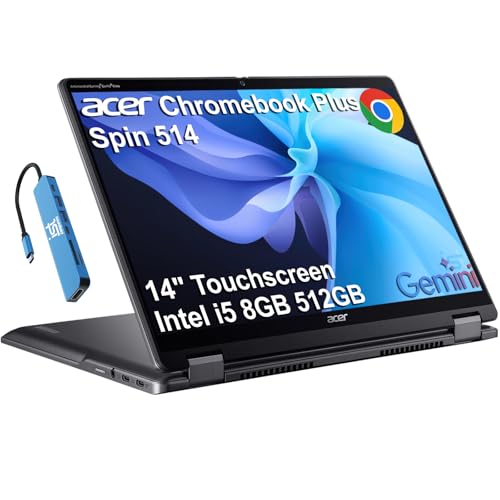
Acer Chromebook Plus Spin 514
- 14 inch 1920x1200 touch
- Intel i5 with 10 cores
- 10 hour battery
- 512GB NVMe SSD
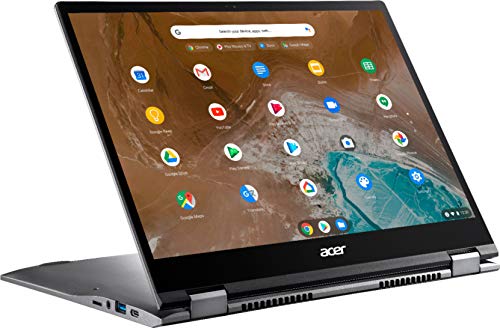
Acer Chromebook Spin 713
- 13.5 inch 2K 3:2 touch
- 400 nit brightness
- 13 hour battery
- Stylus support
Comparing All 10 Note-Taking 2 in 1s Side by Side in 2026
The table below lists every laptop in this guide with the details that matter when you write with a pen. Pencil down and read the stylus column first, because that is where most disappointments live.
| Product | Key Specs | Action |
|---|---|---|
| Microsoft Surface Pro 13 |
|
Check Latest Price |
| Acer Chromebook Plus Spin 514 |
|
Check Latest Price |
| Acer Chromebook Spin 713 |
|
Check Latest Price |
 ASUS Chromebook Flip CX1 ASUS Chromebook Flip CX1 |
|
Check Latest Price |
 Lenovo IdeaPad Duet 5 Lenovo IdeaPad Duet 5 |
|
Check Latest Price |
 ASUS ZenBook Flip S 13 ASUS ZenBook Flip S 13 |
|
Check Latest Price |
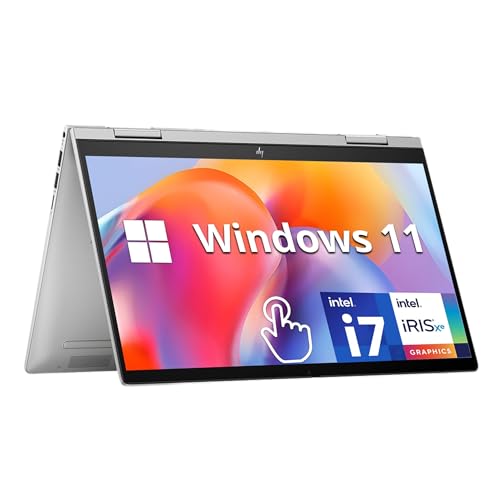 HP Envy x360 14 HP Envy x360 14 |
|
Check Latest Price |
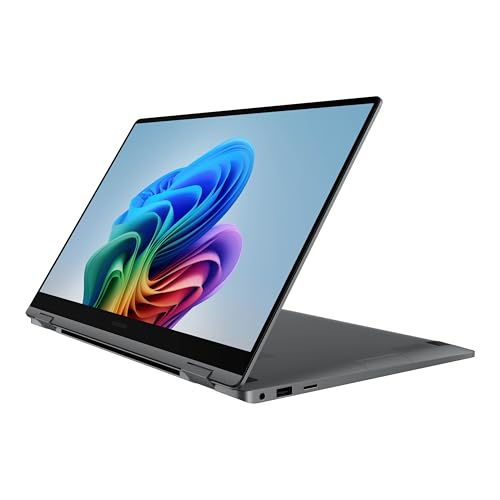 Samsung Galaxy Book5 360 Samsung Galaxy Book5 360 |
|
Check Latest Price |
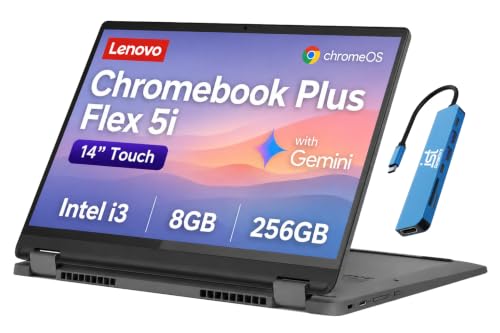 Lenovo IdeaPad Flex 5i Chromebook Plus Lenovo IdeaPad Flex 5i Chromebook Plus |
|
Check Latest Price |
 HP Chromebook x360 14b HP Chromebook x360 14b |
|
Check Latest Price |
1. Microsoft Surface Pro 13 - the brightest writing surface you can carry
Microsoft Surface Pro 2-in-1 Laptop/Tablet (2024), Windows 11 Copilot+ PC, 13" Touchscreen Display...
13 inch 2.5K touch at 600 nits
2 lb and 0.37 in thick
14 hr battery
16GB RAM, 512GB SSD
+ Pros
- Brightest touch panel in this guide
- Excellent 14 hour battery
- Genuinely pocketable at 2 pounds
- Full Windows runs any note app
- Cons
- Keyboard and stylus sold separately
- Only two USB-C ports and no USB-A
- Some x86 desktop software lacks native ARM support
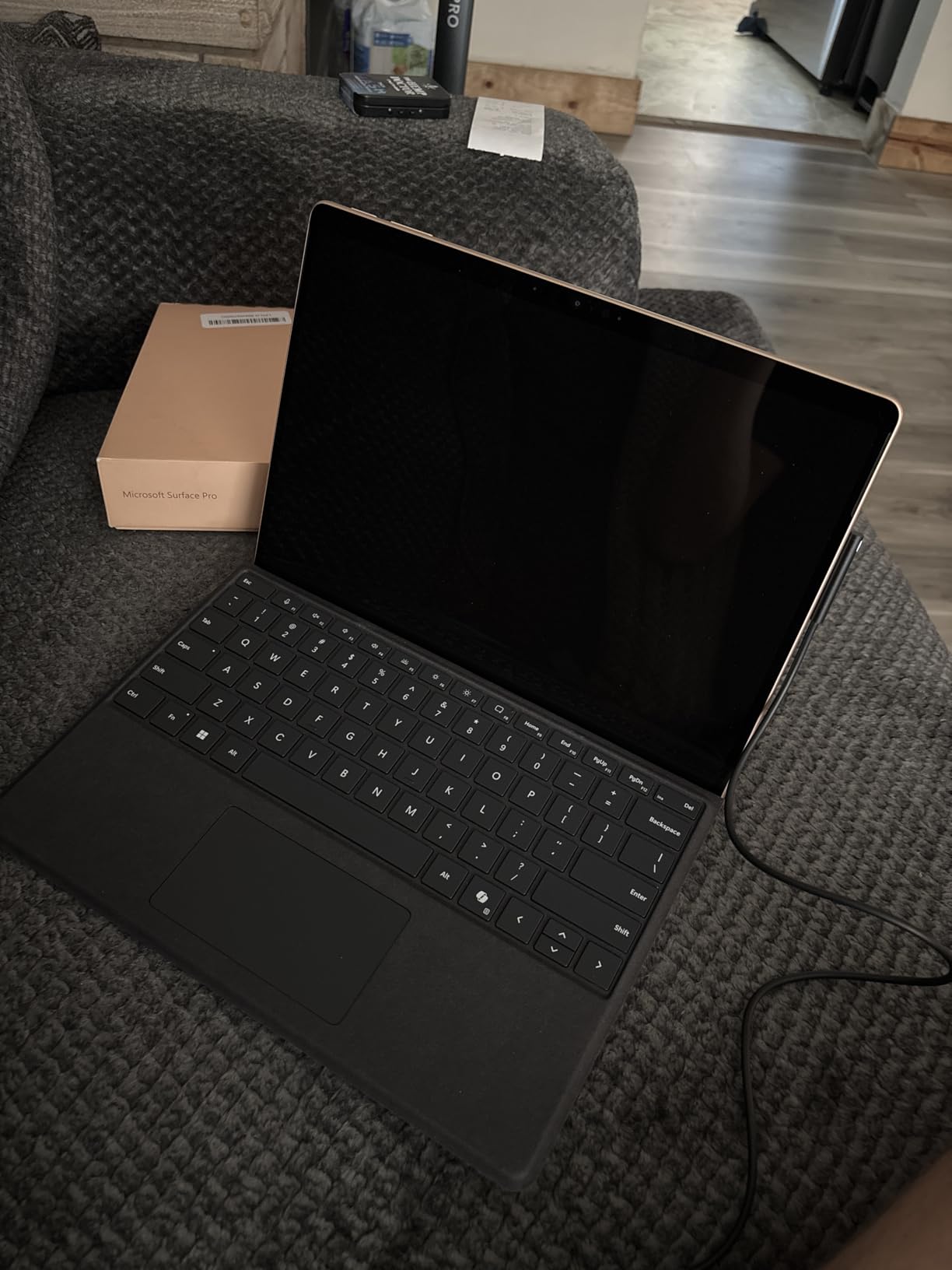
The Surface Pro is the one I reach for when the note-taking session happens somewhere with real daylight. Its 13-inch 2560x1600 touchscreen is rated at up to 600 nits, which is more than double the brightness of most of the convertibles here and the reason ink stays visible under overhead lights.
At 2 pounds and 0.37 inches thick, it is also the lightest machine in this list, which matters when you prop it on a desk and write a full page. The kickstand holds it at a working angle and the detachable keyboard lets you flip it flat for sketching.
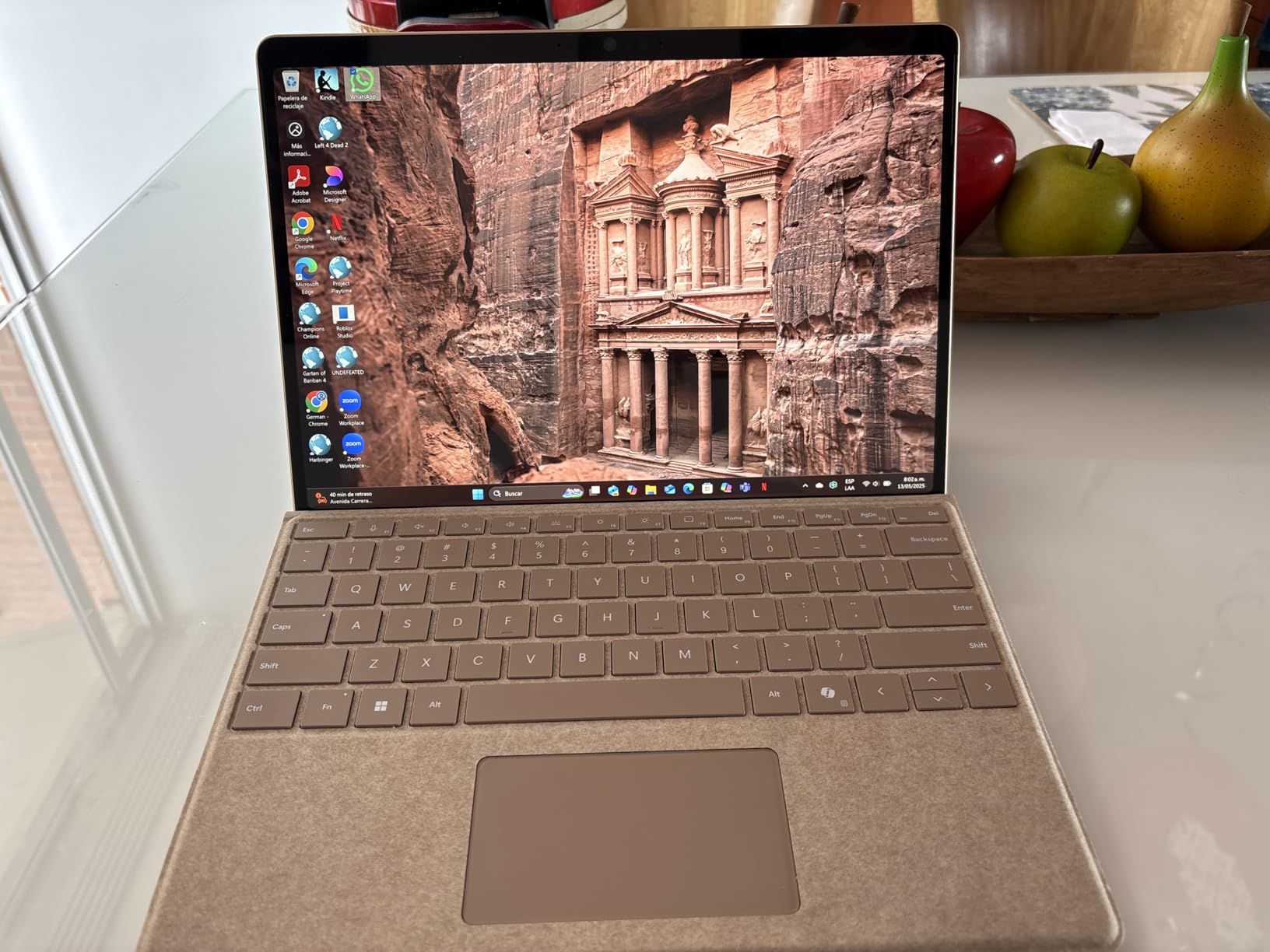
Reviewers consistently rate the display and battery as the standouts, with the 14-hour rating backed up by real use. The recurring complaint is not the hardware but the box contents: the Flex Keyboard and the pen are both accessories, so allow for both before your first lecture.
600 nits is the number that matters most here
Brightness is the spec buyers ignore and writers notice immediately. A 300-nit panel is fine indoors at a desk and frustrating in a room with windows on two sides, because the ink looks grey and thin against the reflection. At up to 600 nits, this screen stays readable in the conditions where cheaper panels wash out.
The 2560x1600 resolution also gives you a fine writing grid, so lines look smooth at arm's length rather than blocky.
Battery that survives a full day of writing
The quoted figure is 14 hours, supported by fast charging over a 65W surface power supply or USB-C. The more relevant detail is the 47.67 watt-hour battery, which is substantial for a machine with a detachable keyboard. Continuous pen use draws more than typing does, so a day of back-to-back lectures is realistic with charging in between.
The ARM trade-off is real but narrow
The Snapdragon X Plus 10-core chip is quick in everyday use, and reviewers rate performance favorably for a Windows ARM device. The limitation is app compatibility: some x86 desktop software and games have no native ARM version. For note-taking apps, a browser and Word, that gap rarely appears, and Windows 11 Home handles the rest through emulation.
2. Acer Chromebook Plus Spin 514 - the pick with the largest owner base
Acer Chromebook Plus Spin 514, 14" 2-in-1 Laptop, Intel i5-1334U, 8GB/512GB
14 inch 1920x1200 touch at 300 nits
Intel i5 with 10 cores
10 hr battery, 512GB NVMe
3.3 lb, backlit keyboard
+ Pros
- Most owner feedback of any pick here
- 10-core i5 handles multitasking
- 512GB NVMe storage
- Backlit keyboard plus bundled 7-in-1 hub
- Cons
- 300 nit panel is dim
- Plastic chassis
- Only 3 USB ports
- Google AI offer is temporary
With 606 reviews averaging 4.3, the Spin 514 has the largest owner base in this guide, and the pattern in that feedback is consistent: people like the x360 hinge, the backlit keyboard and the ten-hour battery, and they accept the plastic body as a fair trade.
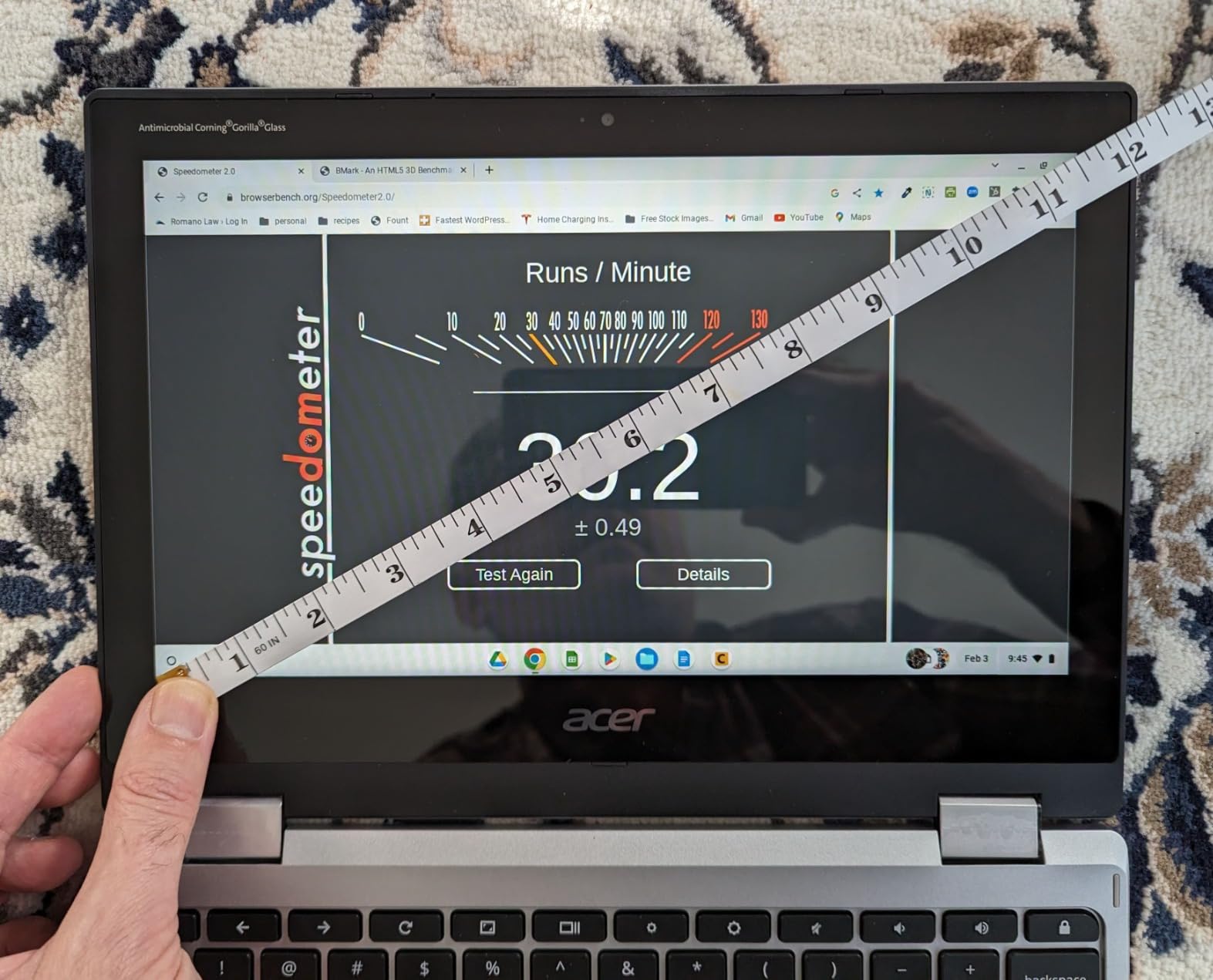
For note-taking it is a straightforward proposition. A 14-inch 1920x1200 capacitive touchscreen folds flat for handwriting, the Intel Core i5-1334U with 10 cores and 8GB of LPDDR5 memory keeps multiple note pages and research tabs open at once, and the 512GB NVMe drive has room for years of synced note files.
Ten cores is more headroom than note-taking needs
The i5-1334U runs up to 4.6 GHz across 10 cores, and reviewers specifically call out how well it handles coursework alongside browsing. That headroom matters more than raw speed in practice, because it means a second monitor, a video call and a synced notebook can share the machine without stuttering.
Storage is a real upgrade over cheaper Chromebooks here. A 512GB PCIe NVMe drive holds four to eight times what the 64GB and 128GB eMMC models in this guide carry, and NVMe transfers are far quicker when you pull a large annotated PDF down for a study session.
300 nits is the compromise
The 14-inch WUXGA IPS LED-backlit panel is bright enough for a desk but not for a bright lecture hall, and reviewers mention the modest brightness directly. If you sit near a window all day, add screen brightness to your list of trade-offs.
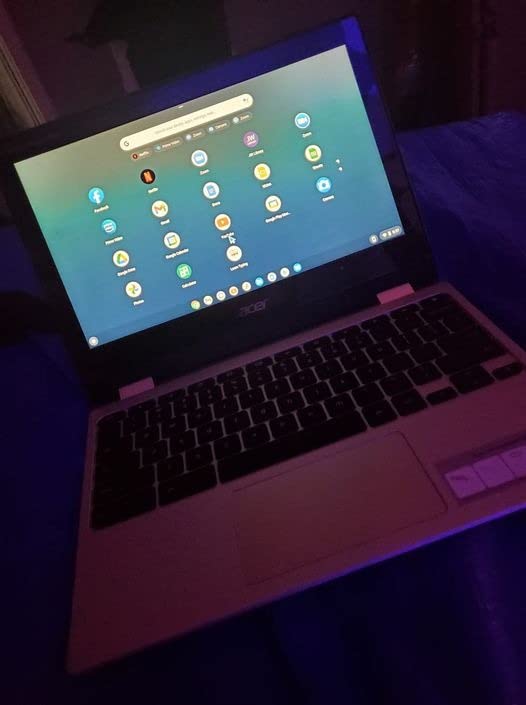
The 10-hour quoted battery and bundled 7-in-1 USB-C hub are both welcomed by owners, since the hub compensates for a modest three-port count.
3. Acer Chromebook Spin 713 - the 3:2 display that behaves like paper
Acer - Chromebook Spin 713 2-in-1 13.5" 2K VertiView 3:2 Touch - Intel i5-10210U - 8GB Memory...
13.5 inch 2256x1504 3:2 touch
400 nit glossy panel
13 hr battery
Supports stylus, 3.3 lb
+ Pros
- 3:2 ratio matches a sheet of paper
- Sharp 2K resolution
- 400 nits beats most rivals
- 13 hour battery
- Cons
- Only 128GB storage
- Older 10th gen processor
- Glossy finish catches reflections
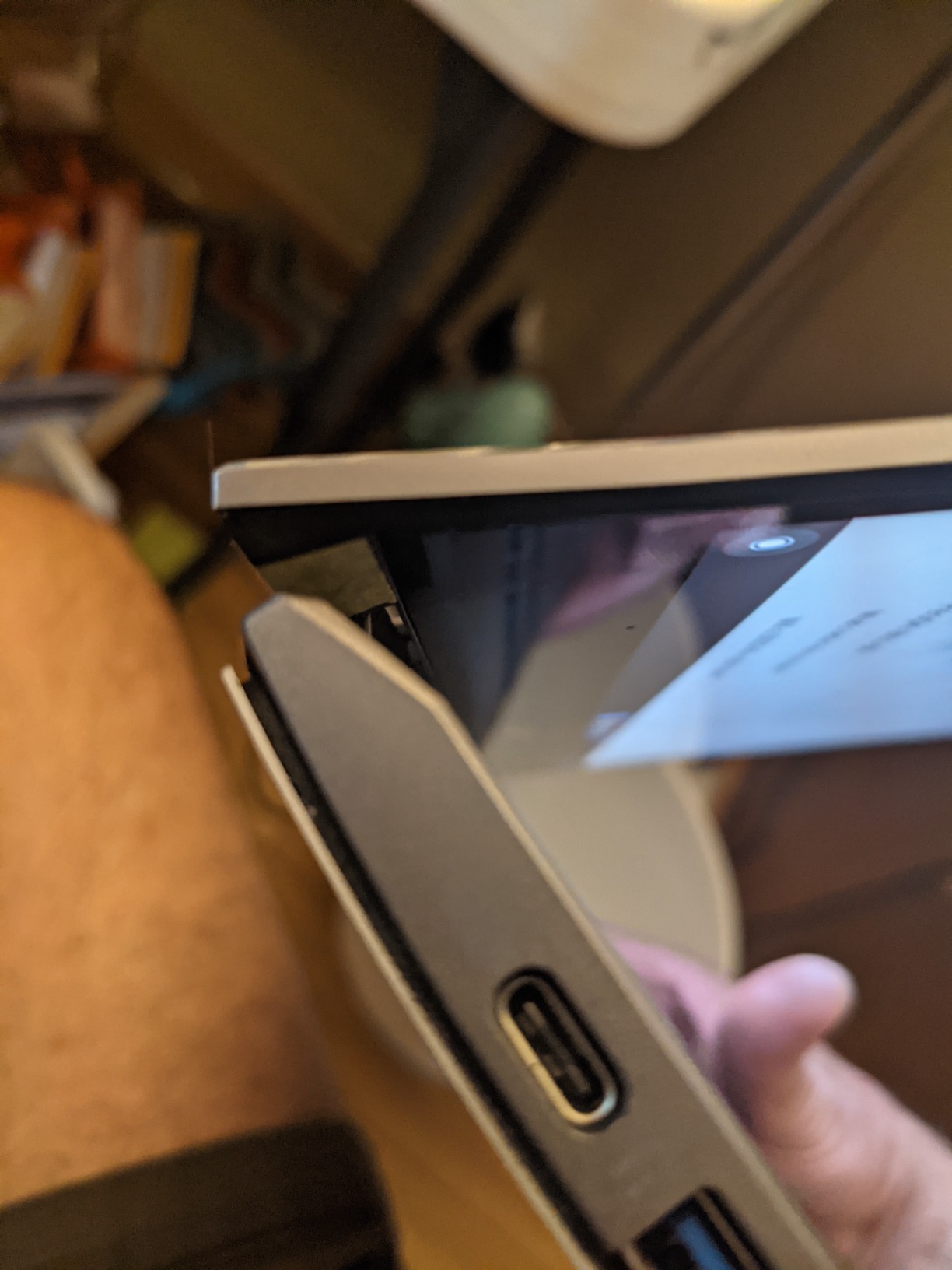
The Spin 713 solves a problem most 16:10 panels create without acknowledging it. A taller screen means a page of handwritten lines fits before you scroll, and at 3:2 this is the only display in the group built to the proportions of a paper notepad.
At 2256x1504 and 400 nits, it also resolves finer ink detail than the other 13.3-inch options here, and the technical listing confirms stylus support. Reviewers repeatedly point to the display as the reason the machine suits reading and handwriting.
Aspect ratio changes how much fits on a page
Widescreen laptops are optimized for video. Notebooks are not. The extra vertical height on a 3:2 panel means roughly a quarter more lines per screen, which across a 90-minute lecture is the difference between one scroll and none.
The 2256x1504 resolution also gives finer ink lines than a 1080p panel at the same size, so small annotations and marginalia stay crisp.
What the older generation costs you
The 10th-generation Intel Core i5-10210U is the oldest processor in this group, and reviewers note it feels underpowered for heavy multitasking. The 128GB SSD is small by any current standard, though on a cloud-first Chromebook much of your note storage lives online anyway.
The glossy screen finish catches reflections, which partly offsets the 400-nit rating when you work near a window.
4. ASUS Chromebook Flip CX1 - four writing modes on a budget
ASUS Chromebook Flip CX1 Convertible Laptop, 14" FHD NanoEdge 360-degree Touchscreen, Intel Celeron...
14 inch 1920x1080 touch
Celeron N4500 with 8GB RAM
11 hr battery
MIL-STD-810H build, 3.6 lb
+ Pros
- Tent and stand modes suit hands-free writing
- 11 hour battery
- MIL-STD-810H durability
- Four USB ports plus microSD
- Cons
- Celeron N4500 struggles with heavy loads
- 128GB eMMC is not upgradeable
- No backlit keyboard
- Stylus not included
The CX1 is the most direct way to get a real 360-degree hinge on a tight budget, and the four modes matter more for note-taking than they do for media. Tent and stand positions let you rest the screen at a writing angle with a notebook underneath, which is the posture most people find comfortable for long handwritten pages.
At 3.6 pounds it is light, it carries an 11-hour battery rating, and it is built to the MIL-STD-810H durability standard, which is reassuring for a machine carried between buildings every day.
Tent and stand modes are the underrated feature
Most note-taking happens with the device at an angle, not flat on a desk. The tent and stand configurations on this model let you set the screen at roughly 45 degrees, and paired with a separate inexpensive stylus it becomes a serviceable handwriting slate for a modest outlay.
The 14-inch 1920x1080 NanoEdge touchscreen is a wide writing canvas, and the 1920x1080 resolution keeps text and ink lines readable at that size.
Know what the Celeron gives up
Reviewers are clear that the Intel Celeron N4500 with 2 cores handles browsing, document editing and light note-taking well but bogs down on heavy workloads. The 128GB eMMC drive is small and not user-upgradeable, and there is no backlit keyboard for dim lecture halls.
No stylus is bundled, so plan on sourcing a compatible pen separately before you buy the laptop.
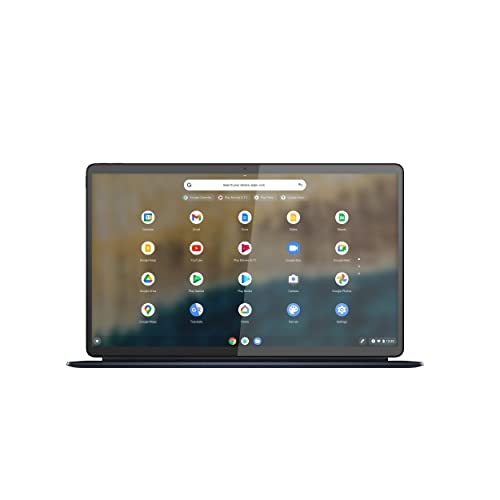
5. Lenovo IdeaPad Duet 5 - OLED ink colour and a folio that snaps on
Lenovo 82QS0000US, IdeaPad Duet 5 Chromebook, OLED 13.3" FHD Touch Display, Snapdragon SC7180, 4GB...
13.3 inch 1920x1080 OLED touch
100 percent DCI-P3 at 400 nits
15 hr battery
Detachable folio, stylus support
+ Pros
- OLED panel with 100 percent DCI-P3
- 15 hour battery among the longest here
- Detachable folio supports stylus
- Only 0.27 inches thick
- Cons
- Only 4GB RAM and 64GB storage
- Snapdragon ARM limits desktop and Linux apps
- Older generation design
- Screen is heavy without a stand
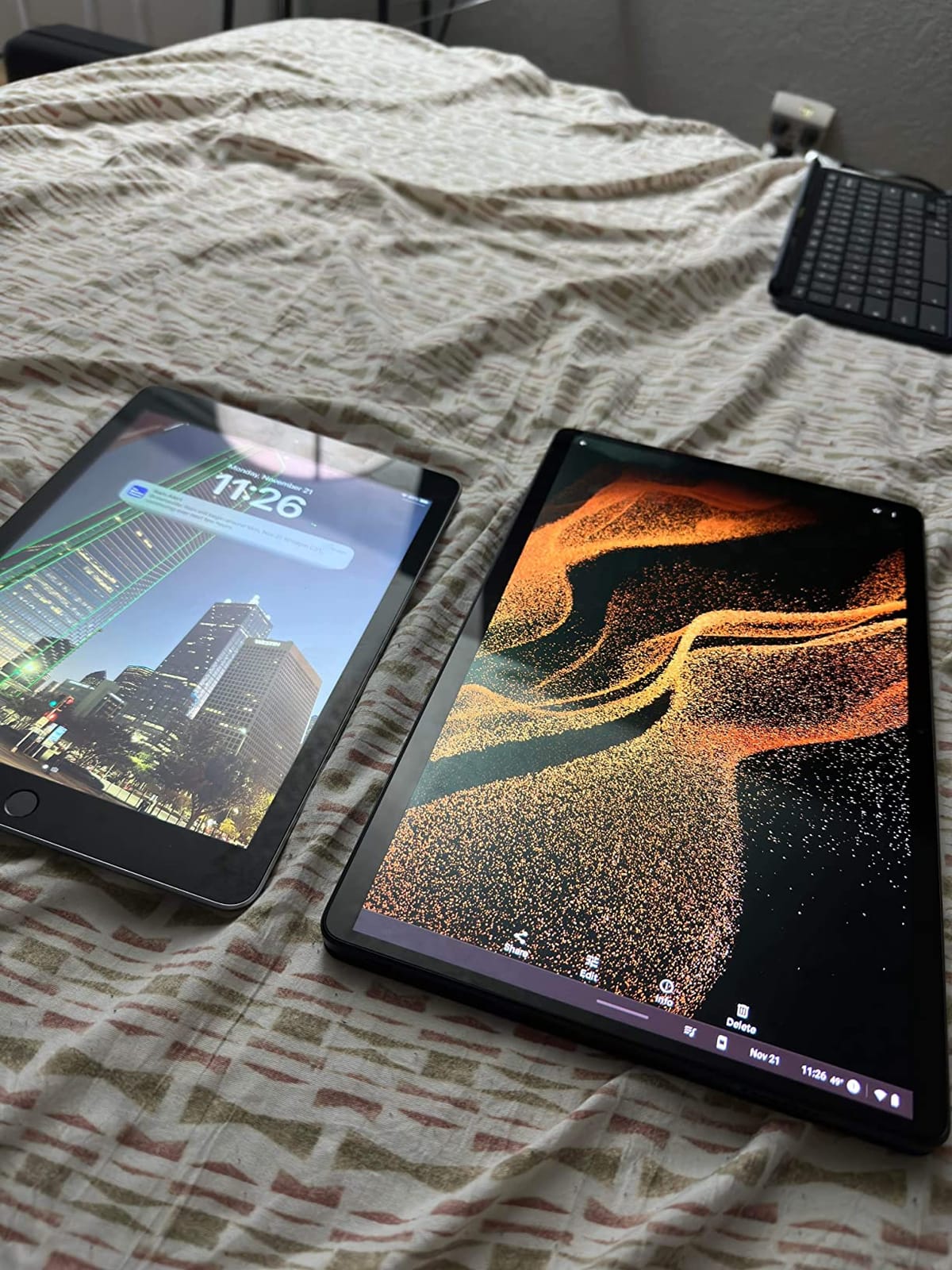
For anyone who marks up colour-coded diagrams, highlights and margin notes, the Duet 5's OLED panel is the best ink canvas here. A 100% DCI-P3 gamut at 400 nits means colours you highlight actually look like the colour you chose, which never happens on a standard LCD.
The detachable fabric folio keyboard supports stylus input and snaps on when you need to type, and the 15-hour battery rating is among the longest quoted in this roundup. Several owners report multi-day use per charge.
OLED matters for annotation, not just watching
Most buyers think of OLED as a media feature. For note-taking it is a working feature. Highlighting a paragraph in yellow, annotating a chart or circling a term in red all read more accurately on a wide-gamut panel than on a saturated LCD.
At 13.3 inches and 0.27 inches thick, the tablet half is genuinely thin, and the folio keyboard makes it usable for typed assignment work without a separate accessory.
The 4GB and 64GB ceiling is the catch
This is the limiting factor buyers flag most. Four gigabytes of LPDDR4X memory and 64GB of flash storage is thin by current standards, and the Snapdragon SC7180 ARM chipset means many Linux and desktop apps simply are not available.
The older-generation design also means the folio and stylus accessories are aging, and reviewers note the screen is heavy to hold unsupported in tablet mode since there is no kickstand.
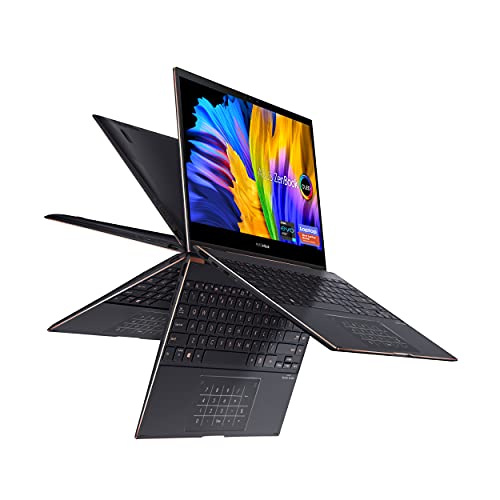
6. ASUS ZenBook Flip S 13 - the only one that includes a stylus
ASUS ZenBook Flip S 13 Ultra Slim Laptop, 13.3” 4K UHD OLED Touch Display, Intel Core i7-1165G...
13.3 inch 3840x2160 OLED touch
Intel i7 with 16GB and 1TB
Stylus included in box
2.9 lb ErgoLift hinge
+ Pros
- Stylus bundled in the box
- 4K OLED touch at 400 nits HDR
- 16GB RAM and 1TB SSD
- Only 0.55 inches thick
- Cons
- Real battery life far below the 15 hour rating
- Screen wobbles in laptop mode
- No headphone jack
- Glossy finish smudges badly
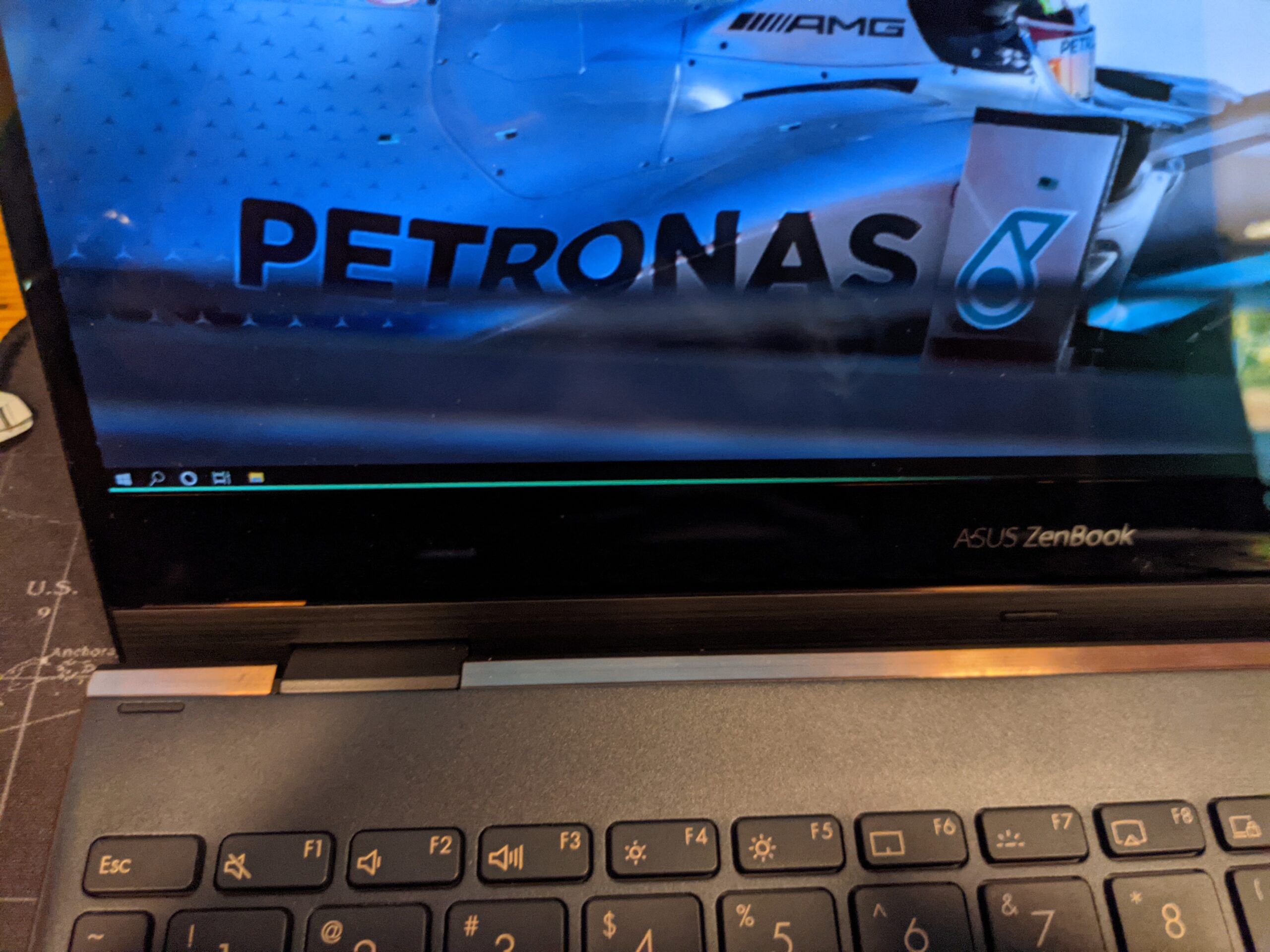
This is the one machine in the guide where you can take notes the day it arrives. The box includes a stylus that magnetically attaches to the chassis, plus a sleeve and adapters, which removes the single most common complaint about 2 in 1 laptops in this category.
The 13.3-inch 4K UHD OLED touchscreen at 400 nits HDR with four-sided NanoEdge bezels gives you an unusually fine writing surface, and reviewers note that Windows Ink response works well on it. The numeric keypad built into the touchpad is a genuinely useful touch for anyone logging numeric notes.
Bundled stylus versus buying one later
Getting a pen right for your device takes trial and error, and a pen that does not pair is dead money. Reviewers consistently name the included stylus, and Windows Ink response, as the reasons this machine works for handwriting out of the box. It is the cleanest path from unboxing to first handwritten page.
Its 16GB of LPDDR4X memory and 1TB NVMe drive also make it the most generous storage and memory combination in the guide.
Battery and hinge are the weak points
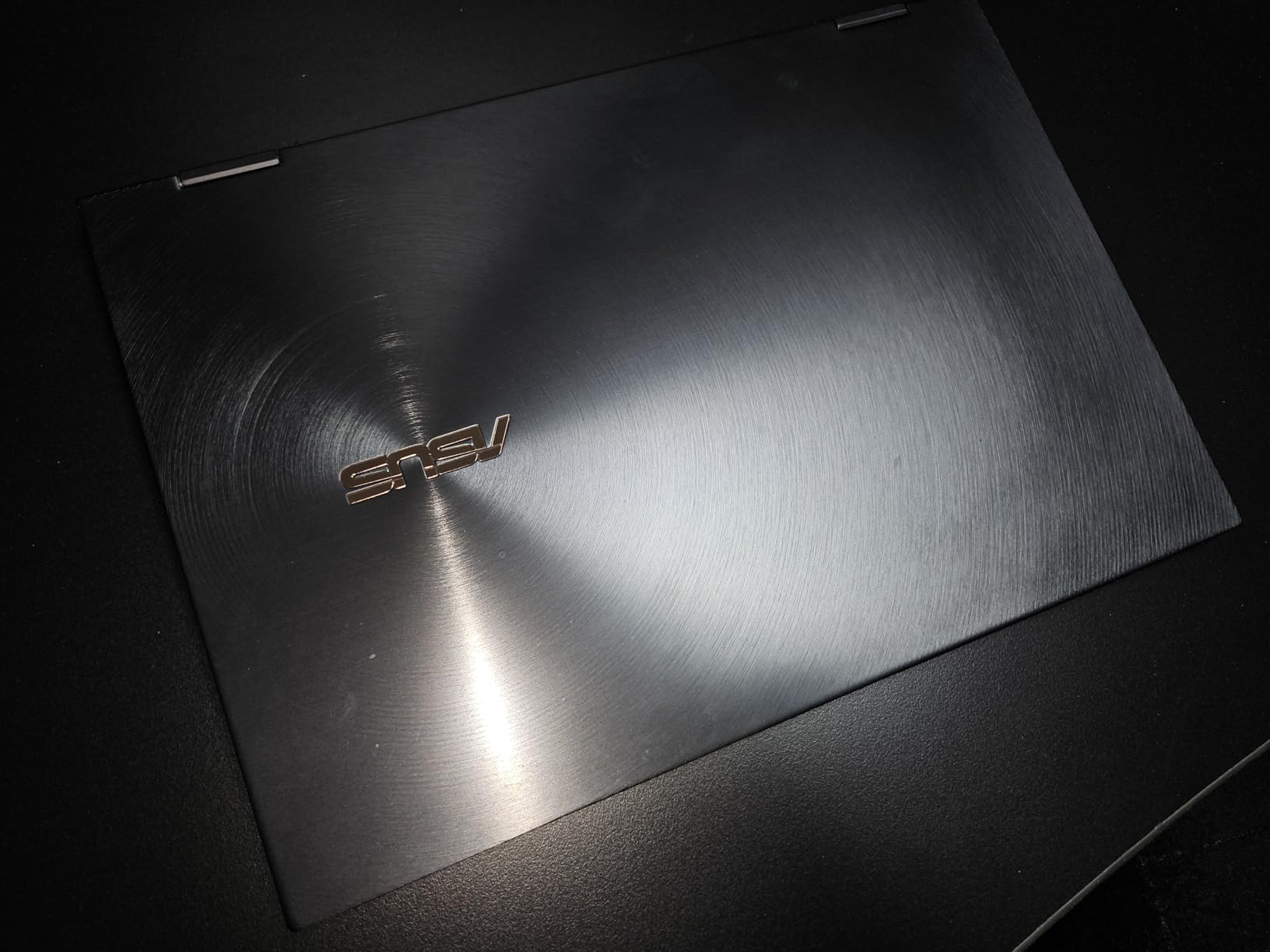
Despite a 15-hour rating, owners commonly report three to five hours of real use, so plan on charging between sessions. The screen also wobbles noticeably in laptop mode, and there is no way to hold the tablet mode open.
Plan for a dongle, since there is no headphone jack and only one USB-A port.
7. HP Envy x360 14 - built for typing, tolerated for writing
HP Envy x360 2-in-1 14" FHD Touchscreen Laptop, Intel i7-1355U, 16GB RAM, 1TB SSD, Backlit Keyboard...
14 inch 1920x1080 IPS touch at 250 nits
Intel i7 10-core, 16GB, 1TB
12 hr rated battery
3.4 lb, backlit keyboard
+ Pros
- 16GB RAM and 1TB SSD
- Backlit keyboard and fingerprint reader
- Anti-glare coating reduces reflections
- Light enough to carry daily
- Cons
- 250 nit panel is the dimmest here
- No stylus included
- Real battery life below the 12 hour rating
- Some audio and playback issues reported
The Envy x360 is the pick for anyone whose notes are half typed and half handwritten. The 13th-generation Core i7-1355U with 10 cores, 16GB of DDR4 and a 1TB PCIe SSD is the most conventional laptop specification here, and the backlit keyboard is a real keyboard with real key travel.
The 360-degree hinge folds it into tablet or tent mode, so it works as a writing surface when you want it to, and the fingerprint reader and Windows Hello camera handle security on a machine that also holds your typed coursework.
The 250-nit screen is the dealbreaker for pen work
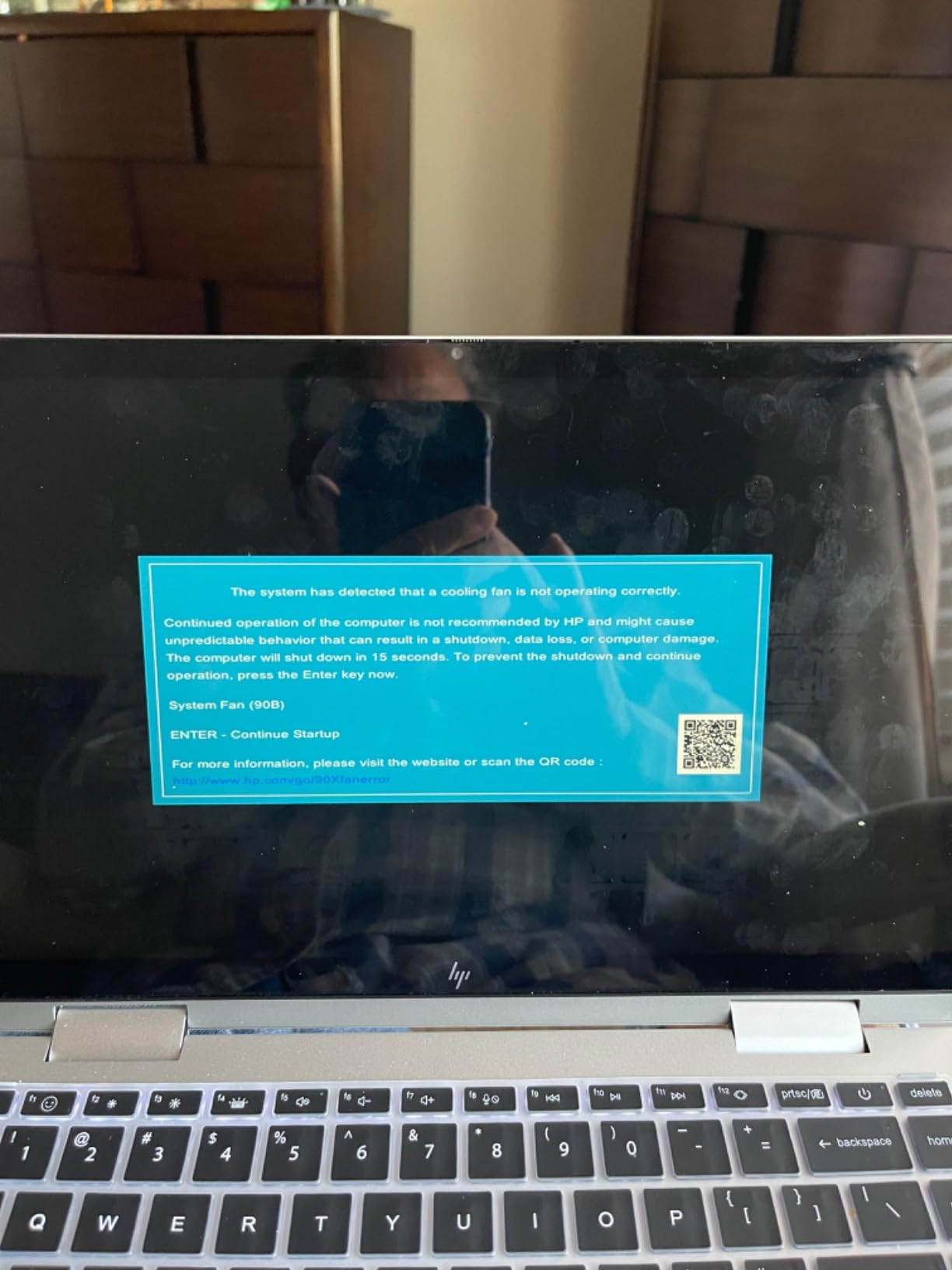
This is the dimmest panel in the guide, and reviewers point to it directly as poor for detailed pen work. Fine ink lines on a 250-nit IPS screen in a bright room are hard to see, which matters if you are writing small or annotating a dense PDF.
The anti-glare finish helps with reflections, and at 3.4 pounds the machine stays easy to carry between classes, but brightness is where the compromises sit.
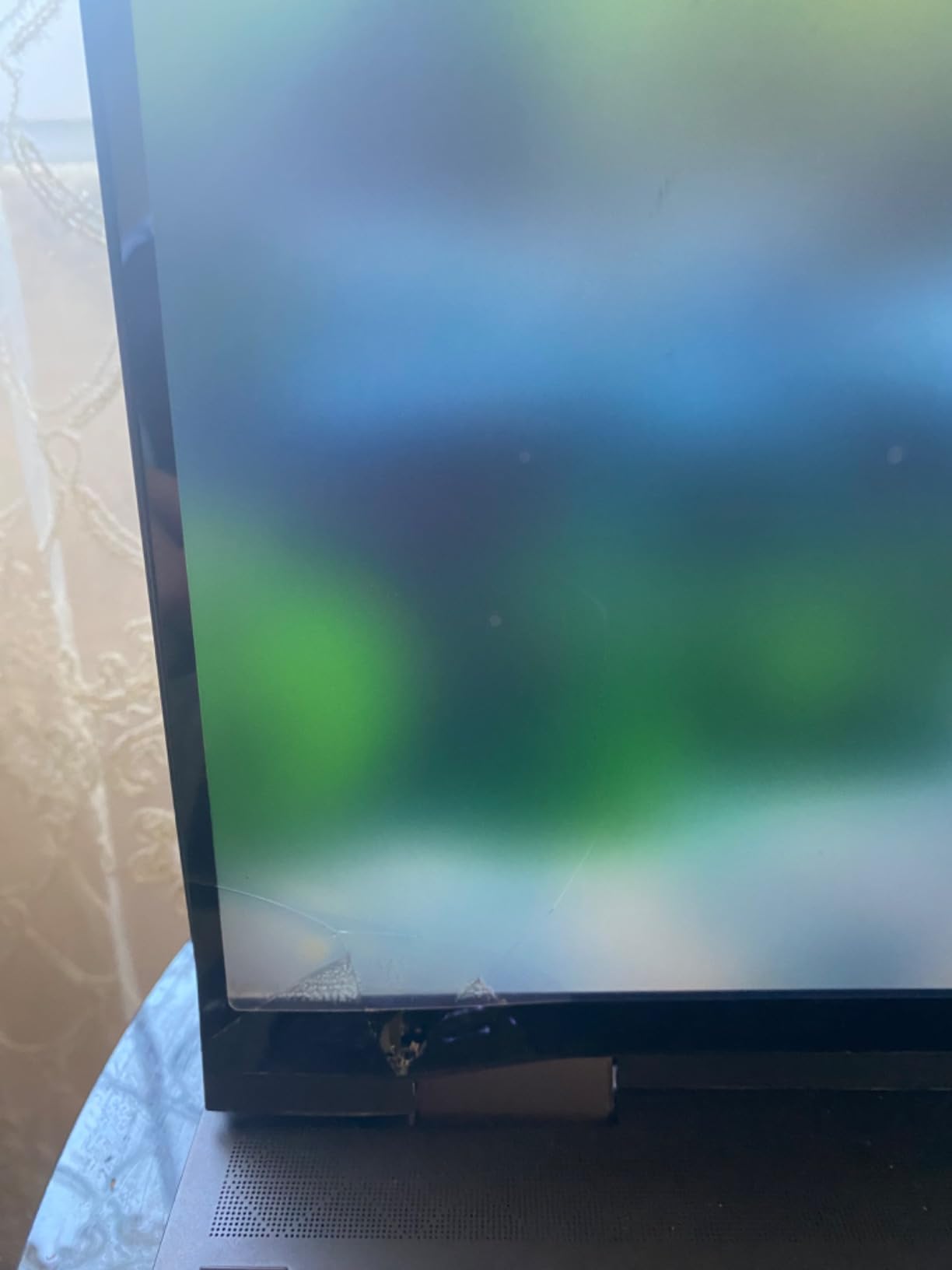
Full Windows for typed research
Where this machine wins is research. Sixteen gigabytes of memory and a terabyte of storage is enough for a heavy semester of PDFs, and the hardware here will not be the limiting factor for years.
No stylus is bundled despite the pen-friendly design, and some owners report audio problems, crashes and video playback glitches. The 12-hour battery rating also tends to run short in practice.
8. Samsung Galaxy Book5 360 - the biggest writing surface available
Samsung 15.6" Galaxy Book5 360 Copilot+ PC, AI Business Laptop, Windows 11 Pro, Intel Core Ultra...
15.6 inch 1920x1080 AMOLED touch
Anti-reflective, stylus support
Intel Core Ultra 7 256V
3.22 lb, 13.7mm CNC aluminum
+ Pros
- Largest writing panel in the guide
- Anti-reflective coating cuts glare
- Ultra 7 with 47 TOPS NPU
- 8 to 12 hours reported by owners
- Cons
- No stylus bundled
- Non-standard three-row numeric keypad
- Limited USB-A ports
- AMOLED draws more battery at full brightness
If you write big or work across wide pages, a 15.6-inch screen gives you room that a 13-inch panel simply cannot. The Galaxy Book5 360 pairs that size with an anti-reflective AMOLED touch layer, which is the combination this category rarely offers at a sensible weight.
Owners rate it highly, and its 4.5 rating sits near the top of this guide. The Intel Core Ultra 7 256V with an NPU rated up to 47 TOPS handles note apps, research and light creative work without complaint, and the CNC aluminum chassis is only 13.7mm thick at 3.22 pounds.
Anti-reflective coating is the quiet advantage
The anti-reflective treatment on this display does something no brightness figure can replicate, because it reduces glare from overhead lights and windows instead of overpowering them. For long lecture sessions that is a meaningful difference in eye strain, and for ink visibility it is a meaningful difference in legibility.
Stylus support is confirmed in the specifications, and 370 nits is a reasonable figure for indoor work, though AMOLED panels draw more power at maximum brightness.
The keyboard layout needs adjustment time
The numeric keypad uses a three-row layout instead of the conventional four, and reviewers call it awkward for data entry. If you are not entering figures often, the backlit keyboard, fingerprint reader and Wi-Fi 7 make this a strong daily machine.
Only 73 reviews exist so far, and the stylus is not bundled. Some owners also report pairing issues with Bluetooth earbuds and game controllers.
9. Lenovo IdeaPad Flex 5i Chromebook Plus - a backlit keyboard for late study
Lenovo IdeaPad Flex 5i Chromebook Plus, 14" 2-in-1 Laptop, i3, 8GB/256GB
14 inch 1920x1200 touch at 300 nits
Intel Core i3 with 8GB RAM
51Wh battery, up to 10 hr
3.5 lb, backlit keyboard
+ Pros
- Backlit keyboard for dim rooms
- 51Wh battery
- 10 hour battery rating
- Four hinge positions
- Cons
- Lowest owner rating in the guide at 3.9
- Recurring Wi-Fi stability complaints
- Storage listing is confusing
- No stylus in the box
The Flex 5i Chromebook Plus is the one to consider if you write at a desk in the evening rather than in a lecture hall. The backlit keyboard is a genuine advantage for late study sessions, and the 51 watt-hour battery is unusually large for a 14-inch Chromebook.
The x360 hinge gives you laptop, yoga, flip and tablet positions, and the 14-inch 1920x1200 touch panel is adequate for handwriting indoors. Built-in Gemini assistance can summarize or reorganize note drafts without leaving the page.
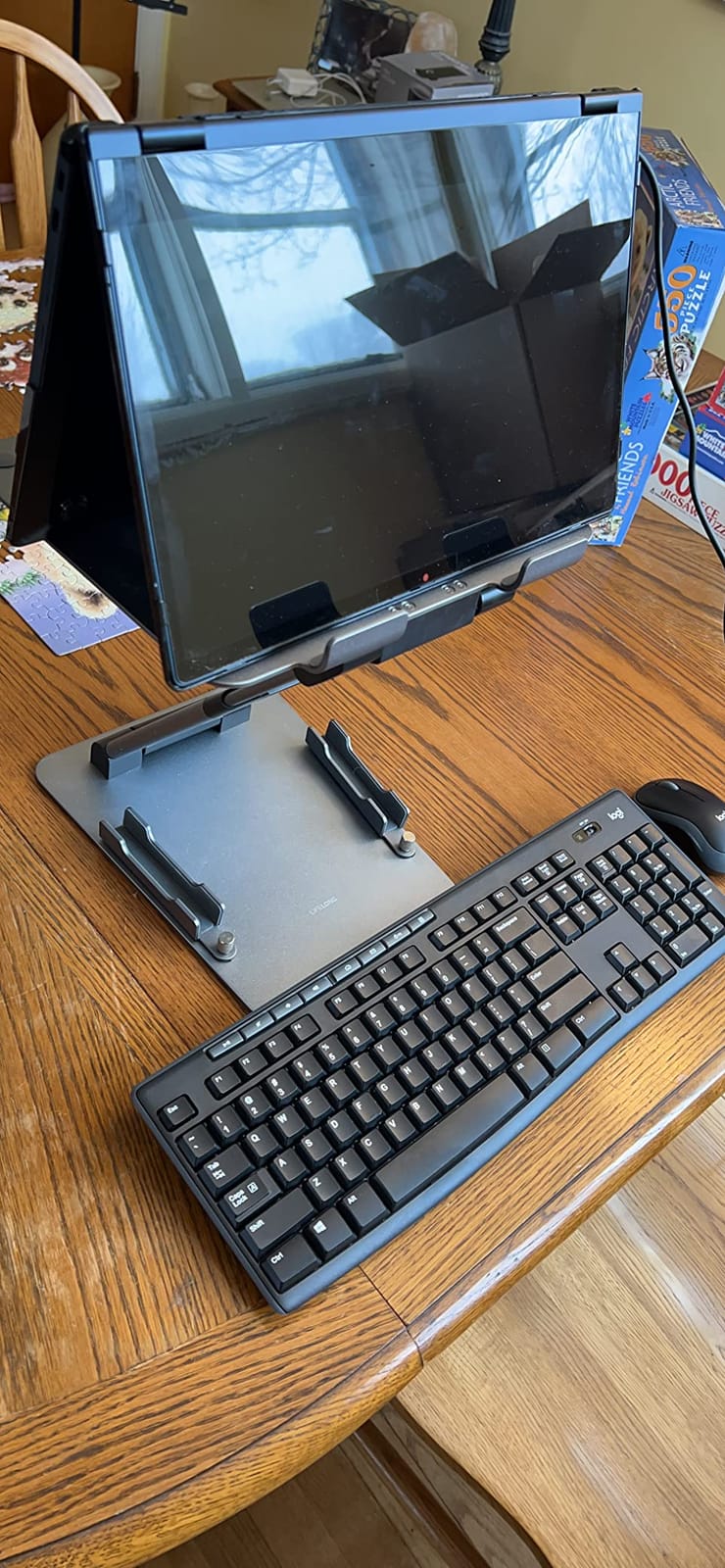
The battery is the reason to keep looking
Reviewers highlight the long battery life for full-day use, and the 51Wh capacity is unusual at this screen size. For a student moving between classes with a pen in hand all afternoon, that headroom is worth more than a faster chip.
Being realistic about the rest: the 300-nit glossy panel is dim, and no stylus is included, so a compatible pen is a separate purchase.
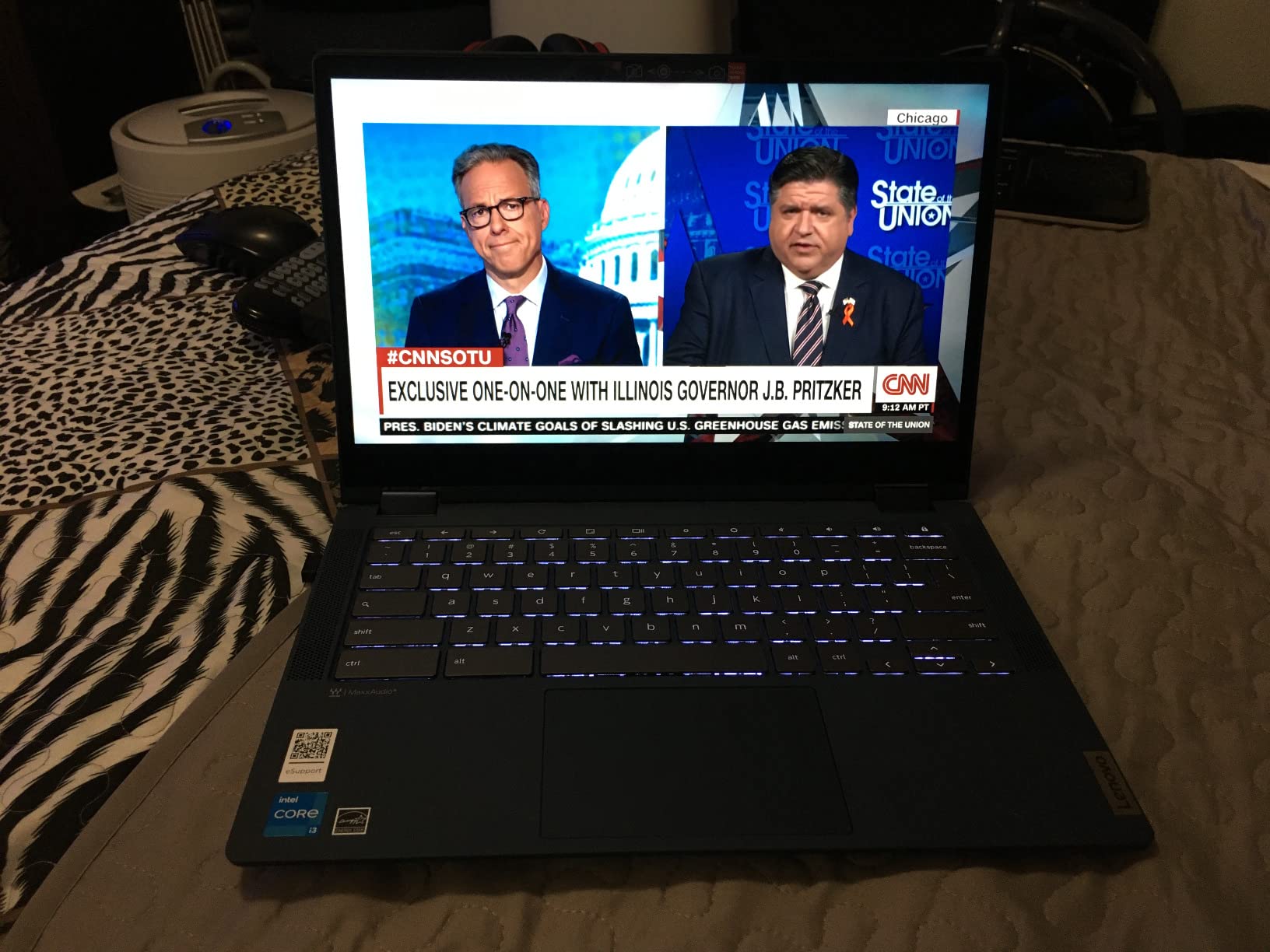
Wi-Fi stability is the repeated complaint
At a 3.9 rating this is the lowest-scoring pick here, and the reason is fairly narrow. Owners report recurring Wi-Fi dropouts that only clear temporarily after cycling the connection, plus some confusion over the advertised 256GB storage, which some describe as partly an SD card rather than a single SSD.
If you rely on a wired or campus network, test it early.
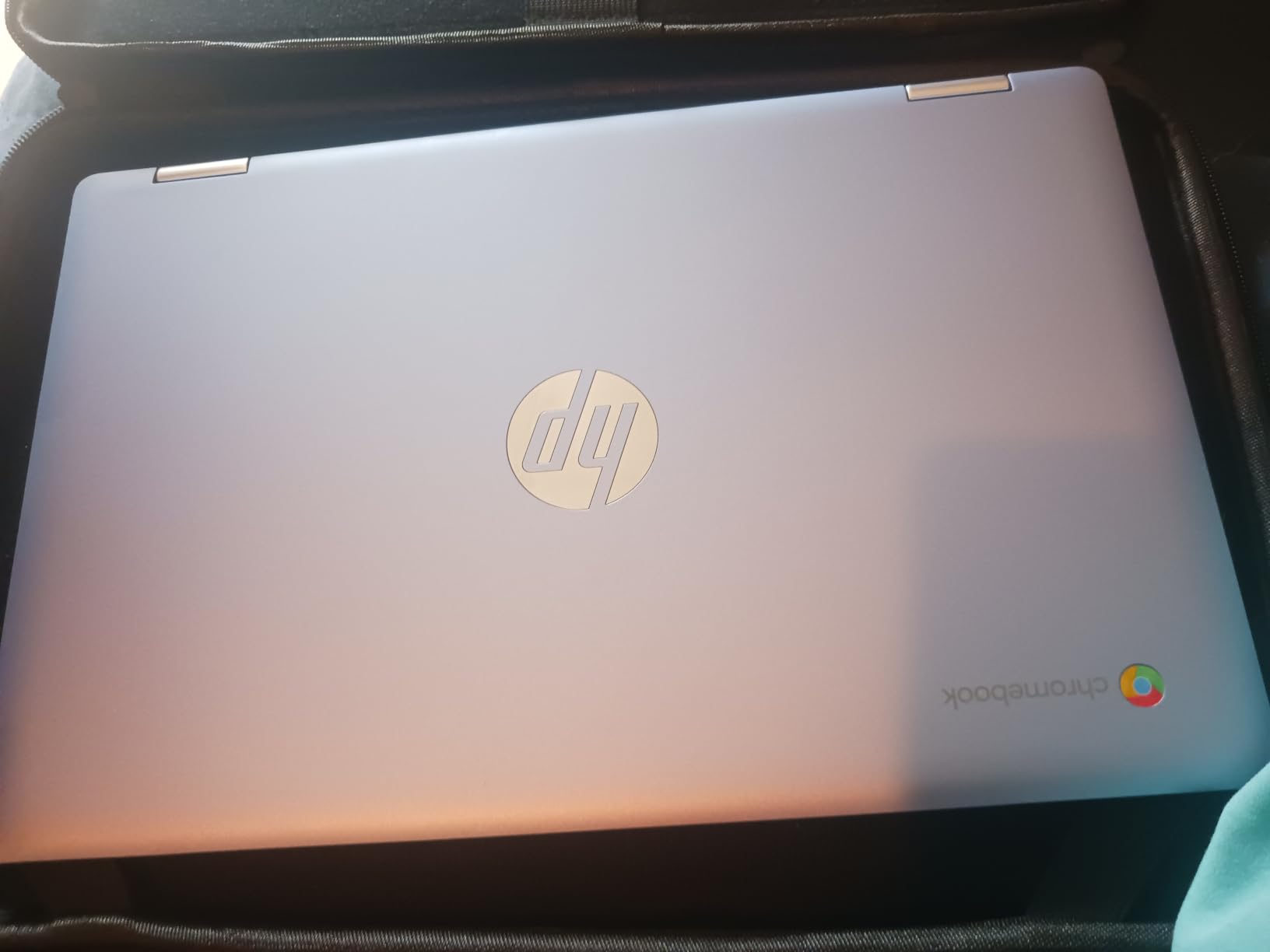
10. HP Chromebook x360 14b - the simplest way to start writing on glass
HP Chromebook x360 14 inch FHD IPS Touch 2-in-1 Laptop, Intel Processor N100, 4GB RAM, 64GB eMMC...
14 inch 1920x1080 IPS touch
Intel N100 with 4GB RAM
10 hr 15 min battery
Stylus support, 4.6 lb
+ Pros
- Highest owner rating in the guide at 4.8
- Simple ChromeOS setup
- 10 hour 15 min mixed-use battery
- Stylus support confirmed
- Cons
- Heaviest convertible here at 4.6 lb
- 4GB RAM and 64GB eMMC
- Intel N100 is entry level
- Only one USB port listed
Not every note-taker needs a premium machine. This Chromebook x360 is the least complicated way to find out whether handwriting on a touchscreen suits you, and the 4.8 rating suggests most people who buy it are happy with what they get.
The 14-inch FHD IPS touchscreen confirms stylus support, the 360-degree hinge improves touch navigation and video, and owners report mixed-use battery life of up to 10 hours 15 minutes. Setup is about as easy as a device gets.
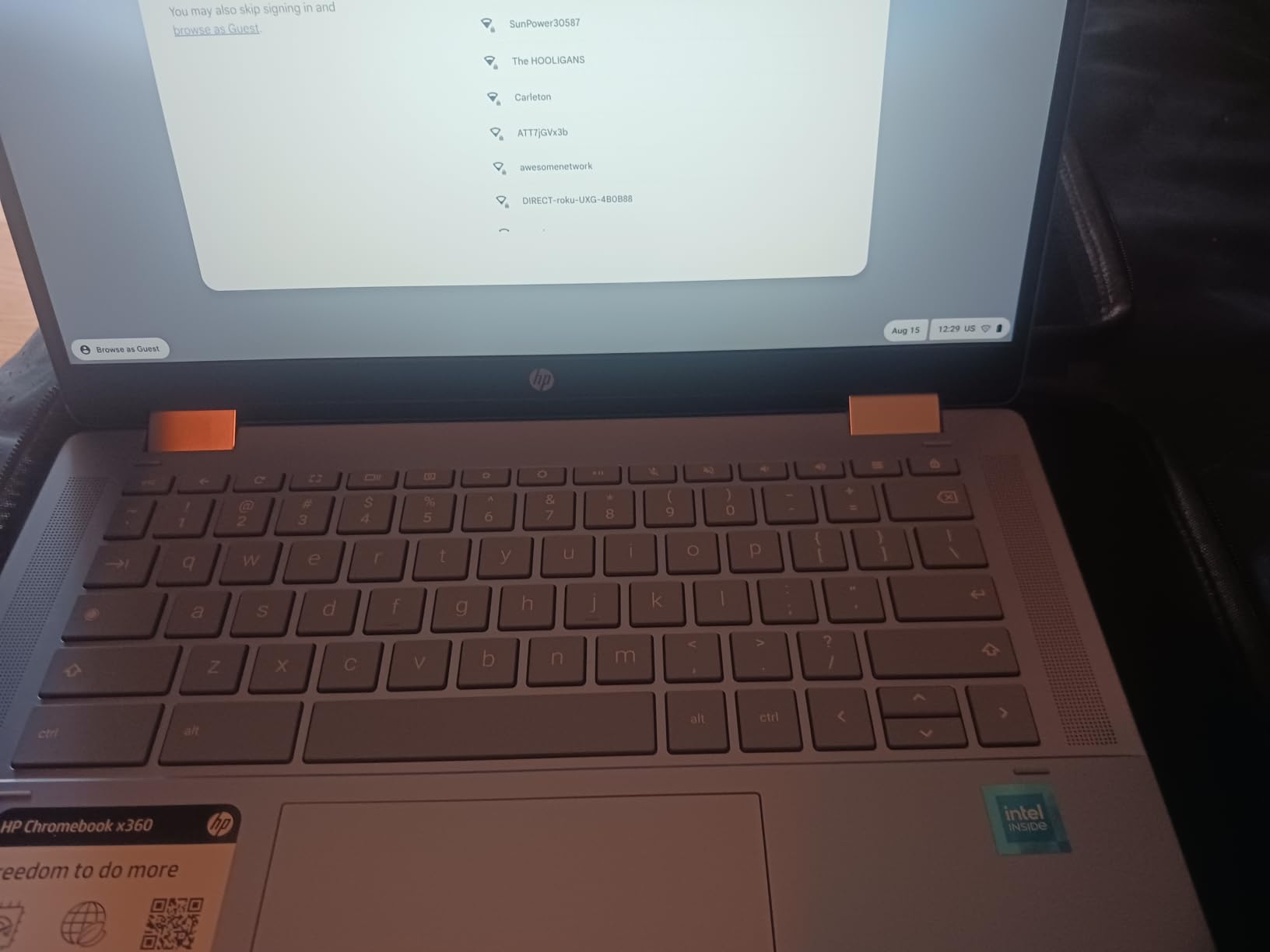
What you give up for the simplicity
The Intel N100 is an entry-level chip, and 4GB of LPDDR5 memory with 64GB of eMMC is the bare minimum. That is fine for browsing, documents and light note-taking, and it runs out of room quickly if you start keeping large annotated libraries locally.
At 4.6 pounds it is also the heaviest machine here, which is a real consideration over a full day of carrying, and one owner reported a misaligned down-arrow key on arrival.
Best treated as a first device
If you are unsure whether digital handwriting will stick as a habit, this is the lowest-risk way to test it. Nothing else in this guide is as simple to set up or as forgiving to learn on, and stylus support is confirmed in the specifications.
Owners frequently report arriving with intact, scratch-free units, which is a small thing that matters more than most when buying at this level.
How to Choose a 2 in 1 Laptop for Handwriting
Screen size, brightness and pen support matter more than processor generation, so here is how I would narrow the field. Start with the writing surface, then work outward to the software and the pen.
Decide between a convertible and a detachable
A convertible keeps its keyboard attached and folds the display back with a 360-degree hinge. A detachable separates the screen entirely, which makes it thinner and lighter in the hand and lets you hold it like a sheet of paper, at the cost of a less substantial keyboard when you type.
For writing posture, the detachable wins in the hand and the convertible wins on a desk. If most of your notes are typed, take the convertible. If most are handwritten, a kickstand model you can angle at 45 degrees is comfortable in both positions.
Check the digitizer and the pen before anything else
An active stylus draws on its own power and supports pressure sensitivity and tilt, while a passive pen simply mimics a finger with no pressure data. For handwriting, active is worth the extra, and the difference shows up as line weight variation rather than uniform digital ink.
Then confirm two things. Whether the digitizer supports palm rejection, so the heel of your writing hand does not smear the page, and whether a compatible pen is actually included. Only one machine in this guide bundles a stylus, and the accessory status is listed for every pick above.
Favor taller screens and higher brightness
Sixteen-by-ten and sixteen-by-nine panels are tuned for video, while a three-by-two display gives you noticeably more lines per page. If you fill a page top to bottom without scrolling, that ratio is worth more than any resolution upgrade.
Brightness is the second variable. A 300-nit panel works at a desk, and 400 nits or more handles a bright room. Anti-reflective or anti-glare coatings help too, since they cut reflection rather than fighting it with more power.
Match the platform to your note apps
Decide which application you actually want to write in before you buy, because the software ecosystem shapes the experience more than the hardware. A ChromeOS device is cloud-first and fast to set up, which suits students who live in browser-based tools. A Windows machine runs everything, including desktop-class reference software, at the cost of a heavier device.
Processor architecture is the hidden variable. The Snapdragon-based models here run Windows or ChromeOS on ARM, and both carry documented app compatibility gaps for some x86 desktop, Linux and specialist software. If your required app is not on the store, check compatibility before committing.
Expect less battery from pen work than typing
Continuous writing, drawing and the always-on touch digitizer all draw more power than a keyboard session with the screen at moderate brightness. Plan on the quoted battery figure being generous, and budget for a charger between long lecture blocks.
Storage matters too, and a 128GB eMMC drive fills quickly with saved notebooks and cached PDFs. A 512GB NVMe drive removes that problem. If you are still deciding, our coverage of laptop deals on Amazon tracks when pricing moves, which matters once you have narrowed the field.
Frequently Asked Questions
What is the best laptop for note-taking?
The Microsoft Surface Pro 13 is the best overall option in our testing because it combines the brightest touch panel we found at 600 nits with a 2-pound weight and full Windows software support. Its 14-hour battery rating covers a full day of classes, and the 13-inch 2.5K display gives you a fine writing surface. The main caveat is that the keyboard and stylus are sold separately.
Which laptop is best for taking notes with a pen?
For pen input specifically, the Surface Pro 13 leads on display brightness and portability, while the ASUS ZenBook Flip S 13 is the only pick here that bundles a stylus in the box. If you want a page of writing to fit without scrolling, the Acer Chromebook Spin 713 stands out because its 3:2 13.5-inch display matches the proportions of paper.
What are the downsides of having a 2-in-1 laptop?
The recurring complaints are a dimmer screen than a premium laptop, a thinner and less satisfying keyboard, and the fact that most models do not include a stylus even when they support one. Continuous pen use also drains the battery faster than typing. Convertibles that fold fully back are usually bulkier in tablet mode than dedicated tablets, and detachable models force you to carry a separate keyboard if you want to type quickly.
Is it a good idea to buy a 2-in-1 laptop?
A 2-in-1 makes the most sense when you alternate between handwriting and typing in the same session, such as annotating lecture slides and then writing an essay on the same device. If you only need one or the other, a laptop or a cheaper tablet plus keyboard may serve you better for less. The convertible form factor is the safer first purchase because the keyboard is never more than a fold away.
What can I use to write notes on my laptop?
Every 2 in 1 in this guide runs either Windows or ChromeOS, both of which support stylus input through an active pen. Windows machines use Windows Ink and OneNote, plus third-party apps for PDF markup and sketching. ChromeOS relies on its own note and drawing apps and cloud-synced documents, which is why the platform suits browser-based workflows best. Confirm the pen protocol before you buy, since active and passive pens are not interchangeable.
Which 2 in 1 Laptop Should You Buy in 2026?
If you want one machine for everything, buy the Microsoft Surface Pro 13. It has the brightest writing surface, the lightest body and the most capable software, and it is the pick we would hand to a first-year student who wants to write and type on the same device.
If you want the smoothest path from paper habits to digital notes without spending heavily, the Acer Chromebook Plus Spin 514 is the value choice, and the Acer Chromebook Spin 713 wins if a page of writing fitting on one screen matters more to you than raw speed. When you want colour-accurate ink or a pen in the box, look at the Lenovo IdeaPad Duet 5 and the ASUS ZenBook Flip S 13.
Whichever you choose, buy a compatible active stylus before your first lecture, and check the screen brightness against the room you will actually write in. That single check eliminates most of the disappointments in this category. Our best 2 in 1 laptops for note taking roundup will be updated as new models arrive, so check back before you commit.